If you previously played Palworld in single-player or local co-op, you can transfer your existing world data to your dedicated server so everyone can continue playing together.

The server itself becomes the new “host.”
Before transferring, the host player should store all items and Pals in storage to avoid losing progress.
You can access your Palworld save files directly from the game.
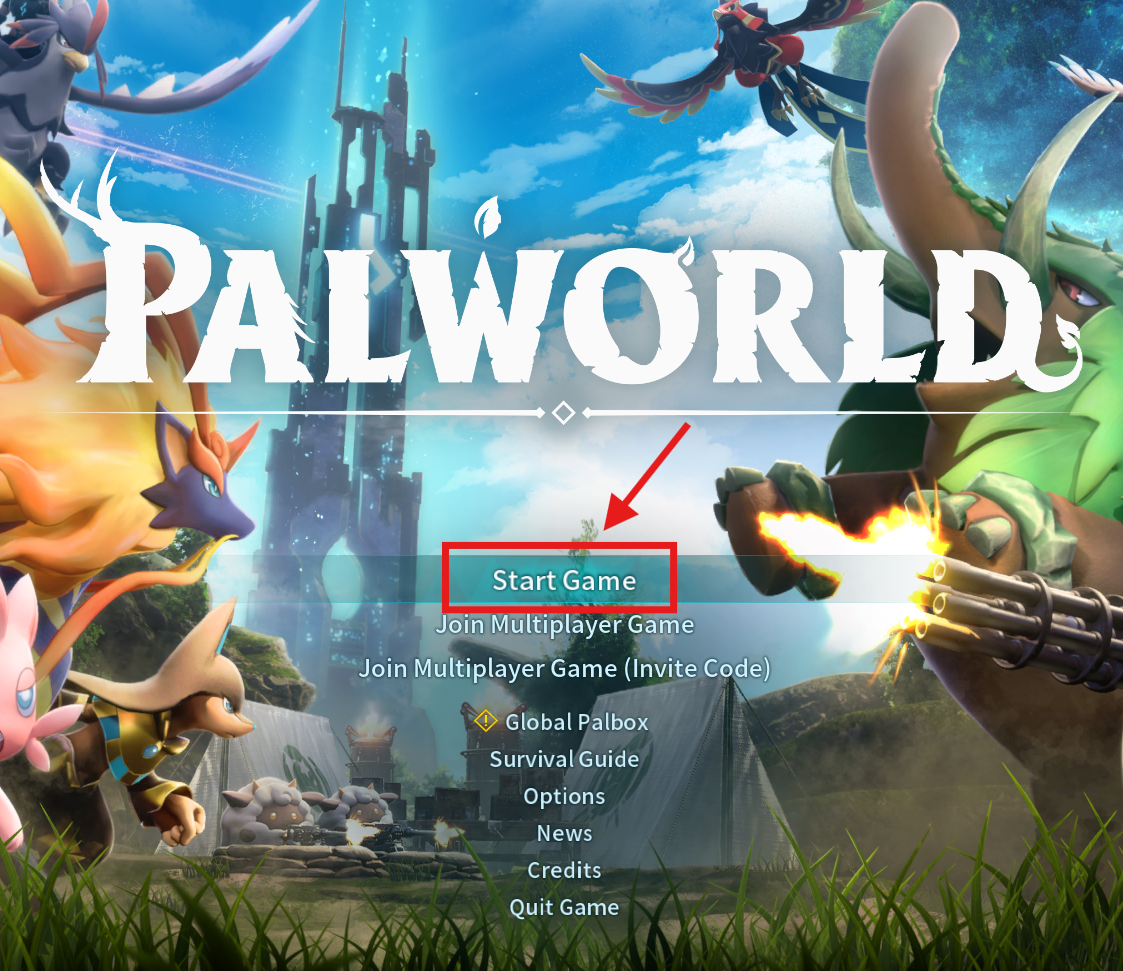
Launch Palworld.
Click "Start Game" to view your world list.
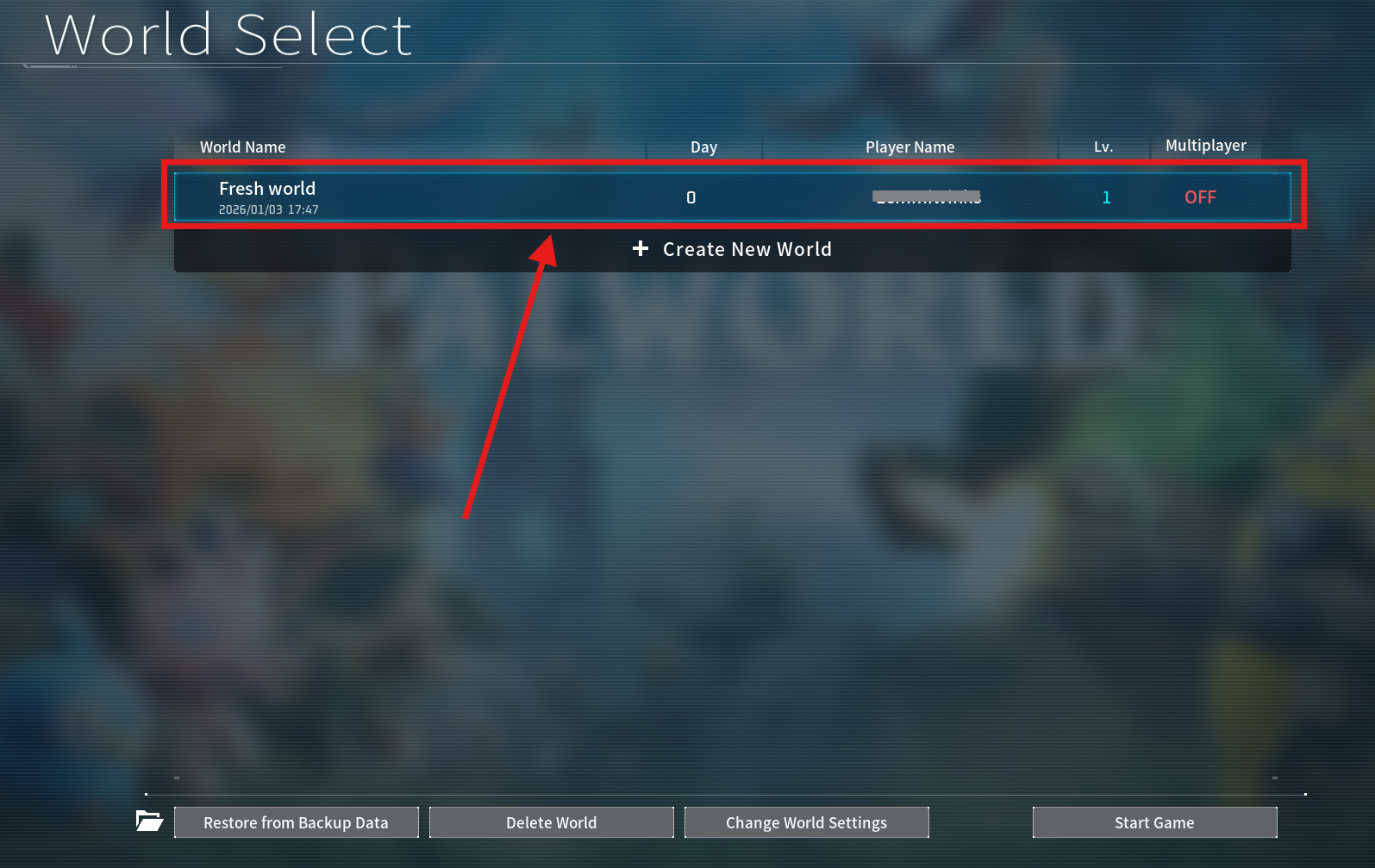
Select the world you want to upload.
Click the folder icon in the bottom-left corner.
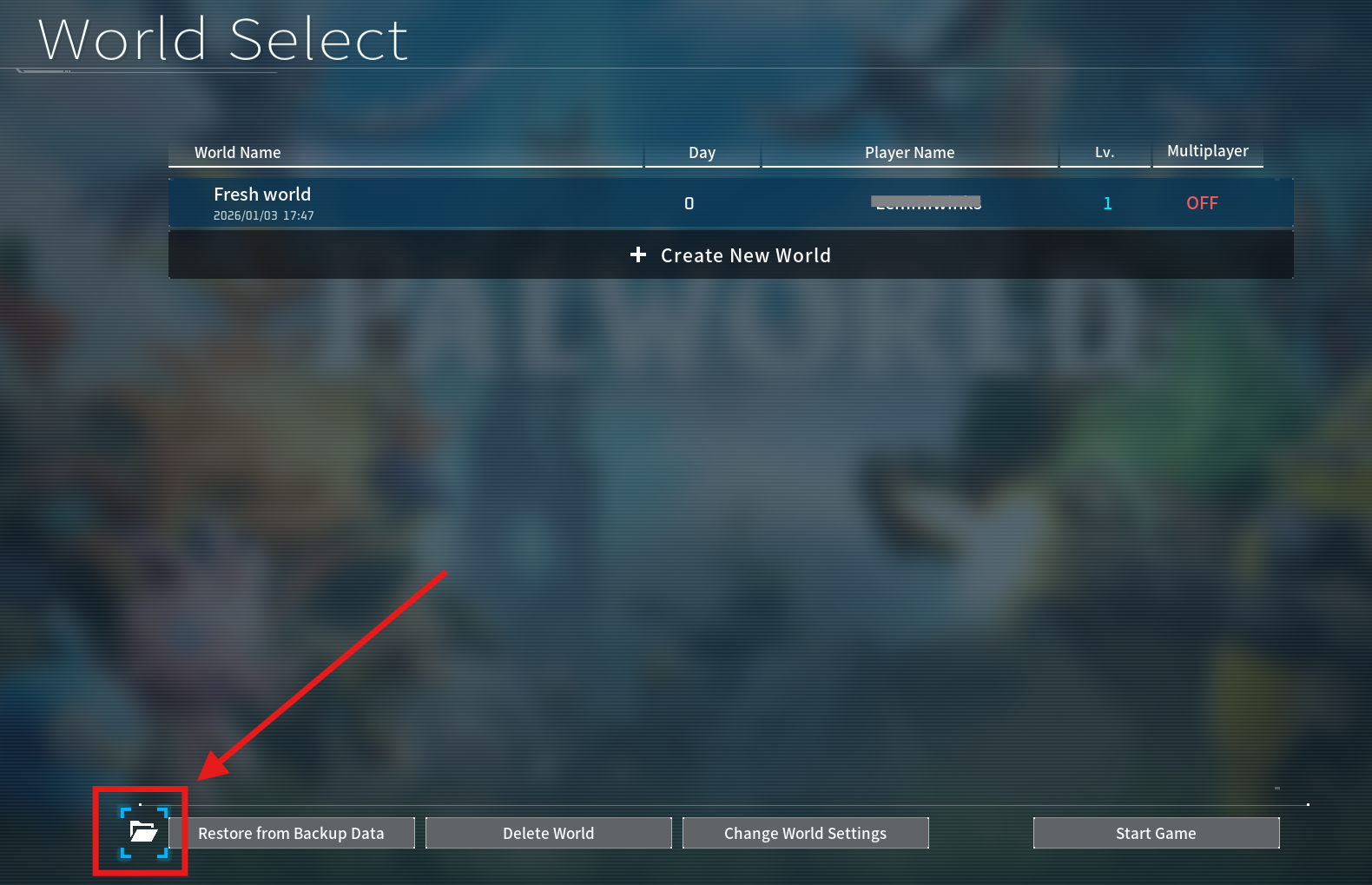
You should now see your world files - keep this folder open and ready for upload.
Once you’ve found your local world files, you can upload them to your ChipHead Palworld server.
Log in to your ChipHead control panel.

Go to the Files tab.
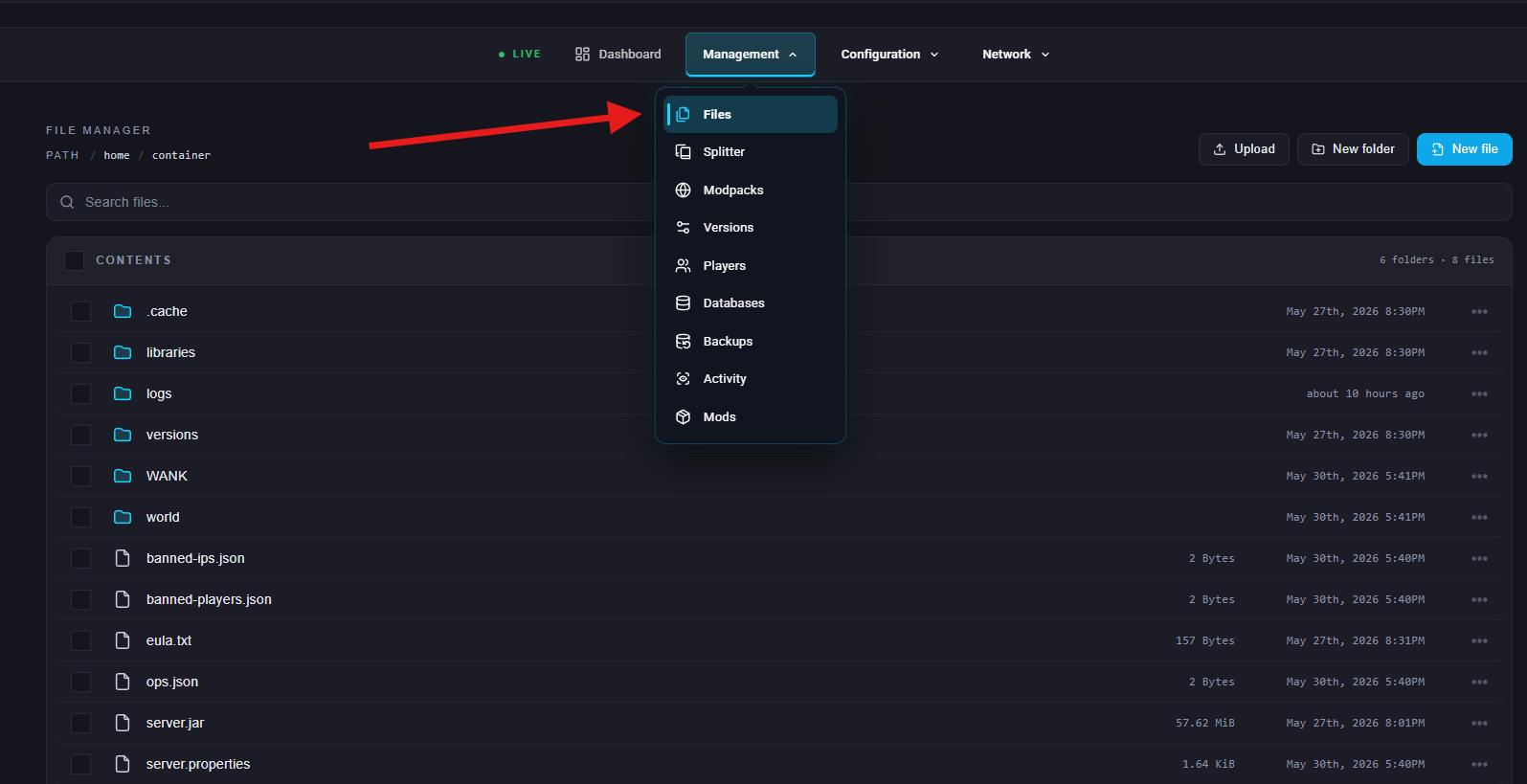
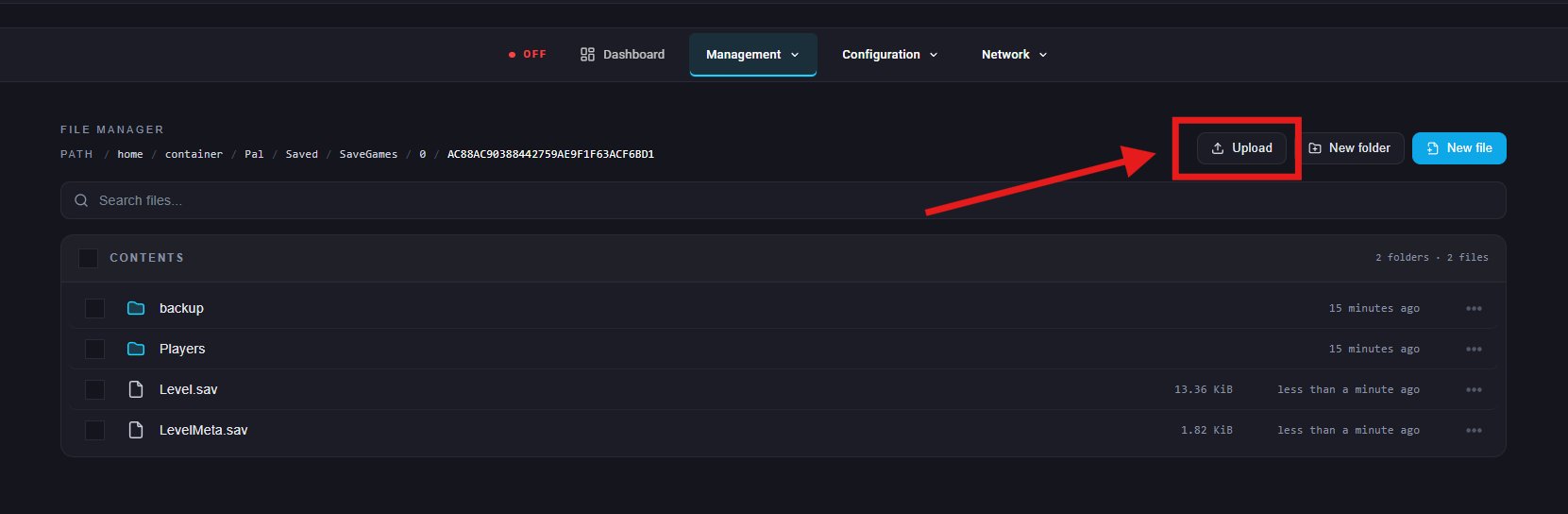
Navigate to: /Pal/Saved/SaveGames/0
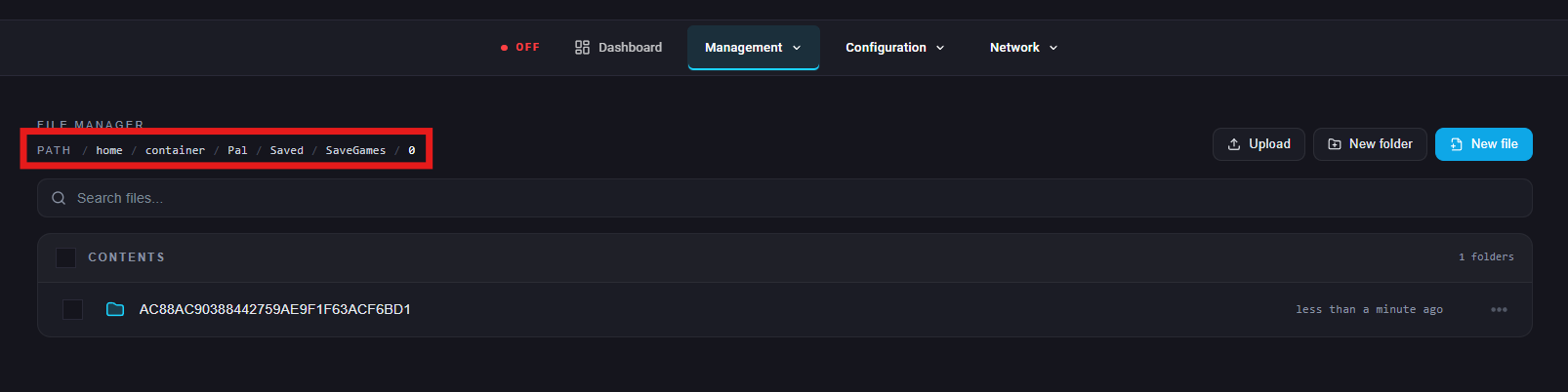
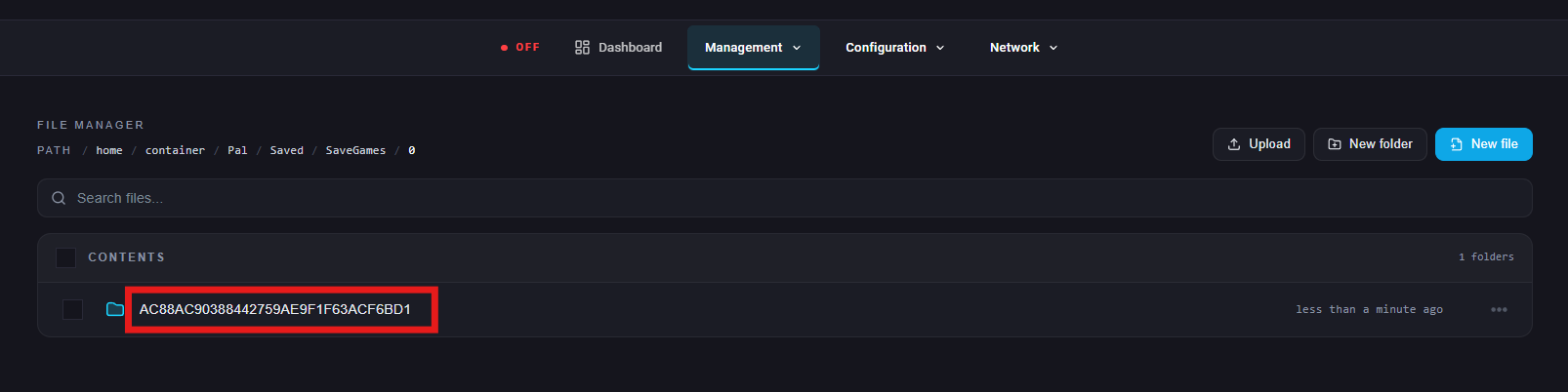
Open the last folder (it will usually have a random string of characters as its name).
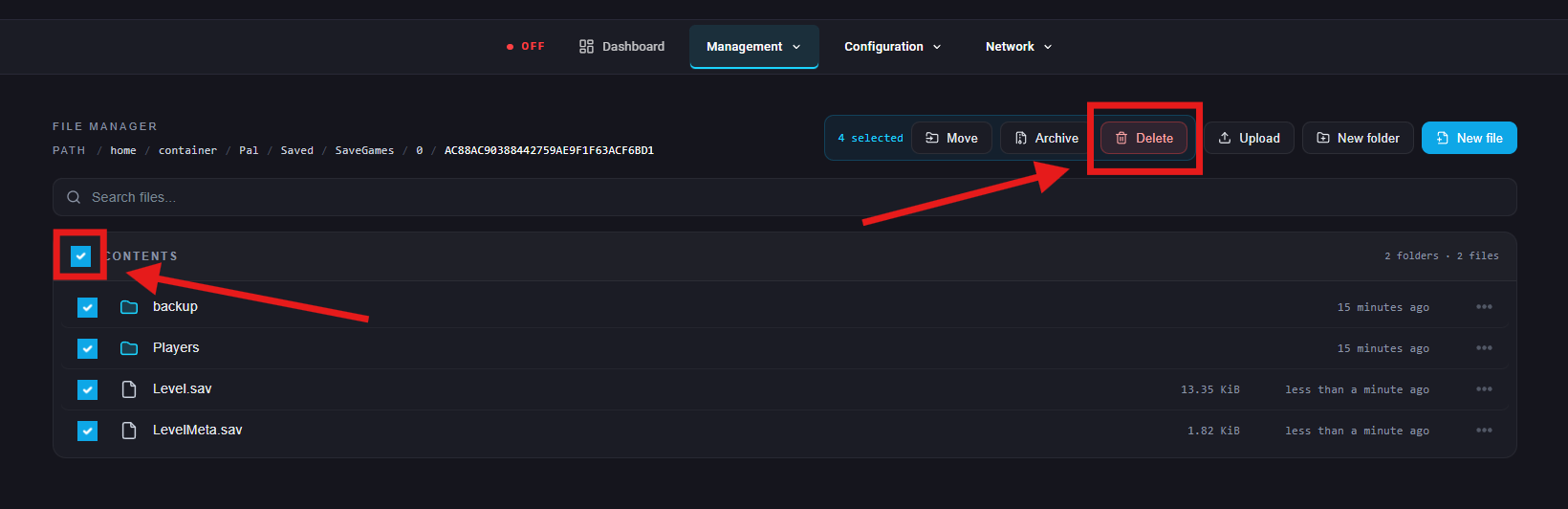
Delete all files inside this folder.
You can download or back them up first if you want to save your old world.
Upload your existing world files except the "WorldOption.sav" file.
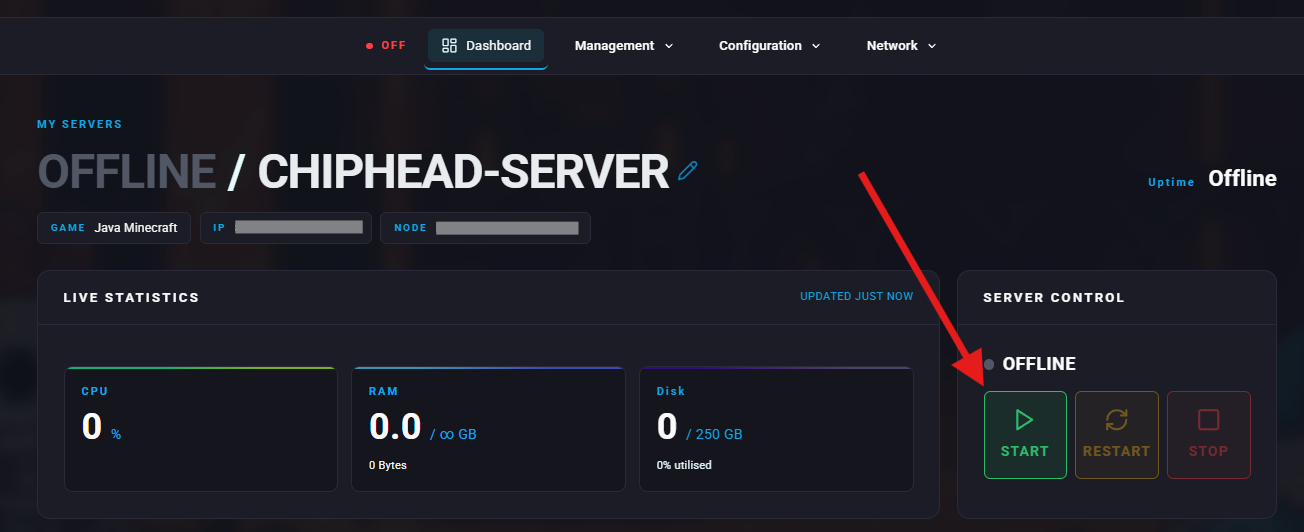
Start/restart your server.