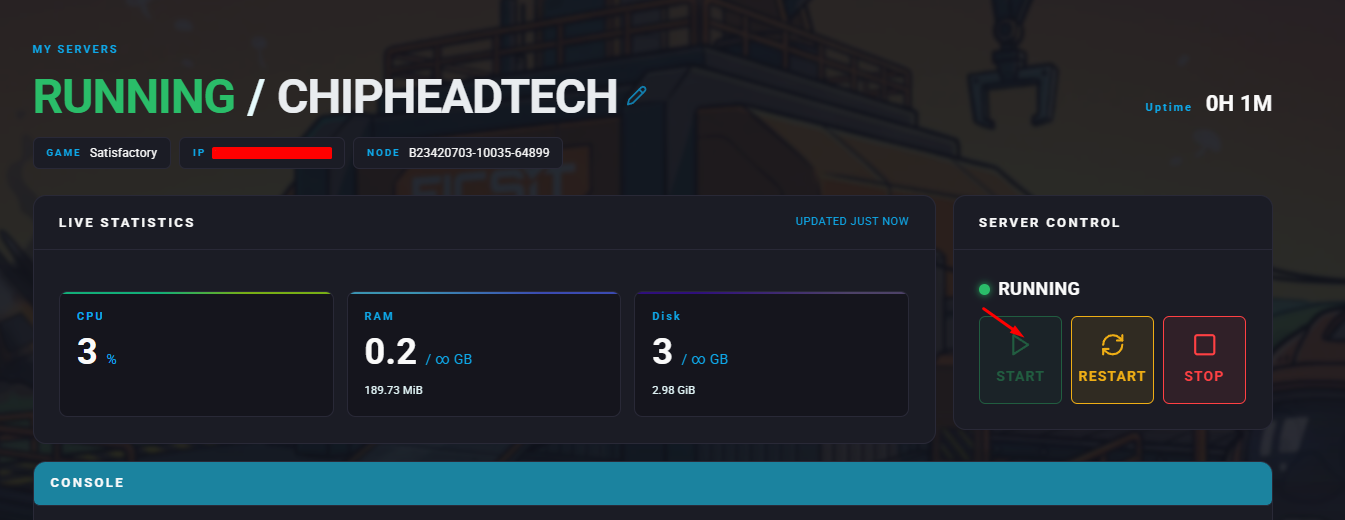
How to Adjust Your Satisfactory Server Settings on ChipHead
Your Satisfactory server configuration lets you customize many settings - from the maximum number of players to autosave intervals and performance options.
You can make these changes directly through the in-game console or by editing the config files in your ChipHead Panel.
Editing Server Settings via the Console
1⃣ Launch Satisfactory and open the Server Manager.
2⃣ Make sure you’re authenticated as an administrator, then open the Console tab.
3⃣ Run the command for the setting you want to change.
Example:
To change the automatic save interval to 3 minutes (instead of the default 5):
FG.autosaveinterval 3This command immediately updates the setting for your running session.
Editing the Config Files
Log in to your ChipHead Panel

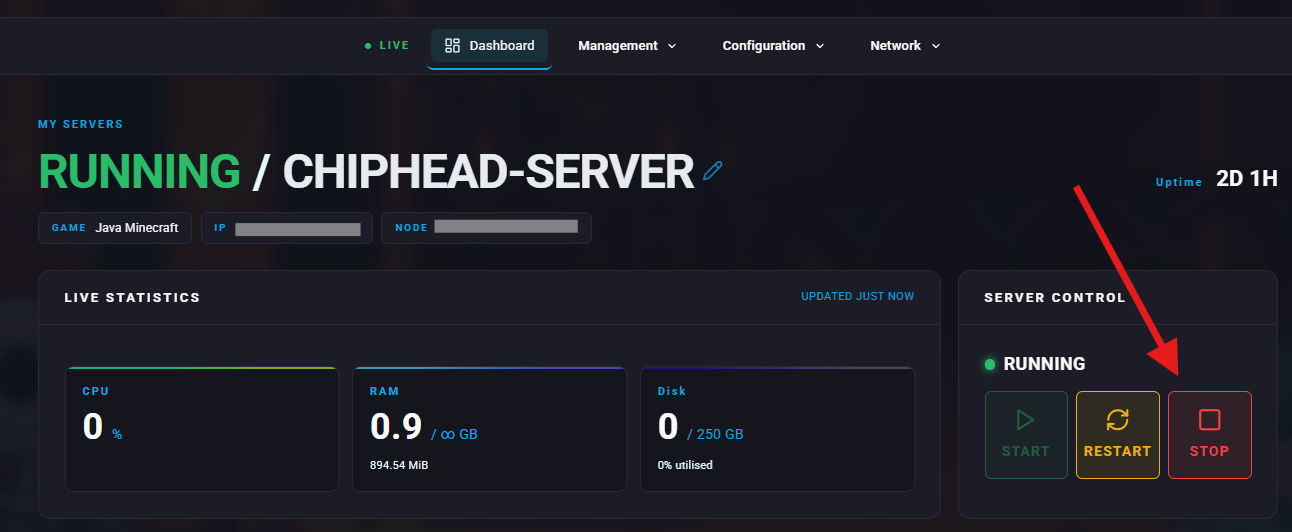
Stop your server
Go to “Game Config” & Select “GameUserSettings.ini”
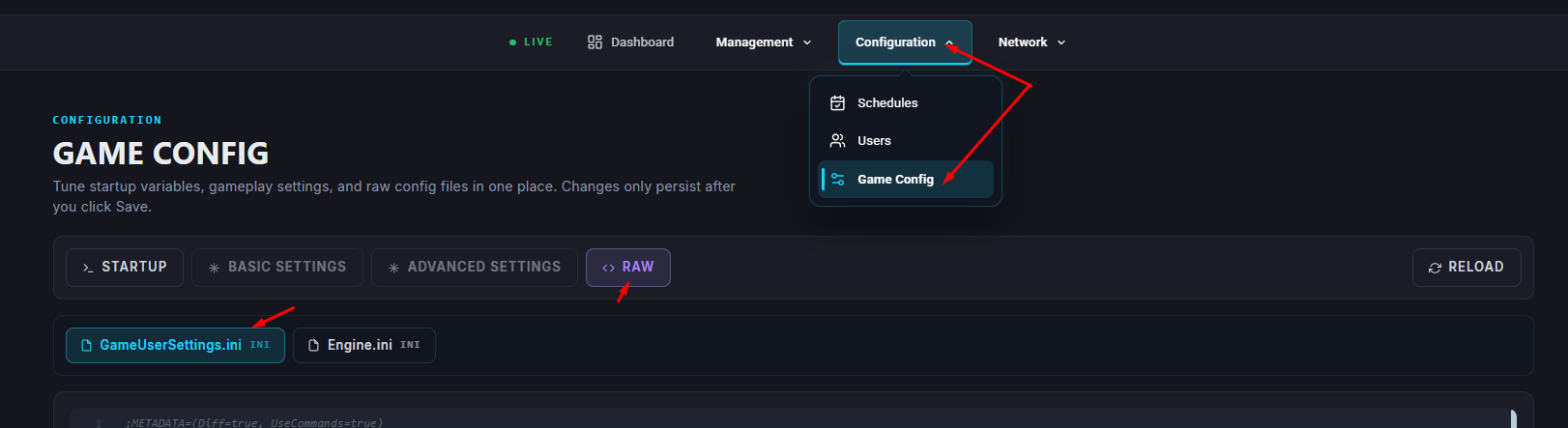
Find and modify the setting you want
Click “Save” when done editing

Start your server