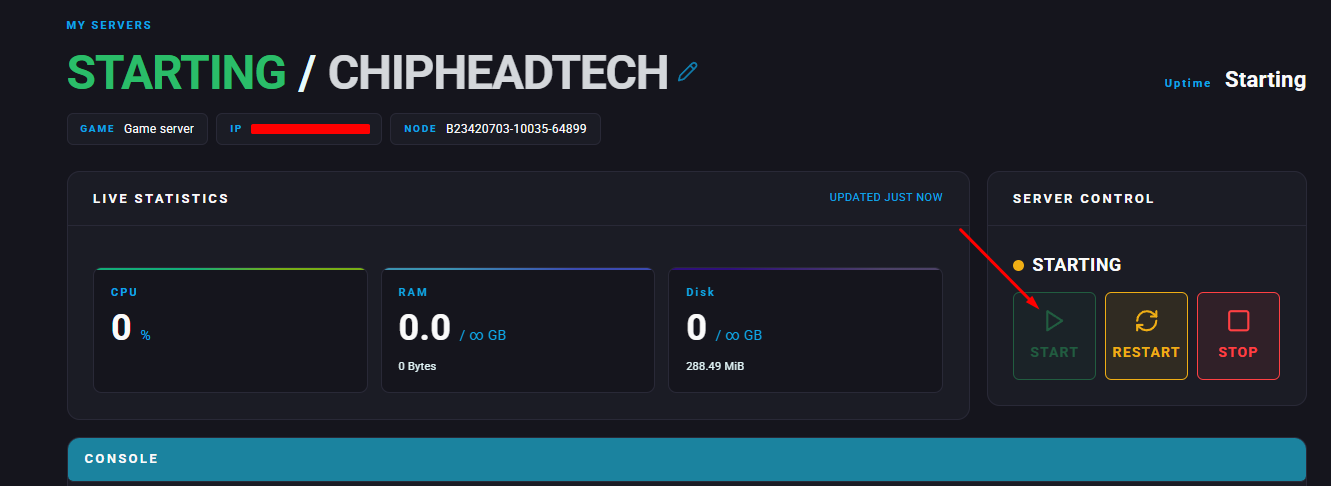
Summary
Uploading a custom world to your server is a great way to continue progress from your single-player save or use a world generated from a specific seed. Valheim servers allow you to easily import existing worlds and switch between them whenever you like.
You can upload multiple world files to your server and swap between them at any time by changing the world name in your valheim.properties file.
Steps to Upload a Custom World
First, make sure you’ve already created or generated the world you want to use in single-player.
On your computer, navigate to:
C:\Users<username>\AppData\LocalLow\IronGate\Valheim\worldsFind the files named
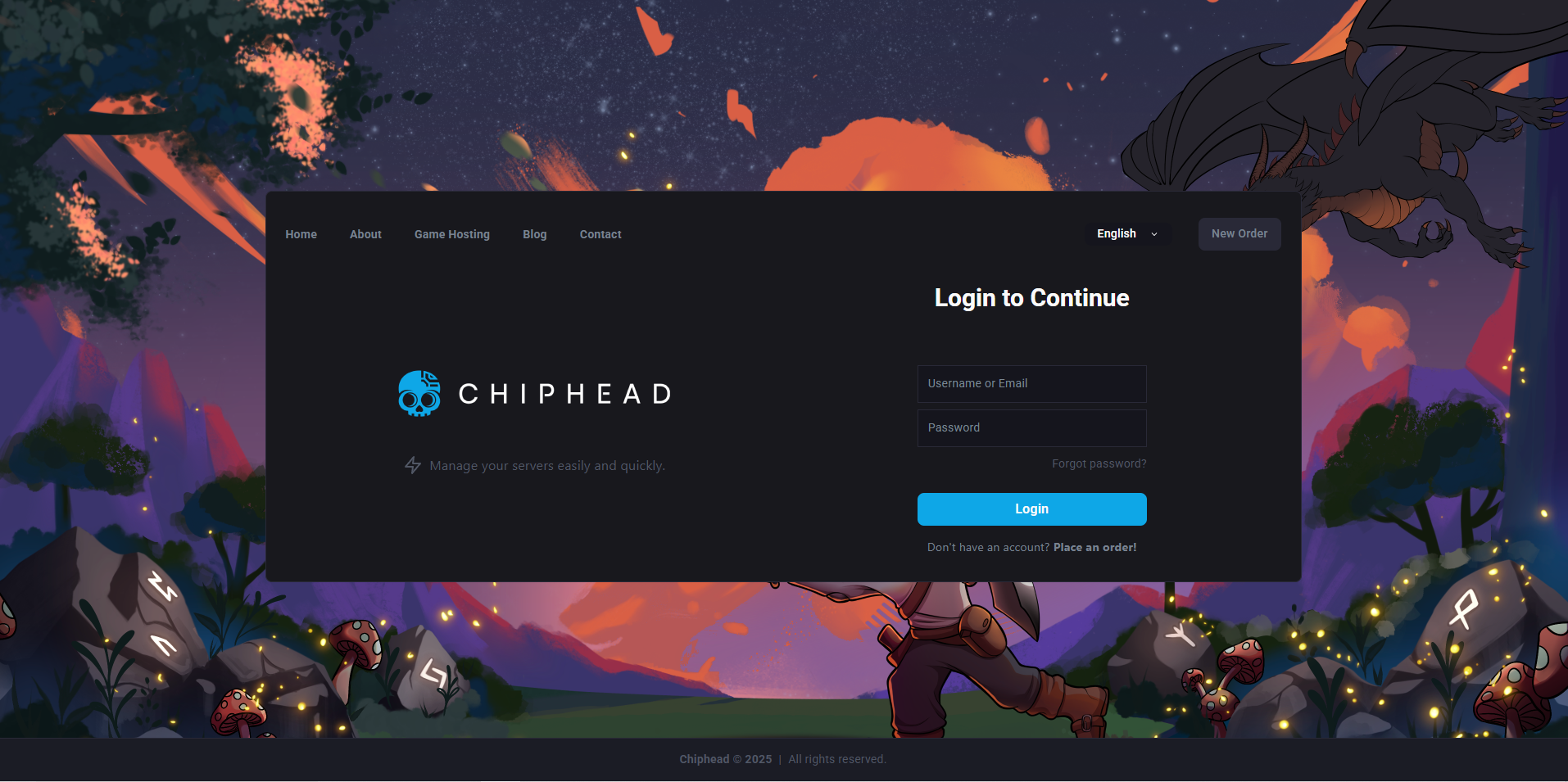
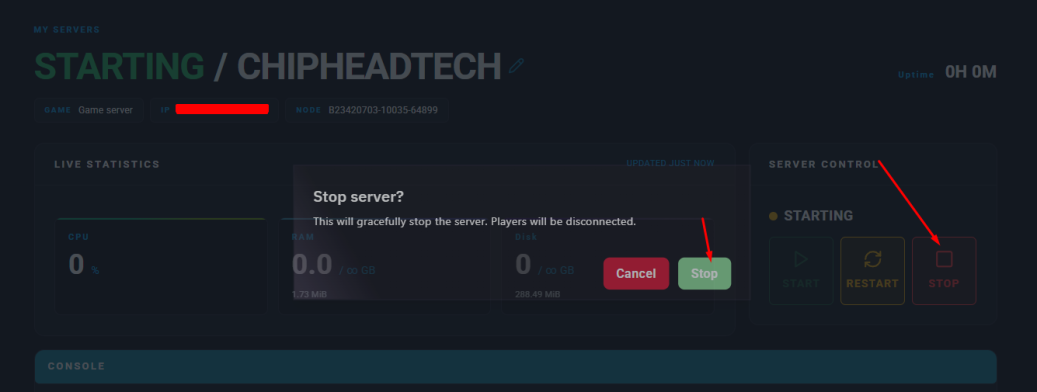
<worldname>.dband<worldname>.fwl. These are your world’s data files.Log in to your ChipHead Panel and stop your server.
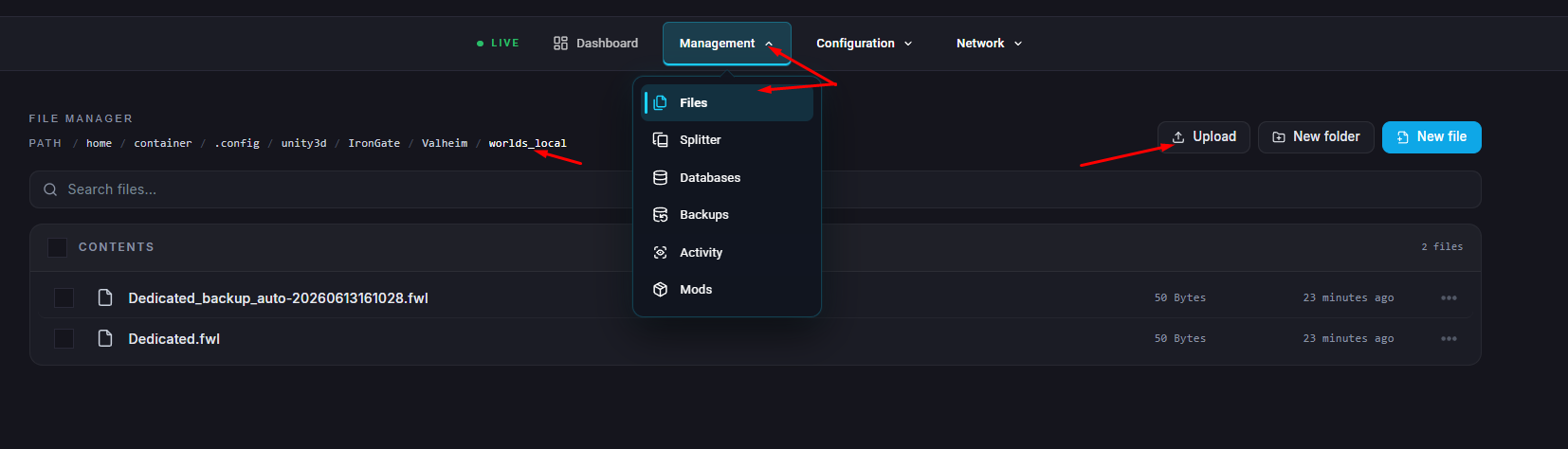
Navigate to
/.config/unity3d/IronGate/Valheim/worlds_local.Upload both the .db and .fwl files into this folder.
Next, go to Startup

.
In the World Name field, enter the exact name of your custom world (without the file extension).
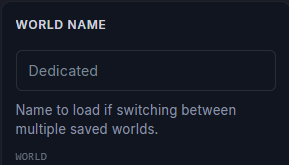
 Make sure to save your changes.
Start/restart your server.