In Valheim, your character’s progress (skills, inventory, and stats) is stored locally, while your server world only contains structures, terrain, and resource data. Because of this, you might want to change your server world if you’re unhappy with the current map or simply want a fresh start to gather new resources.
Fortunately, switching or resetting your world on your ChipHead Valheim server is a quick and simple process. You can either create a new world or completely delete the existing one, depending on what you prefer.
If you want to keep your current world but switch to another, follow these steps:
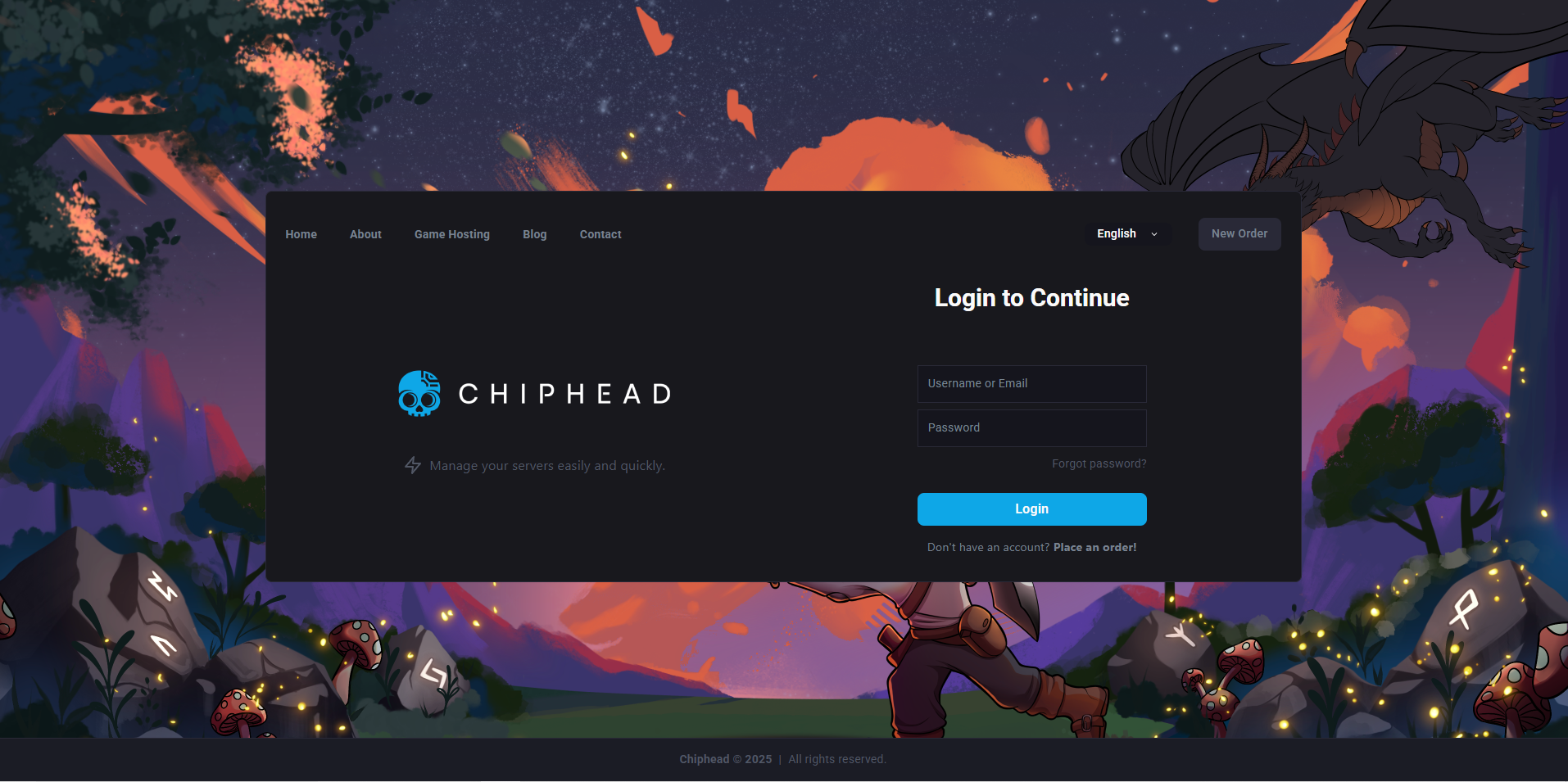
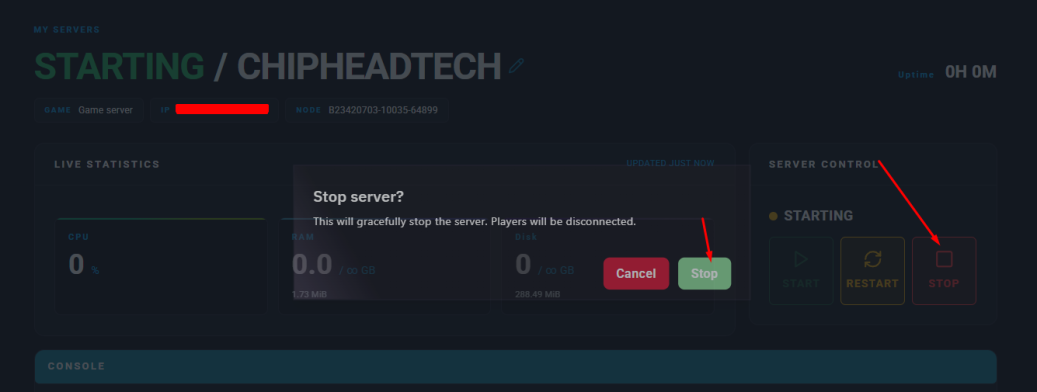
Log in to your ChipHead Panel and stop your server.
Open the Startup.
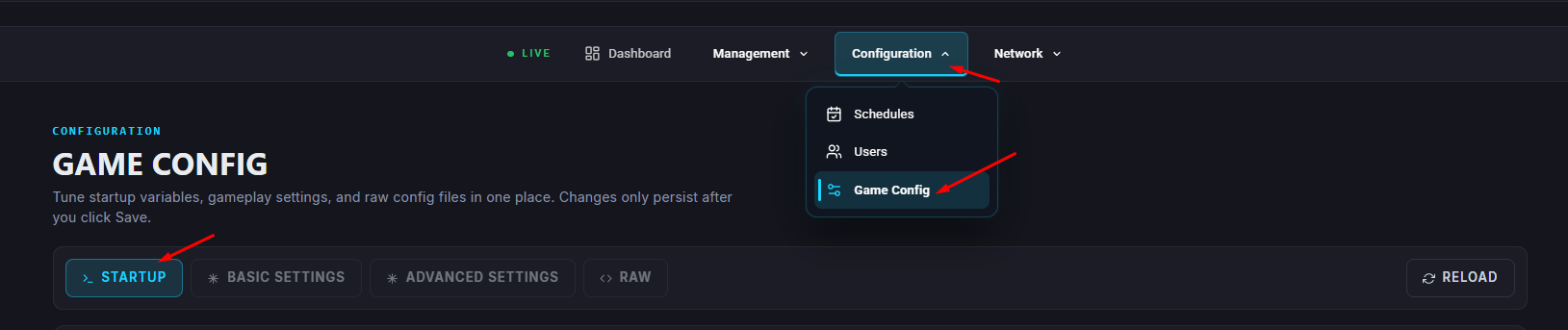
In the World Name field, enter the name of your new world and your changes will automatically save.
(If the world doesn’t exist yet, it will automatically generate when the server starts.)
Start/restart your server.
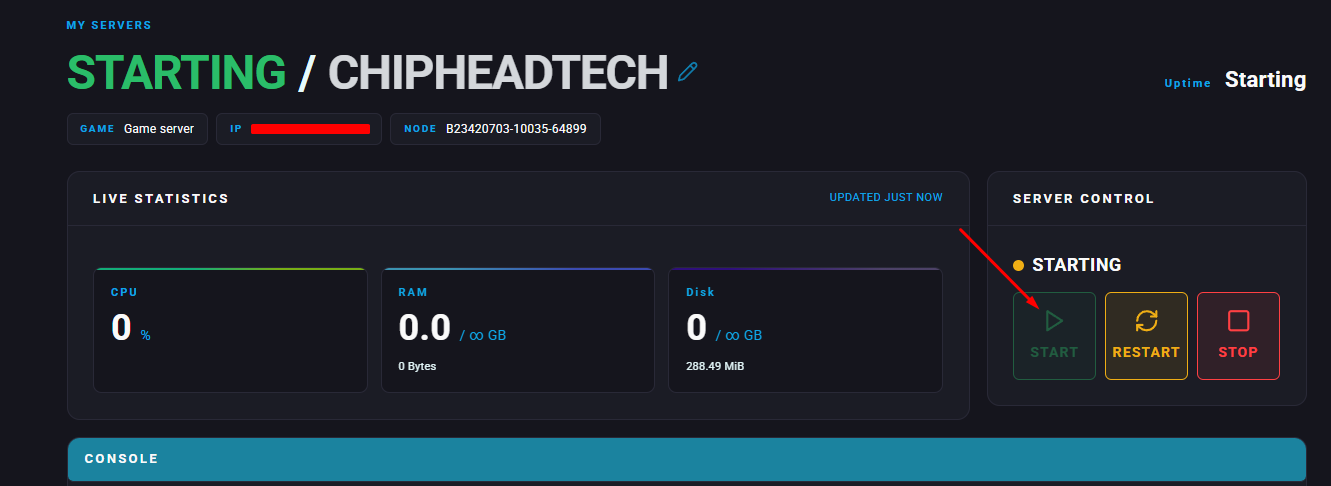

If you’d like to completely remove your world—either to replace it with a new one using the same name or to start over entirely—follow these steps:
Log in to your ChipHead Panel and stop your server.
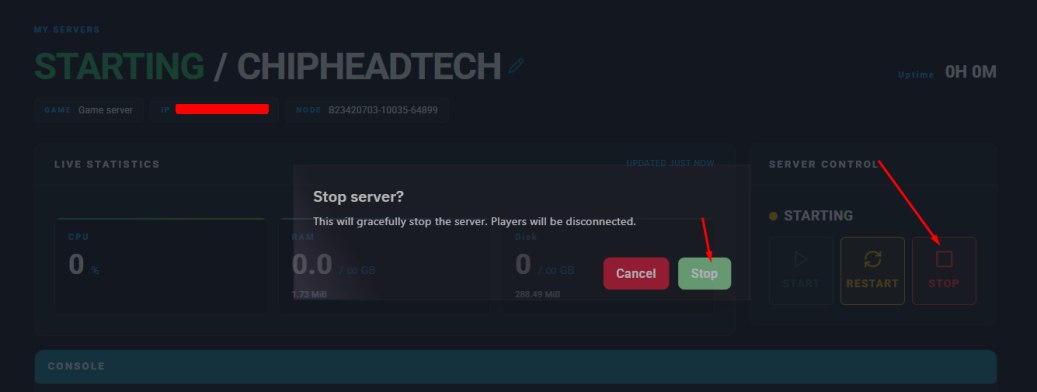
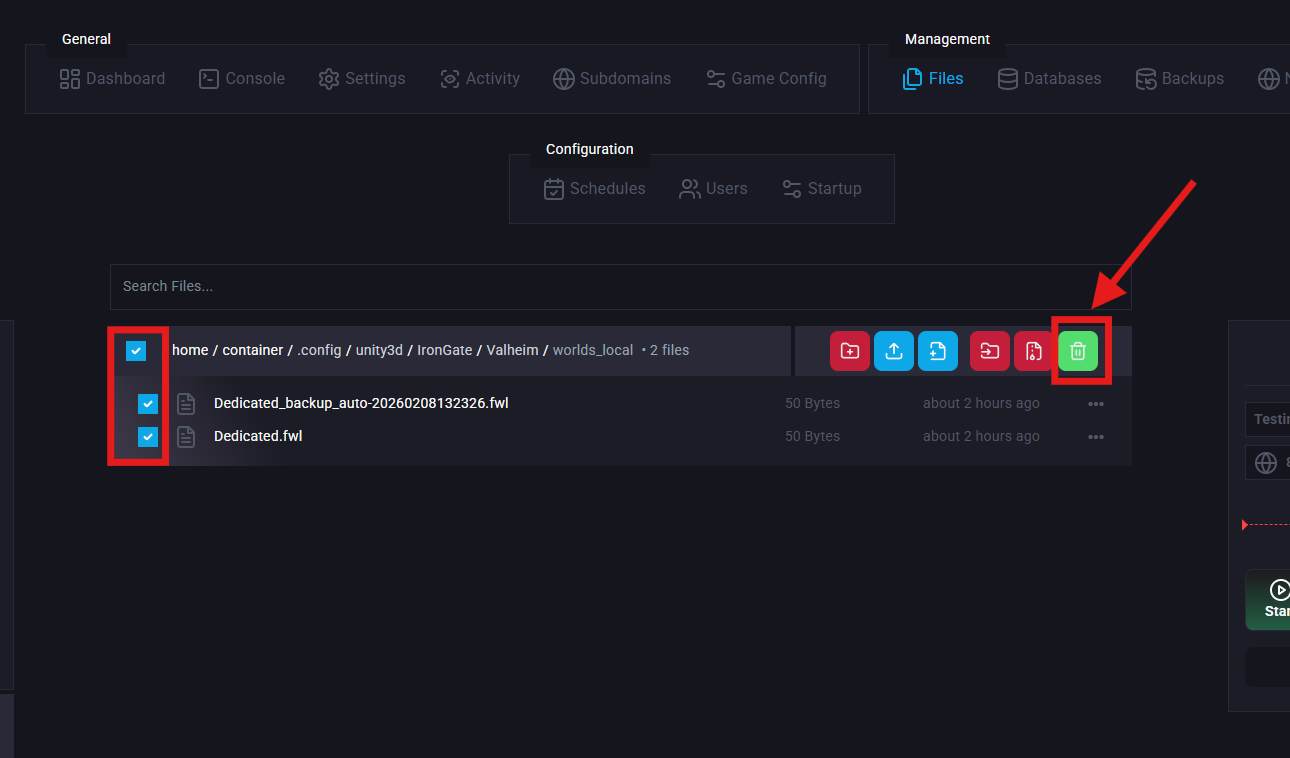
Go to the Files tab.
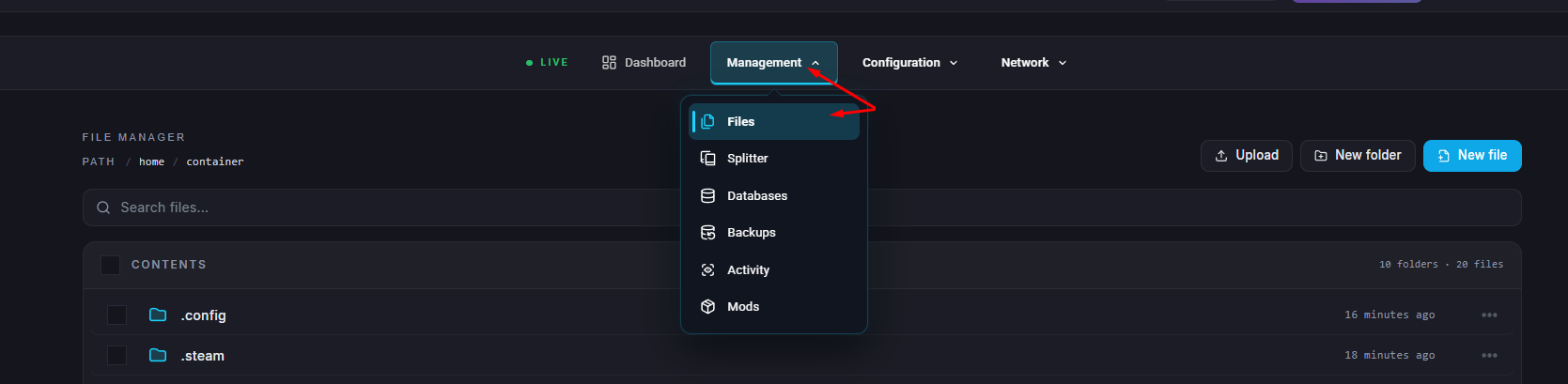
Navigate to /.config/unity3d/IronGate/Valheim/worlds_local.
Delete the following files associated with your world name:
<worldname>.db and (if it exists) <worldname>.db.old
<worldname>.fwl and (if it exists) <worldname>.fwl.old