
If you already have a single-player world in Satisfactory, you can upload it to your server to play with friends. Likewise, you can also download a world from your server to continue progress offline in single-player mode.
When working with save files, it’s important to know both the Session Name and the File Name. A single Session Name (for example, “My New Save”) can include multiple individual saves, each identified by its File Name (for example, “My Newest Save”).
Preparing a Downloaded Save
Follow this step only if you’ve downloaded a save file from another source. If the save file already exists on your computer, you can skip this section.
Download the .sav file you want to use.
Locate your Satisfactory save game directory:
On Windows: press Windows + R, then type %appdata%..\Local\FactoryGame\Saved\SaveGames
On Linux: go to ~/.config/Epic/FactoryGame/Saved/SaveGames
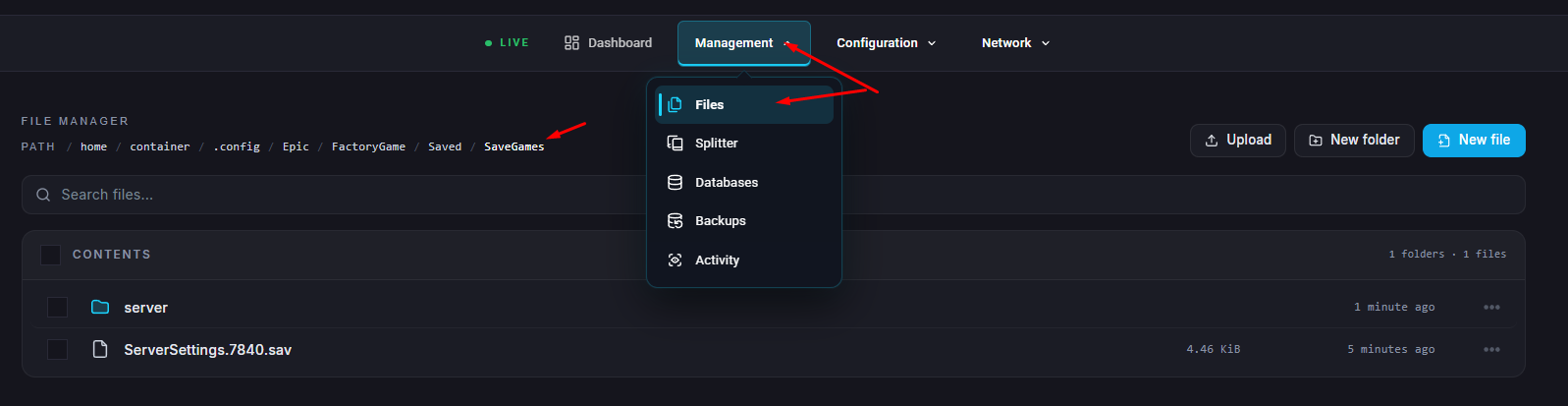
Move the downloaded .sav file into one of the existing subfolders.
Uploading a Save to Your Server
Press Escape in-game to open the menu.
Click Server Manager, choose your server, and select Manage Saves.
Click Upload Save.
Choose the session and save file you wish to upload, then click Upload Game.
Once uploaded, you can load this world using the steps from our Save and Load guide.
Downloading a Save from Your Server
If you want to download your world as a file for backup or offline play, follow these steps.
Open your server’s File Manager or connect via an FTP client such as FileZilla.
Navigate to /.config/Epic/FactoryGame/Saved/SaveGames/server.
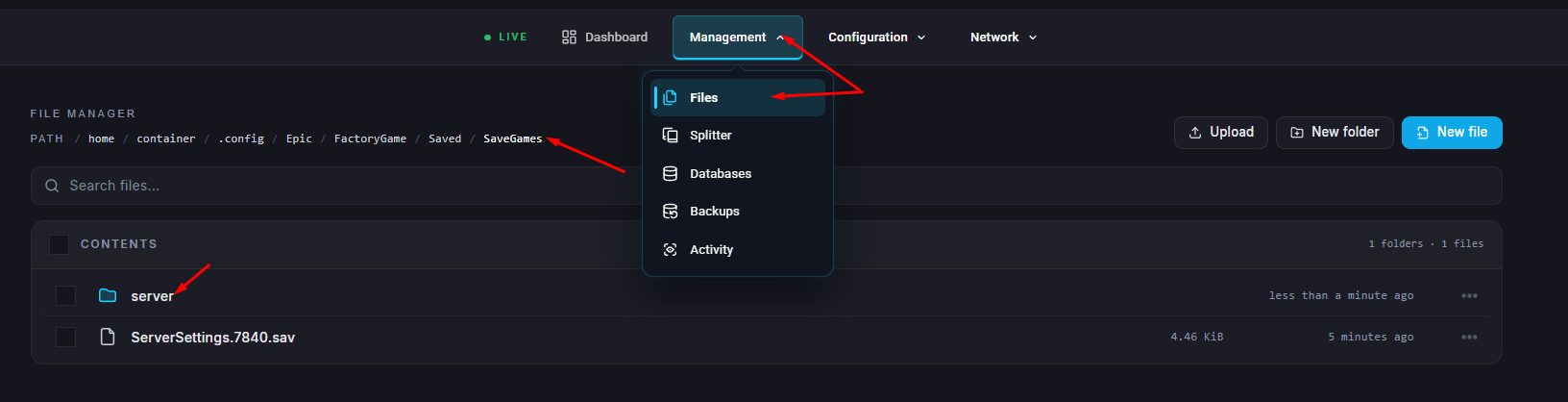

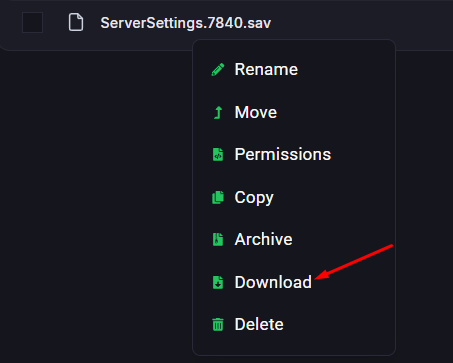
Download the .sav file from your server to your local computer.
Importing a Save to Single Player
Open the menu by pressing Escape.
Go to Server Manager, select your server, and click Manage Saves.
Click Download Save.
Choose the session and save file you’d like to transfer, then click Download Game.
You can now load this save locally in Satisfactory and continue your progress from where you left off.