If a player is disrupting gameplay, cheating, or breaking your server’s rules, you may need to ban them to maintain a fair and enjoyable environment. Likewise, if someone was banned by mistake or has served a temporary ban, you can unban them easily.
Banning via Game config:
Log in to your Control Panel.
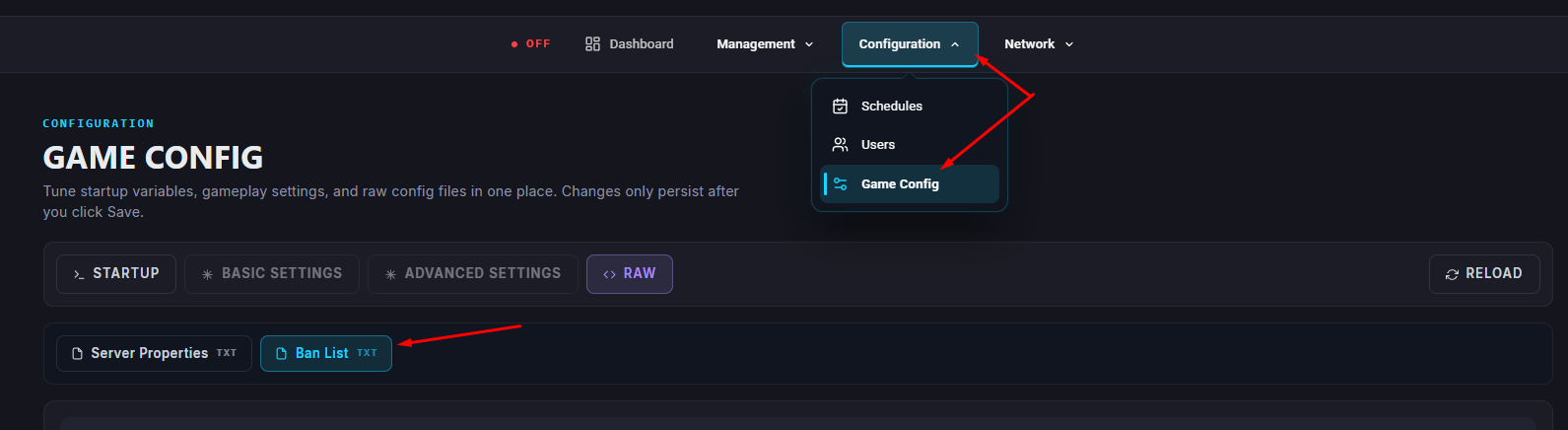
Navigate to Game Config > Ban List.
Inside the Ban List, enter the “playername” and “playerIP” as shown.

Click Save to save your new ban/s.


Banning Via the Console:
Log in to your Control Panel.
Navigate to the Console.
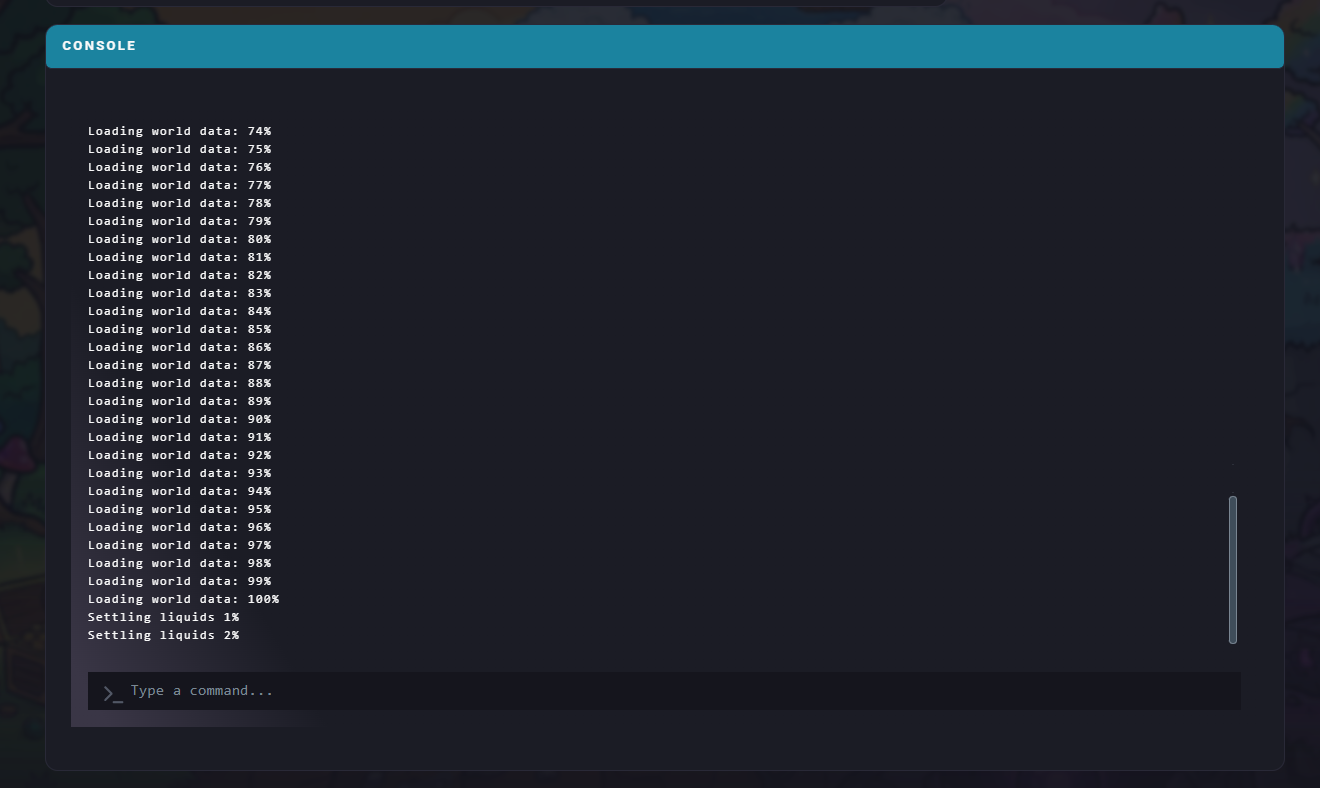
In the text box below the console log, type the following command:
Replace <playername> with the player’s in-game name:
ban playername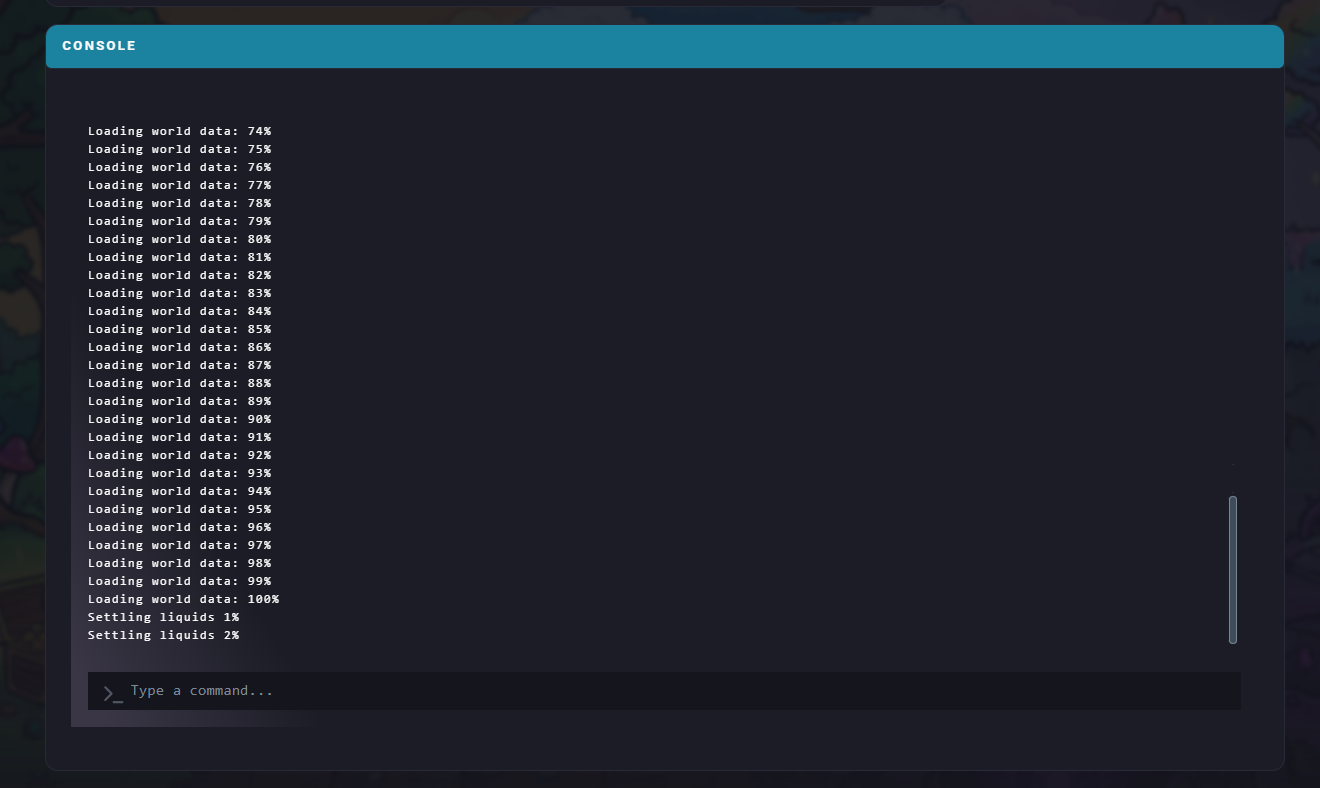
TShock servers offer more advanced options, including temporary and permanent bans.
To issue a permanent ban:
Log into your server and open the in-game chat (press / by default).
Type one of the following commands:
This bans a player by their username and includes a reason:
/ban add <username> <reason>This bans a player by their IP address instead:
/ban addip <IP Address>To issue a temporary ban:
Log into your server and open the in-game chat.
Use this command format:
/ban addtemp <username> <time> <reason>Replace the placeholders with the correct name, time duration, and reason for the ban.
Log into your Control Panel.
Navigate to Game Config > Ban List.
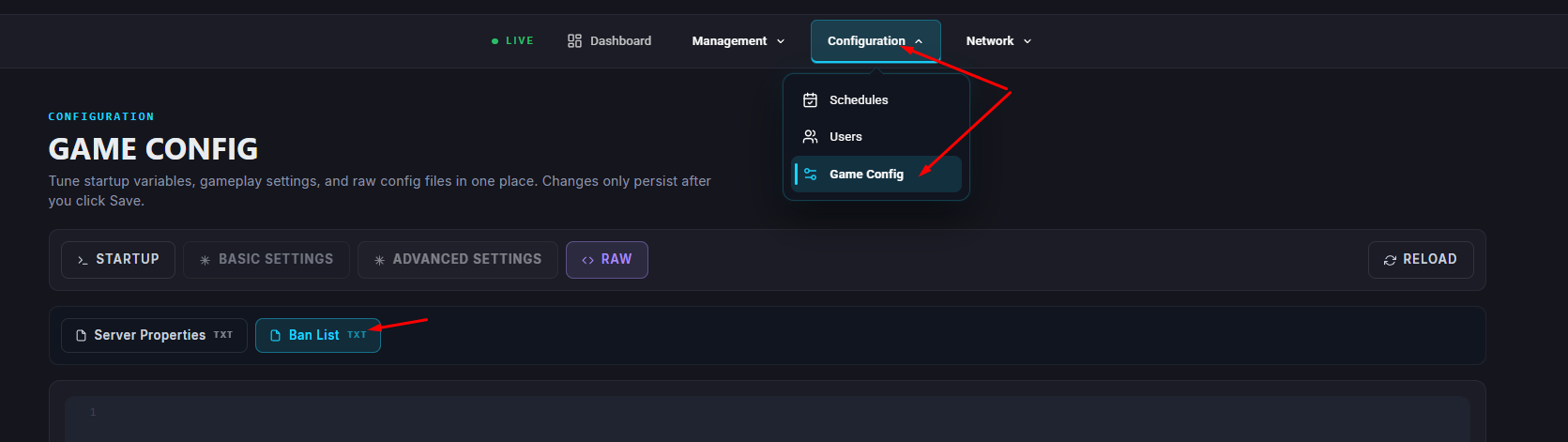
Each banned player will appear twice — once with their username and once with their IP address.
Delete both lines for the player you want to unban, then click Save.The player/s will be able to re-join your server immediately.
Log into your server and open the in-game chat.
Type:
/ban del <username>Log into your server and open the in-game chat.
Type:
/ban delip <IP Address>
Log into your server and open the in-game chat.
Type:
/ban list