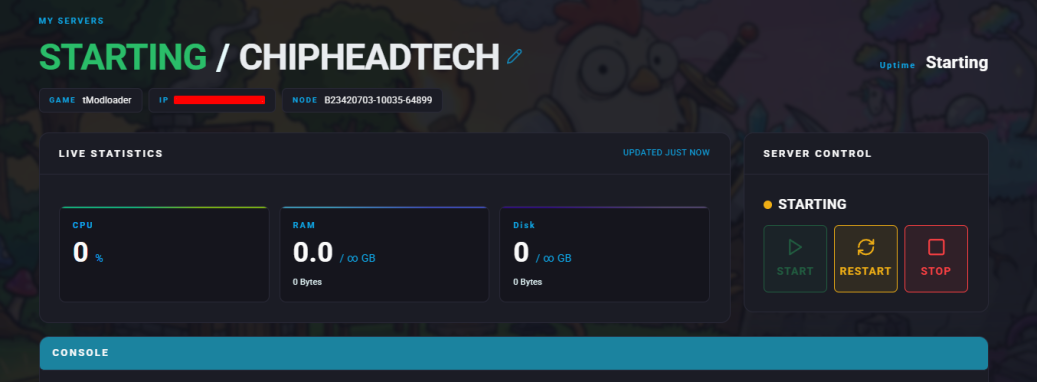
If you’ve found a workshop world you’d like to use on your server, you can import and upload it in just a few steps.

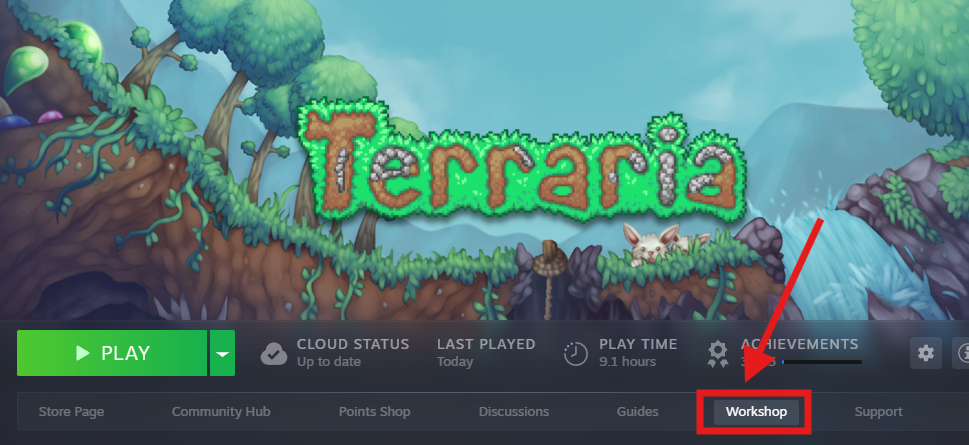
Once you’ve subscribed and the download has finished, follow these steps to locate your world files.
Launch Terraria.
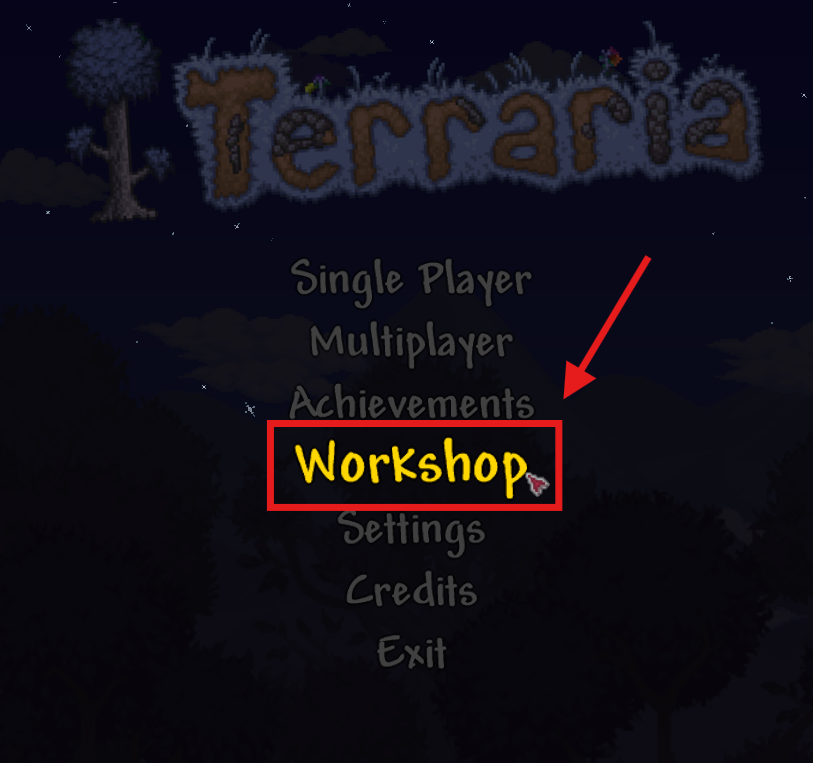
From the main menu, select Workshop.
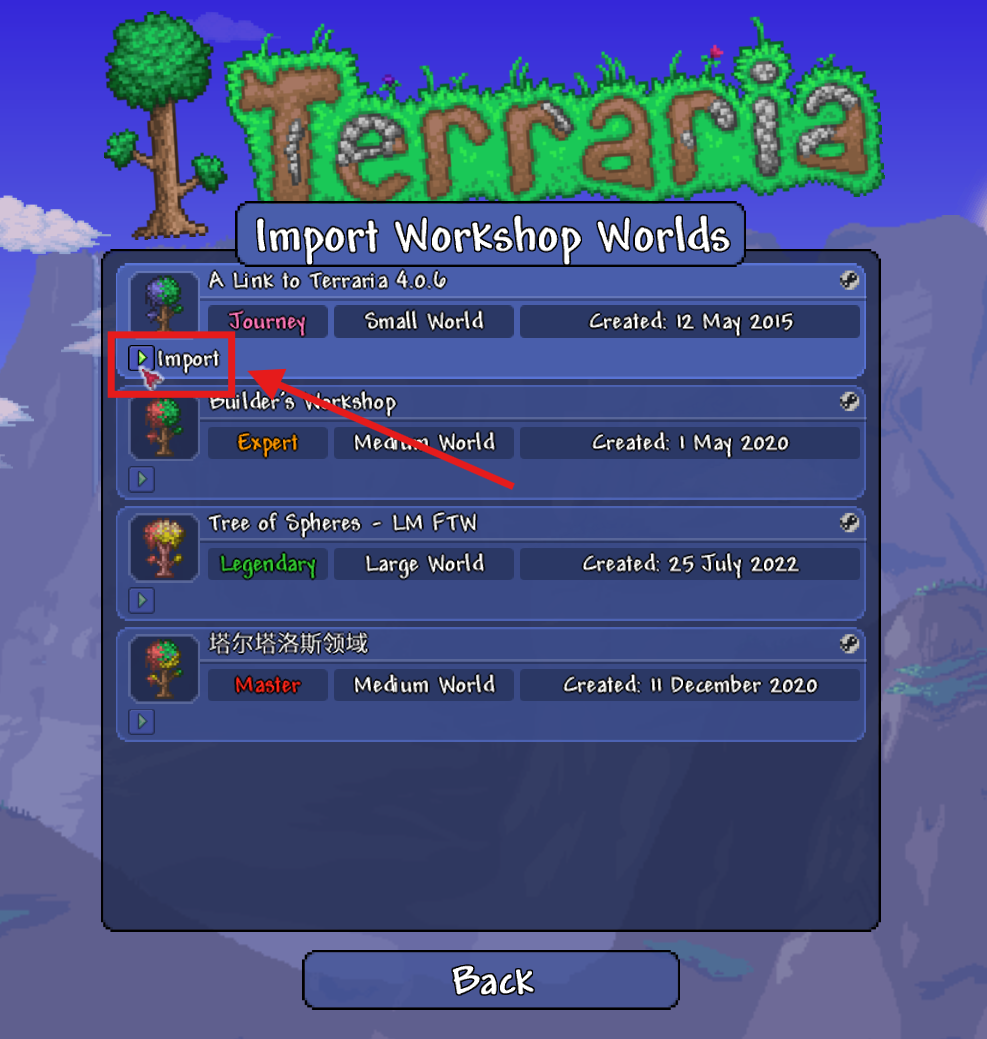
Choose Import Worlds.
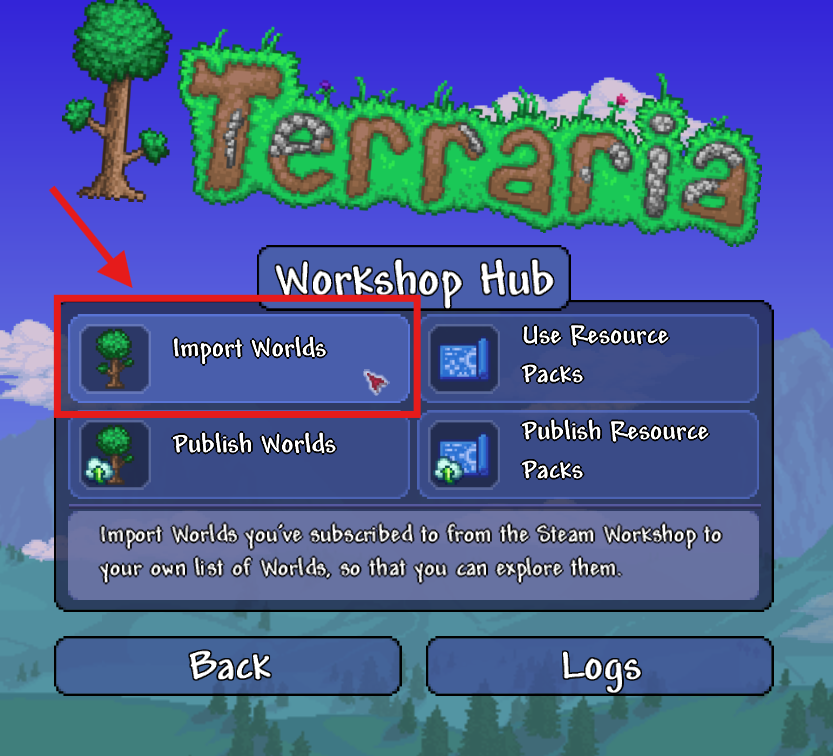
Click Import on the world(s) you want to use.
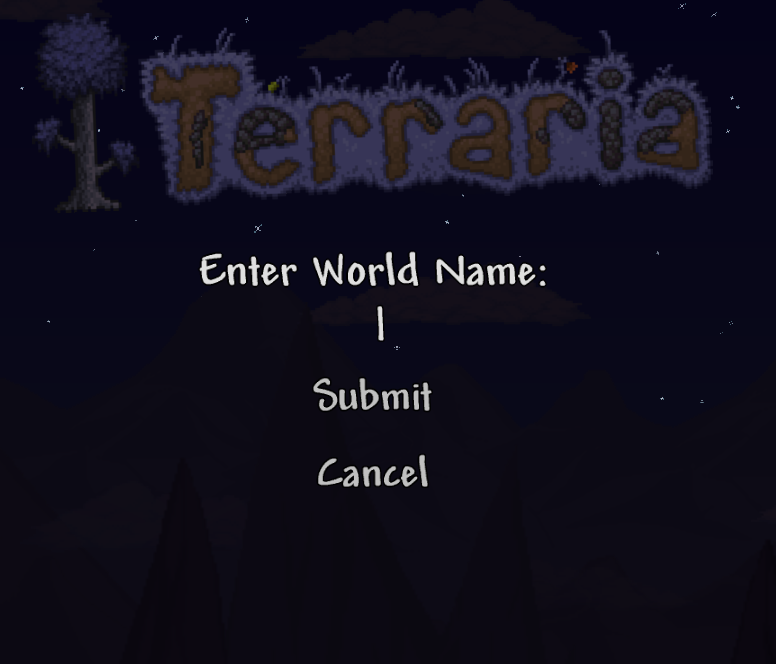
Enter a world name that you desire.
After the import completes, close Terraria.
Navigate to your world folder on your PC:
• Windows: C:\Users%userprofile%\Documents\My Games\Terraria\Worlds
• Mac: ~/Library/Application Support/Terraria/Players
• Linux: ~/.local/share/Terraria/Players
Locate the .wld and .wld.bak files that match the recently imported map. If unsure which ones they are, sort by “Date Modified.”
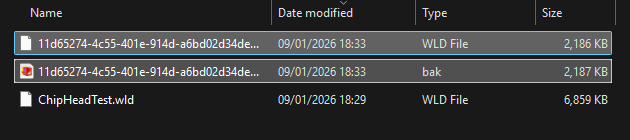
Once you’ve found your world files, upload them to your server to start playing.
Log in to your Control Panel and stop the server.
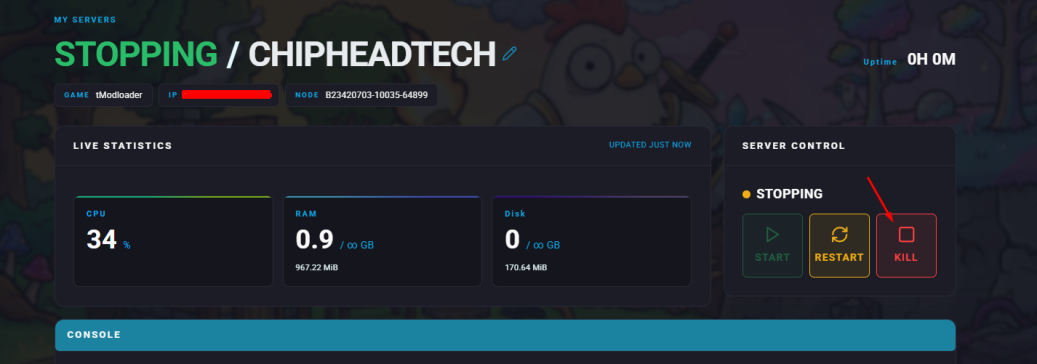
Go to the Files tab.
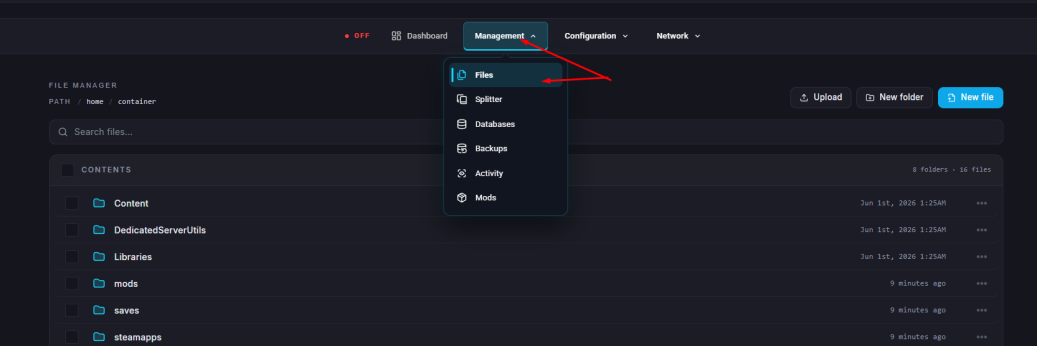
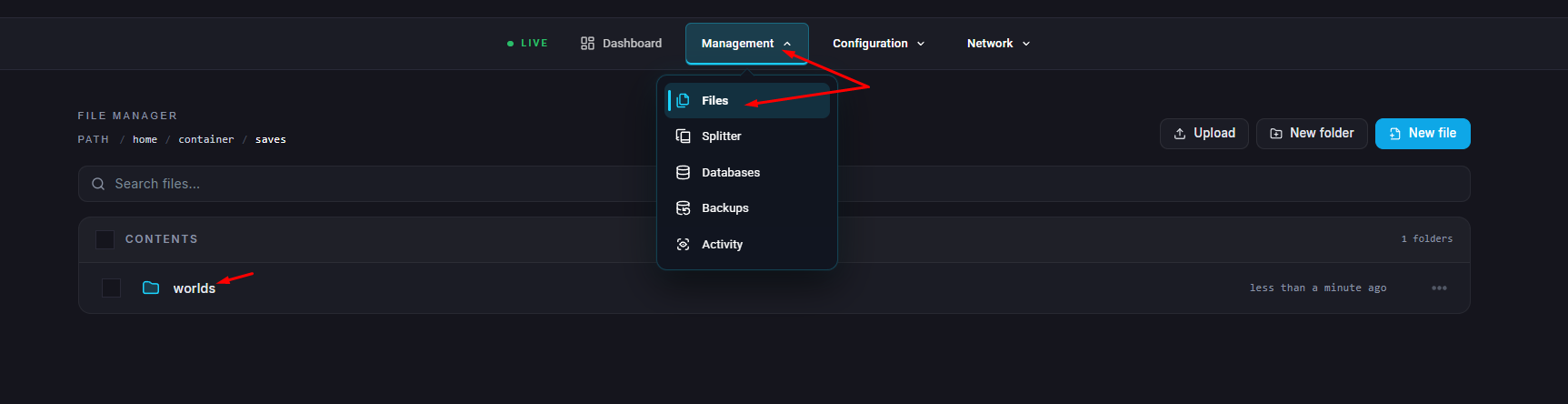
Navigate to /saves/Worlds/.
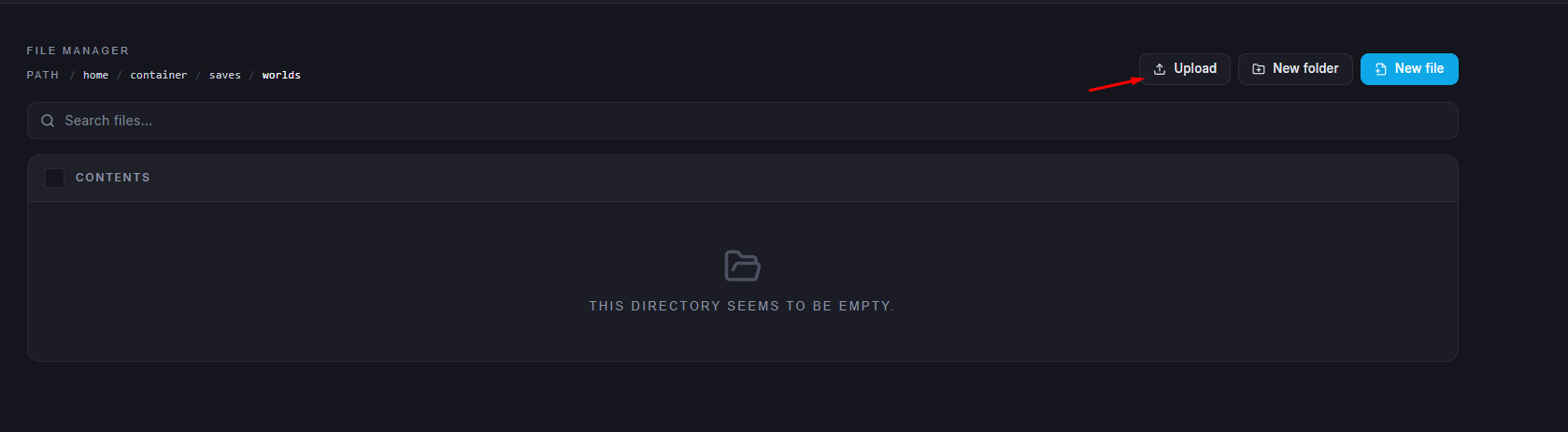
Upload your .wld file (and optionally its .wld.bak) to the /worlds folder.
If the new World Name file does not match the name of the current world file on the server, delete the old world .wld file. You may keep the wld.bak file if you wish to keep the backup.
Start/restart the server.