There may come a time when you want to start fresh in 7 Days to Die - maybe you don’t like your spawn location or just want a brand new challenge.
With ChipHead, resetting your server world is simple. You can either delete your current world completely or create a new one while keeping the old world saved in case you’d like to revisit it later.

You can easily switch worlds from your 7 Days to Die server settings in the ChipHead Panel:
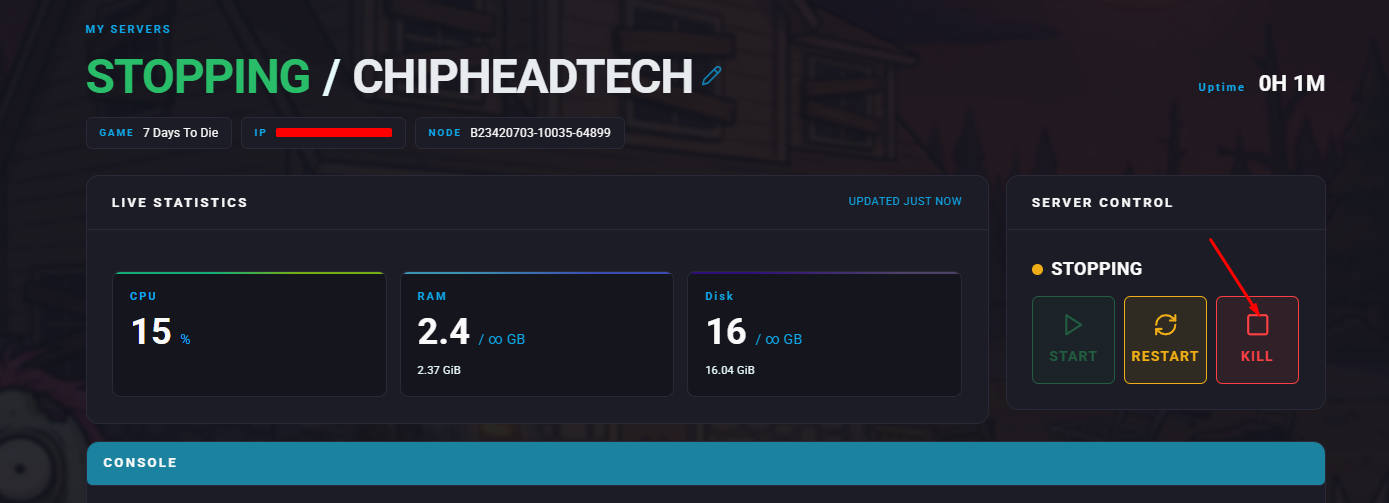
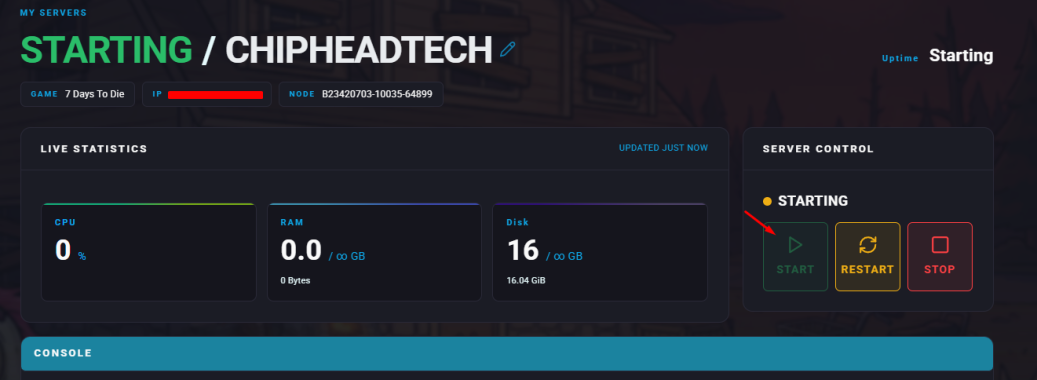
Open the ChipHead Panel and Stop your server.
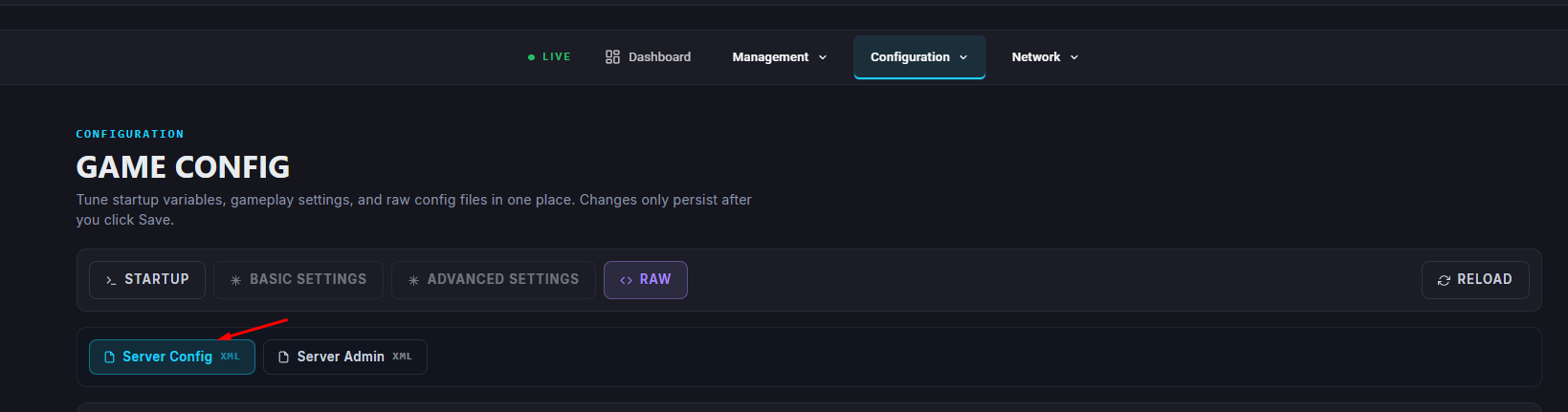
Navigate Game Config.

Click on </>Raw to access the serverconfig.xml file.
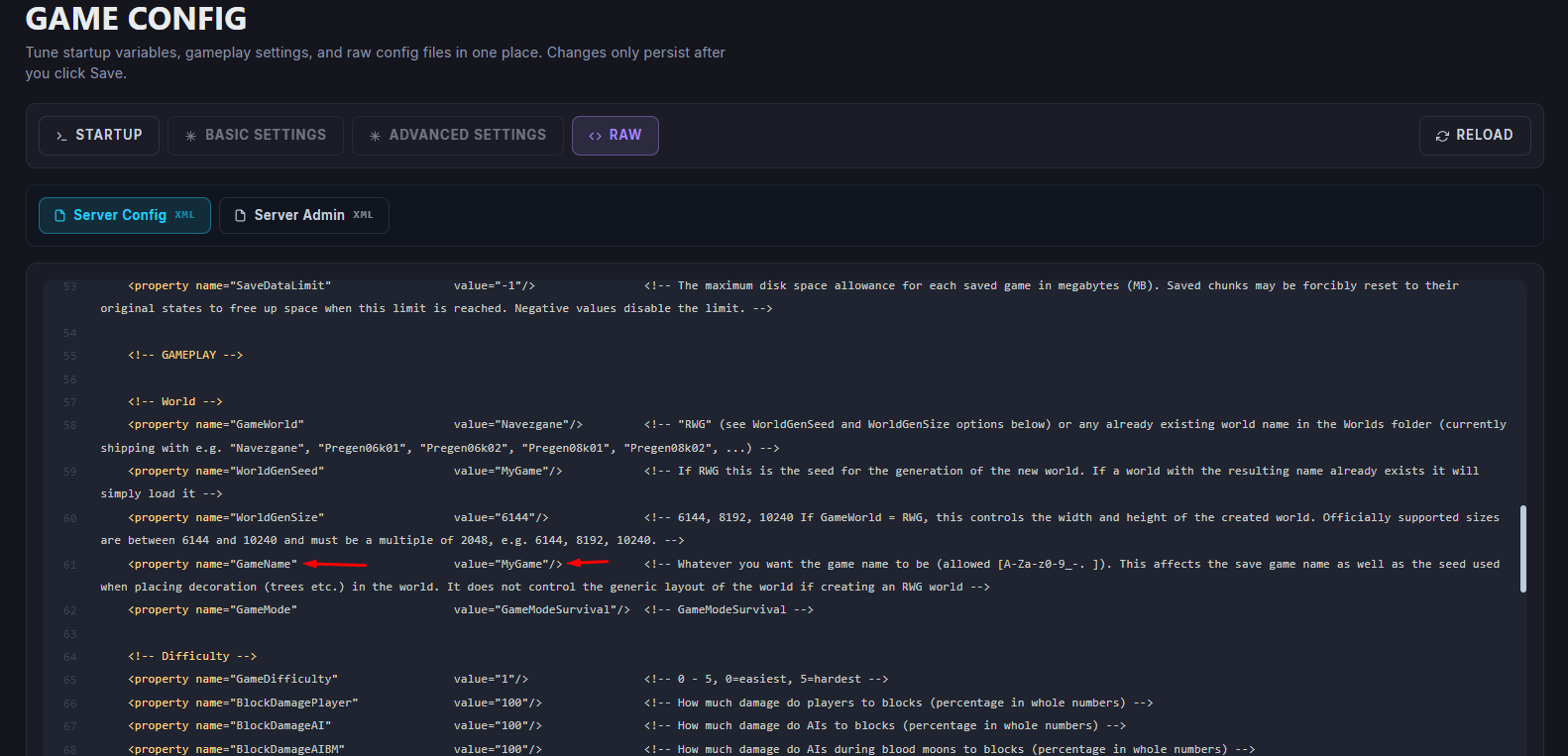
Find the GameName property and next to value= and within the quotation marks, change it to the name you’d like your new world to have.
Click Save.

Start/restart your server.
If you’d rather remove your existing world completely - perhaps to reuse the same world name or clear everything for a clean start - follow these steps:
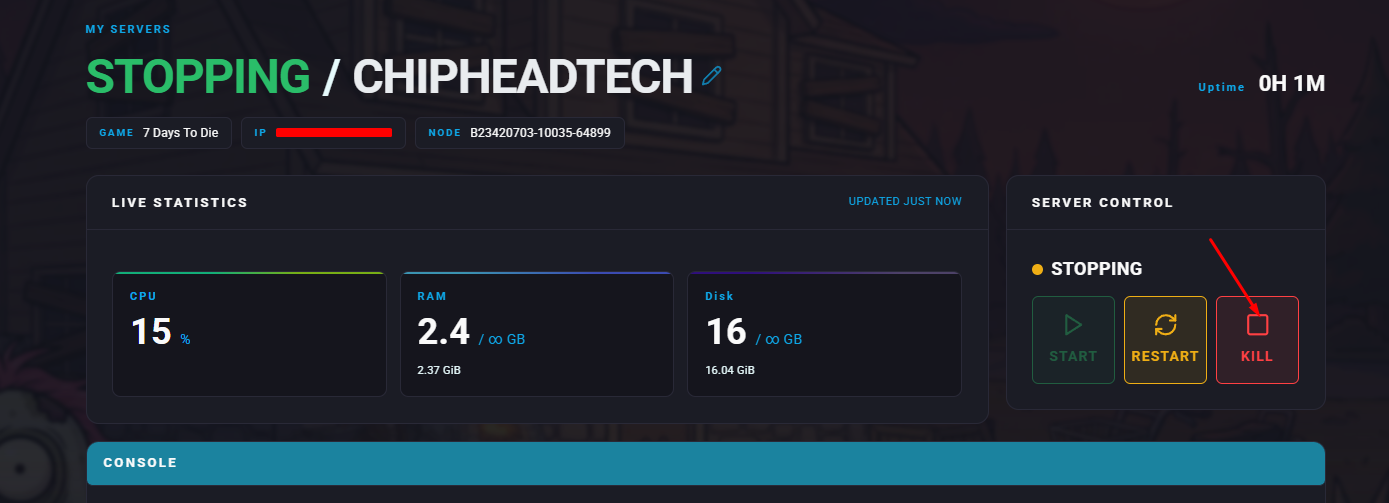
Open the ChipHead Panel and Stop your server.
Navigate to Files.
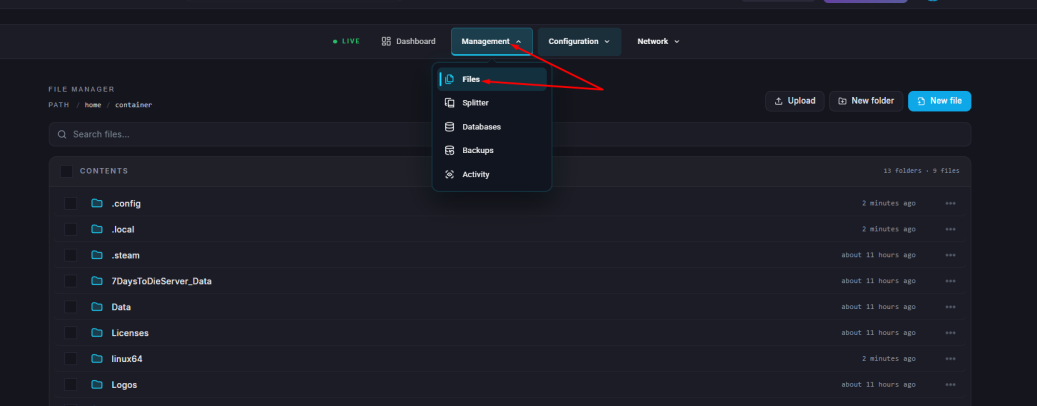
Navigate to /.local/share/7DaysToDie/Saves, then open your map’s folder.
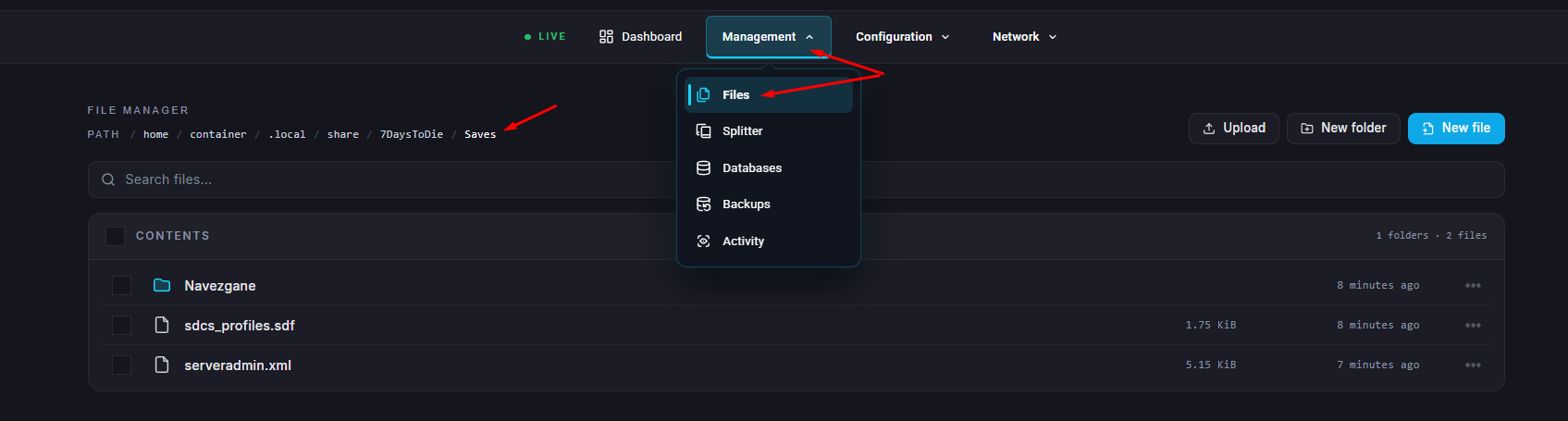
Select your world files and delete them.

