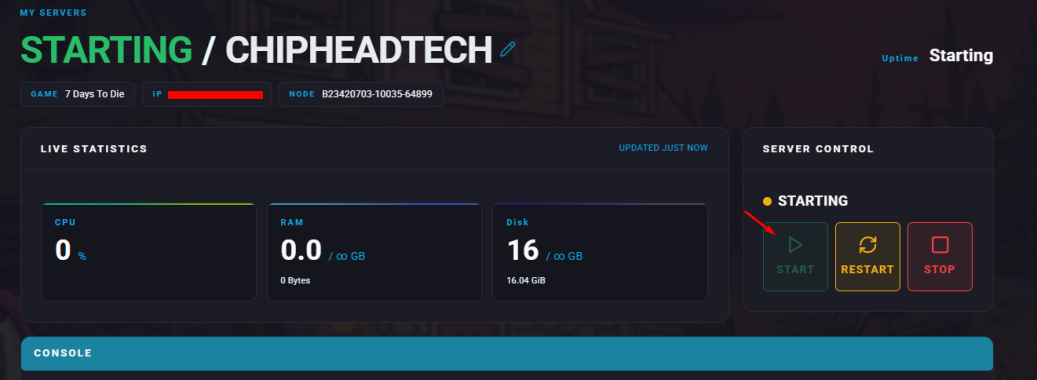
If you want to host a 7 Days to Die server just for friends or a small group, it’s best to make your server private. You can do this by setting a password or enabling a whitelist to control who can join.
By default, any player can join your server if no password is set. Adding a password means only players who know it can access your server.
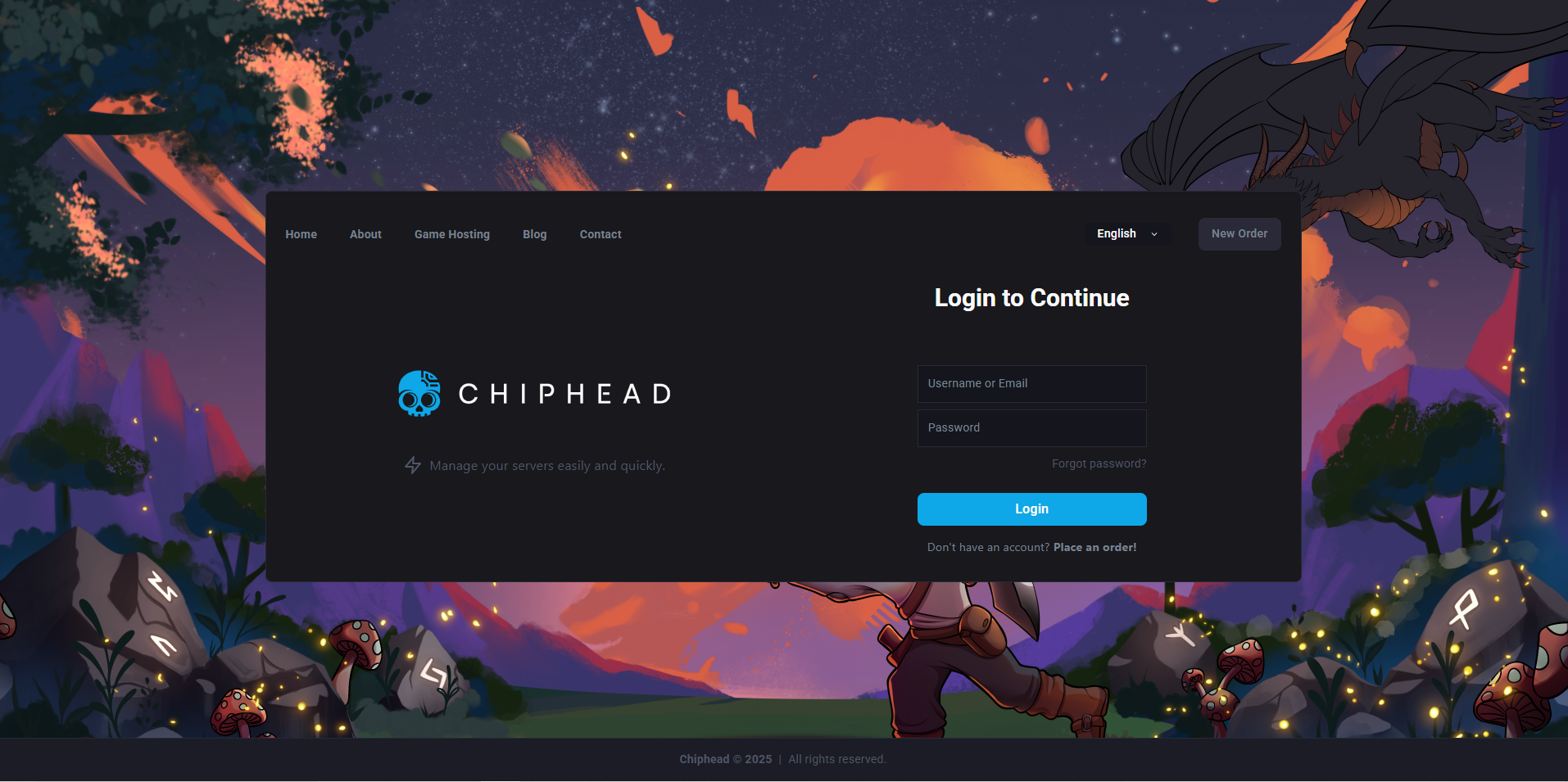
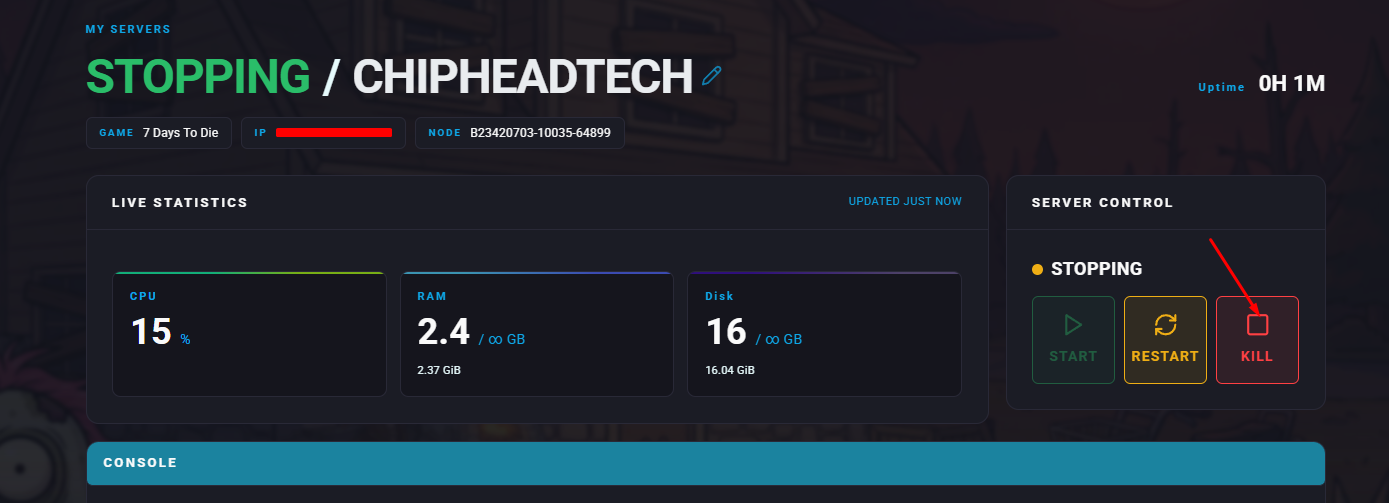
Log in to your ChipHead Panel and stop your server.
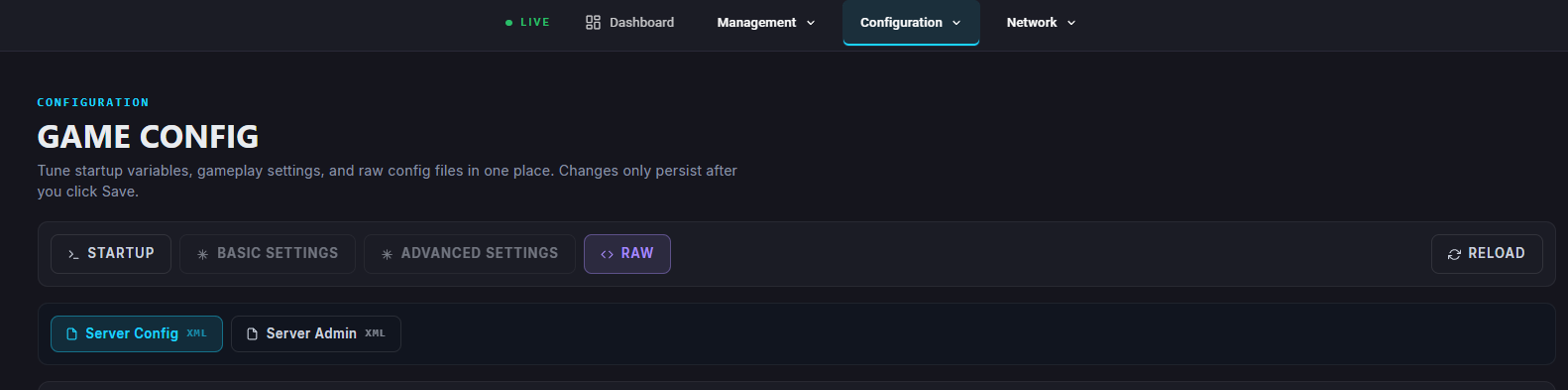
Navigate to Game Config.

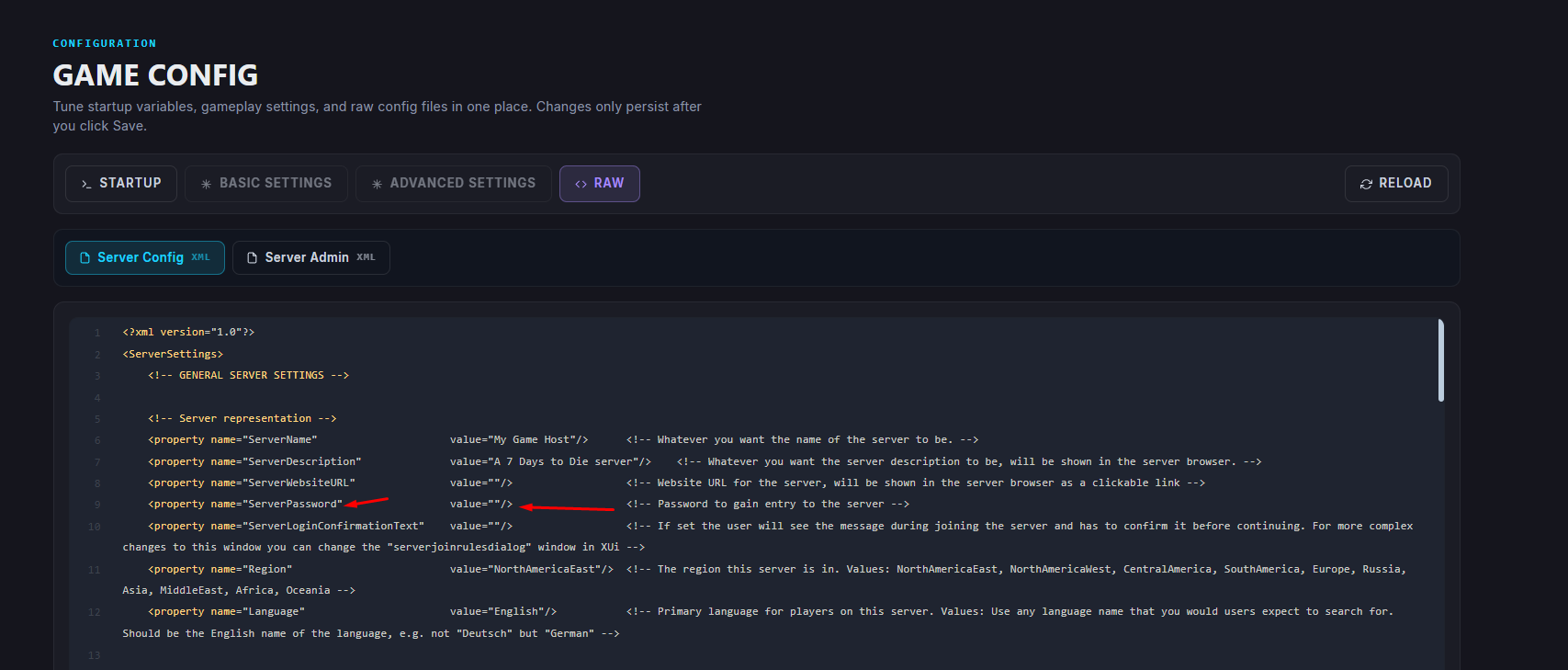
Within the Server Config file navigate to </>Raw.
Find the ServerPassword setting and enter your chosen password next to value= and within the quotation marks.
Click Save.
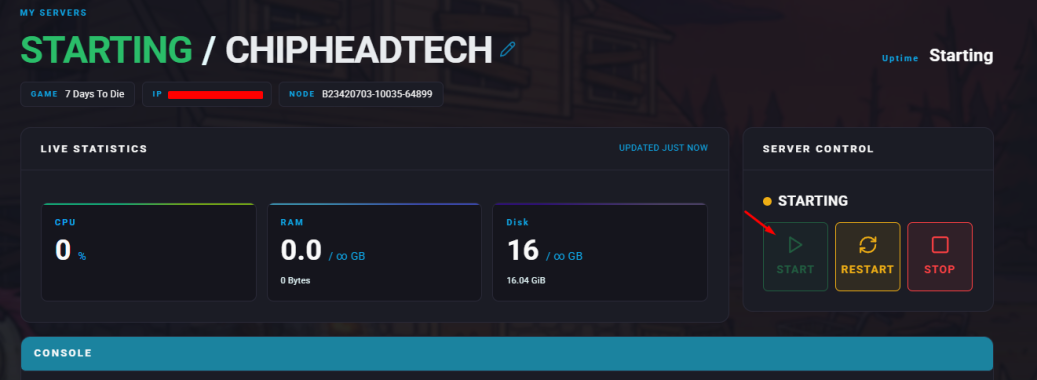
Start/restart the server.

A whitelist allows only approved players to join your server. To use it, you’ll need each player’s Steam64ID. Players not listed on the whitelist will be blocked from joining.
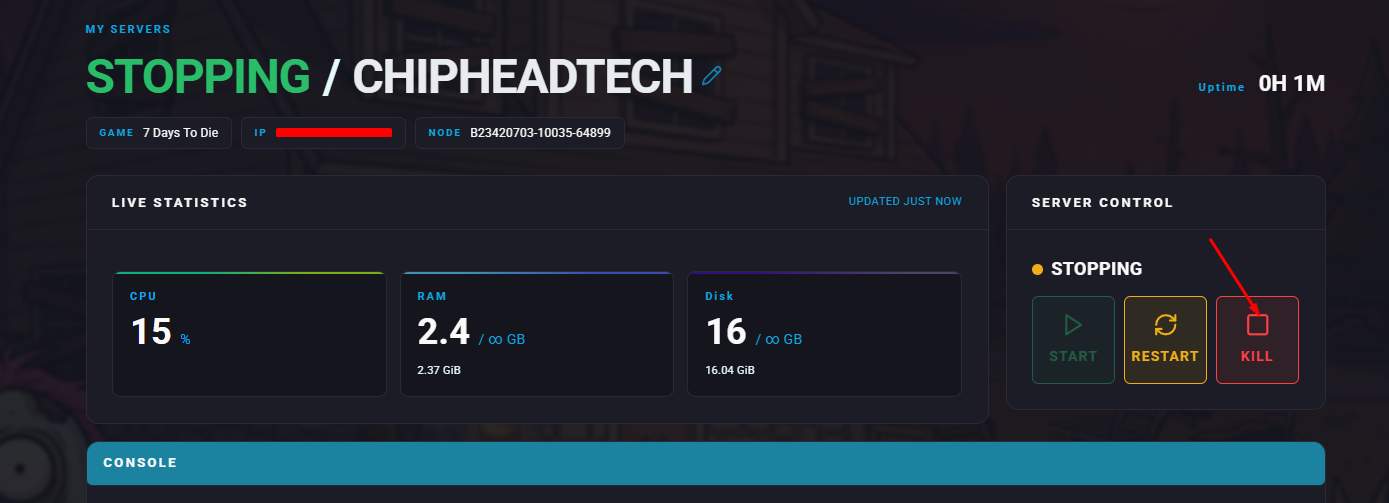
Log in to your ChipHead Panel and stop your server.
Navigate to Game Config.

Select the Server Admin file.
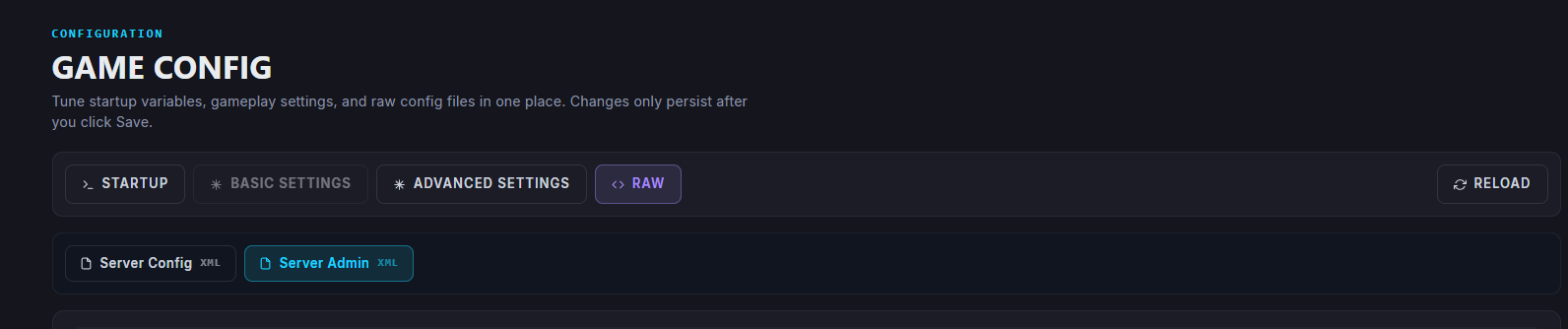
Click on </>Raw to access the serveradmin.xml file.
Locate the <whitelist></whitelist> section.
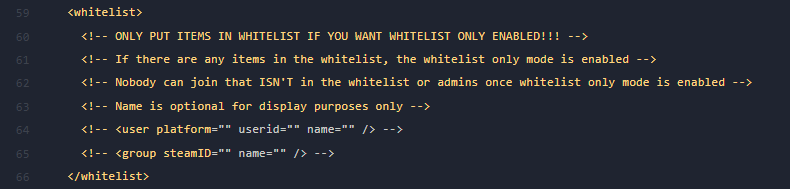
For each player you want to allow, add a line like this:
<whitelist SteamID="YourSteam64ID" />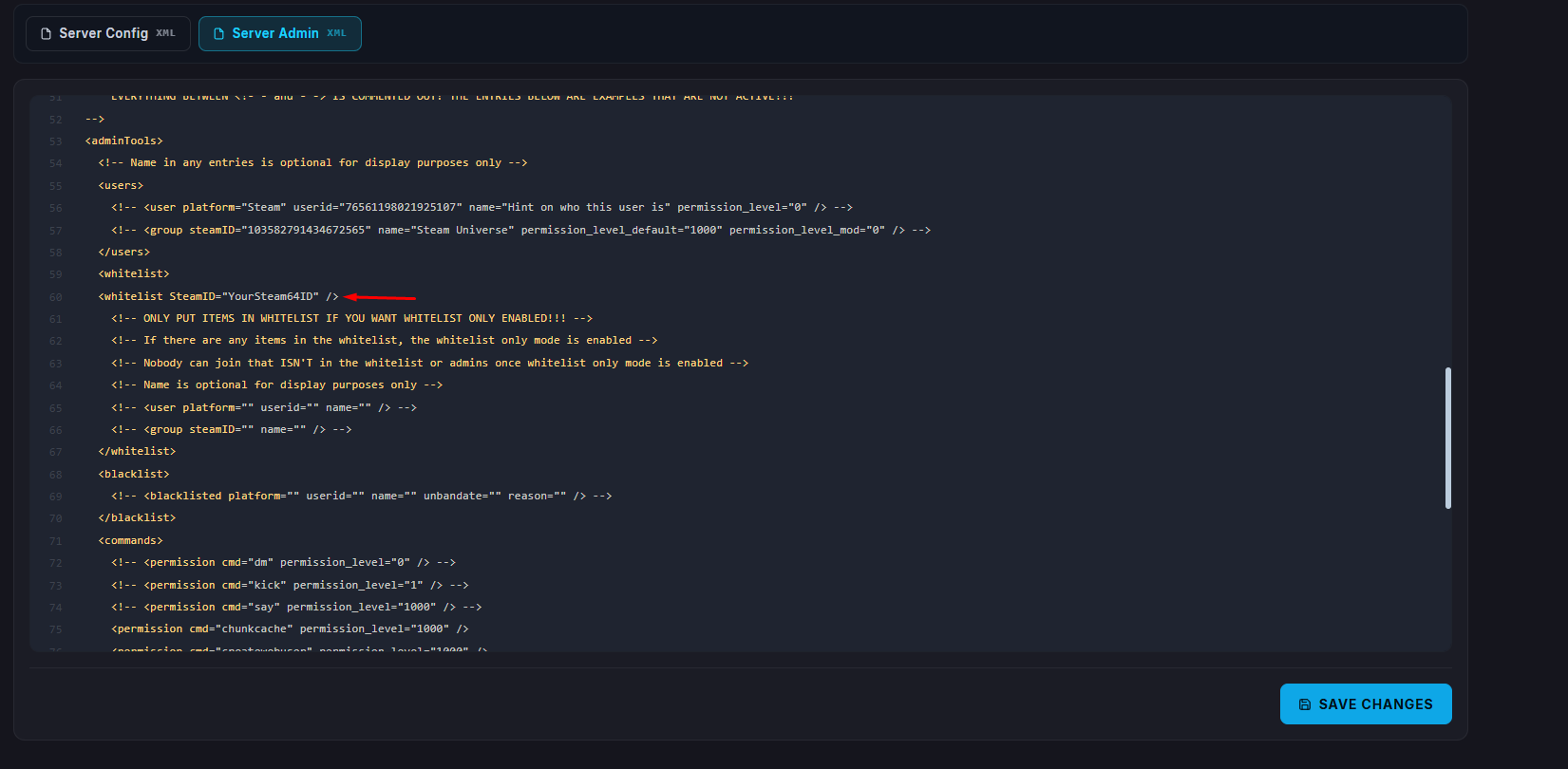
Replace YourSteam64ID with the actual ID of each player.
Click Save.
Start/restart your server for the changes to take effect.