---
title: "Making Your 7 Days to Die Server Invite-Only"
description: "Guide on how to make your 7D2D sever private"
url: https://help.chiphead.tech/en/articles/182-making-your-7-days-to-die-server-invite-only
collection: "7 Days to Die"
updated: 2026-06-13
language: en
---
# Making Your 7 Days to Die Server Invite-Only
Guide on how to make your 7D2D sever private
If you want to host a **7 Days to Die** server just for friends or a small group, it’s best to make your server private. You can do this by setting a password or enabling a whitelist to control who can join.
* * *
## Setting a Server Password
By default, any player can join your server if no password is set. Adding a password means only players who know it can access your server.
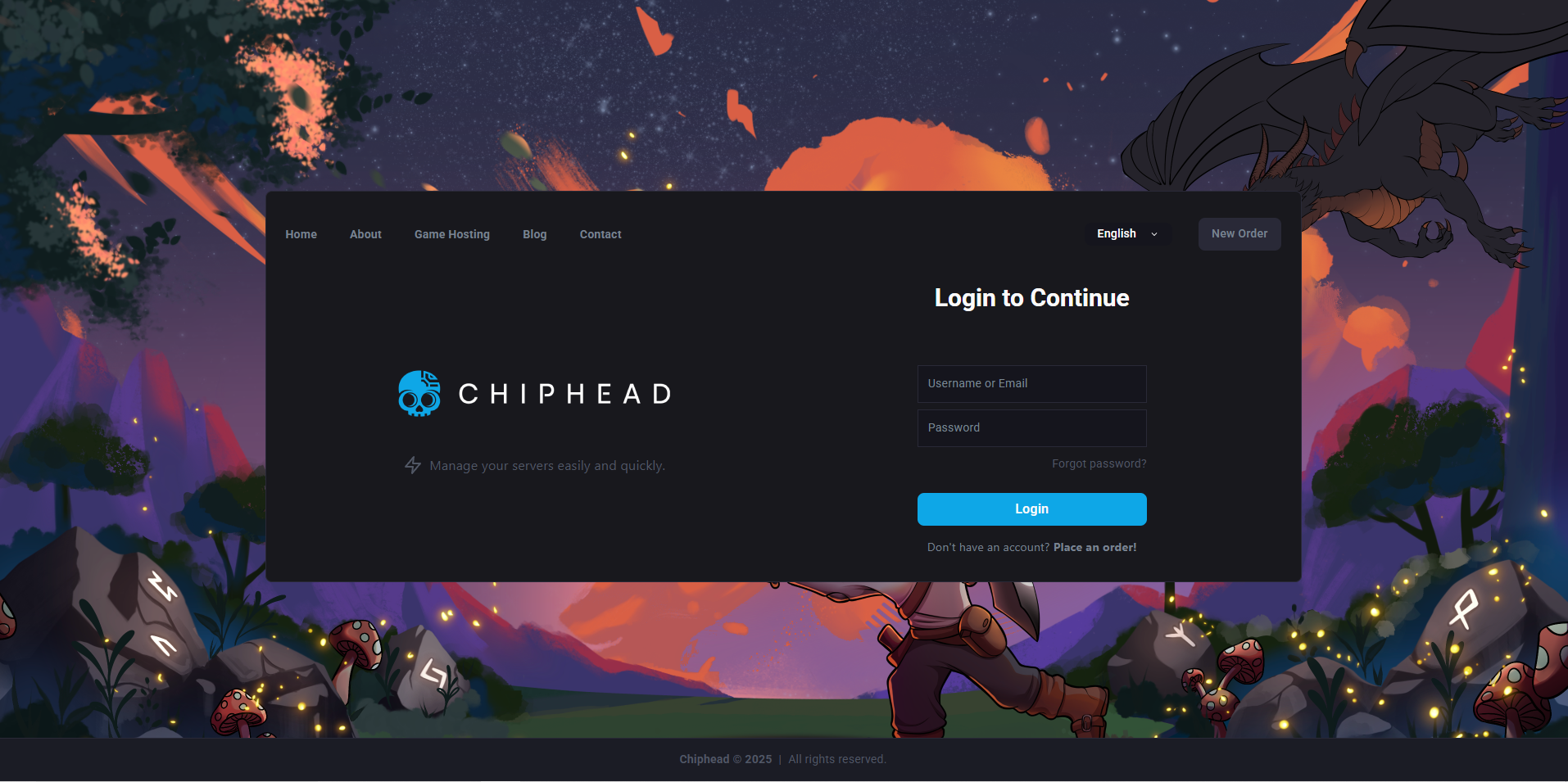
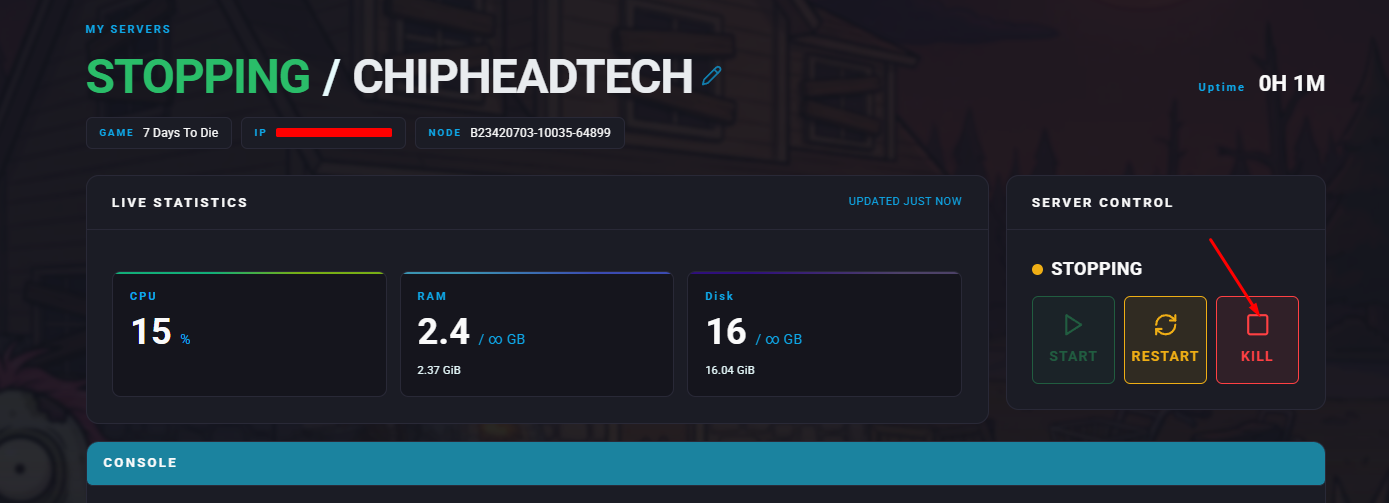
1. Log in to your **ChipHead Panel** and stop your server.
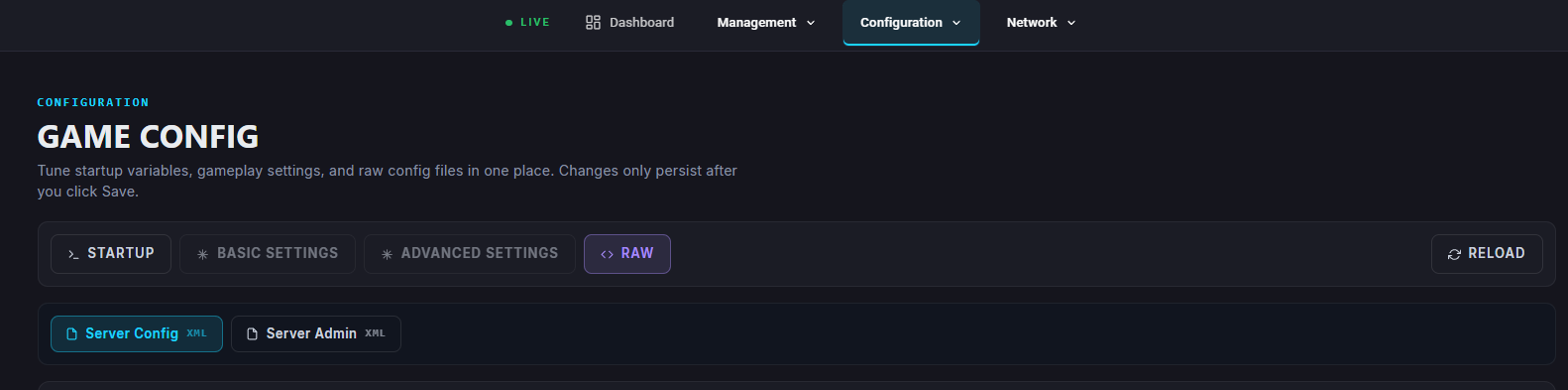
2. Navigate to **Game Config**.

3. Within the **Server Config** file navigate to **Raw**.
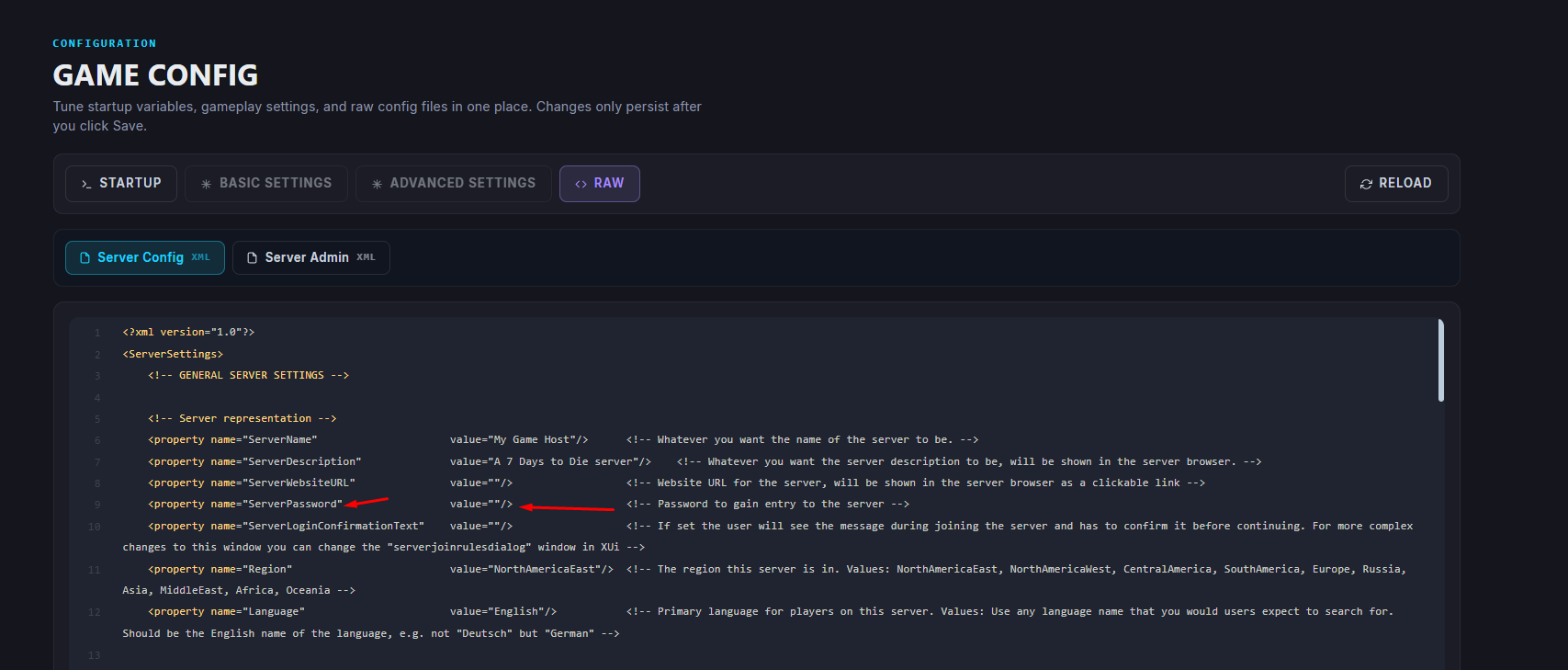
4. Find the **ServerPassword** setting and enter your chosen password next to **value=** and within the quotation marks.
5. Click **Save**.
6. **Start**/**restart** the server.
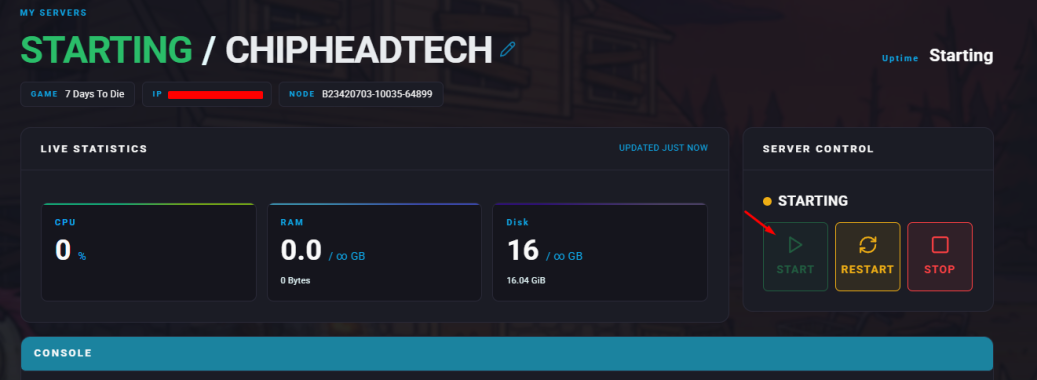
> **Success:** Now, anyone trying to connect will need to enter the password you’ve set.
> If you forget it, you can view the current password directly from your configuration file in the **ChipHead Panel**.
* * *
### Enabling a Server Whitelist
A whitelist allows only approved players to join your server. To use it, you’ll need each player’s **Steam64ID**. Players not listed on the whitelist will be blocked from joining.
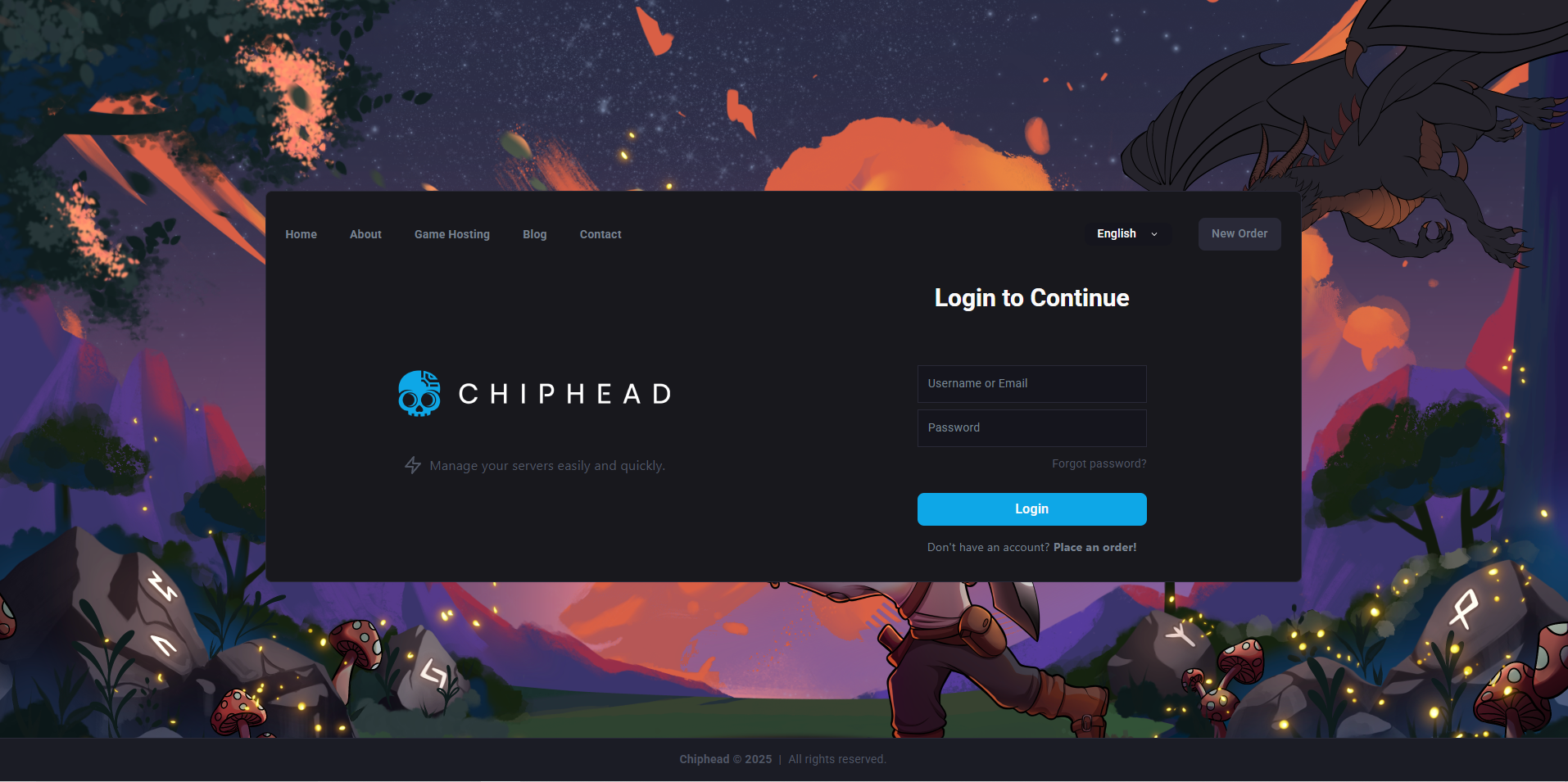
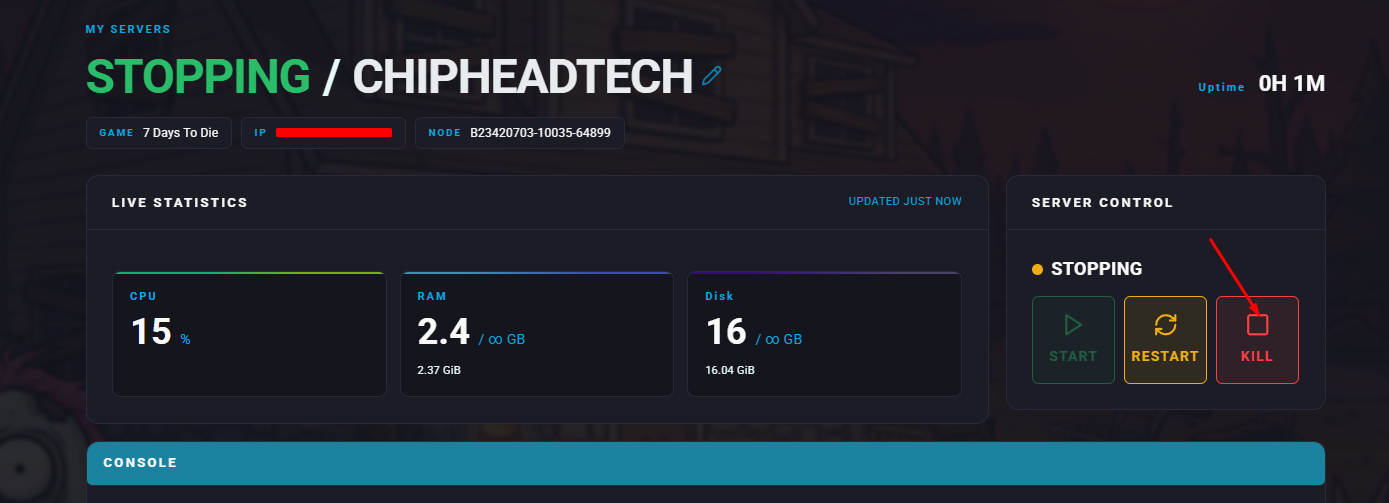
1. Log in to your **ChipHead Panel** and stop your server.
2. Navigate to **Game Config**.

3. Select the **Server Admin** file.
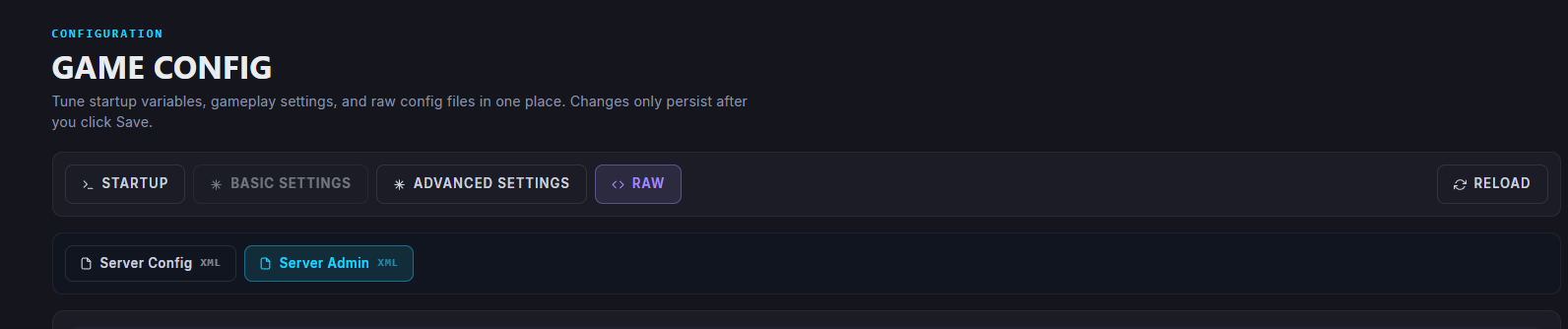
4. Click on **Raw** to access the **serveradmin.xml** file.
5. Locate the `` section.
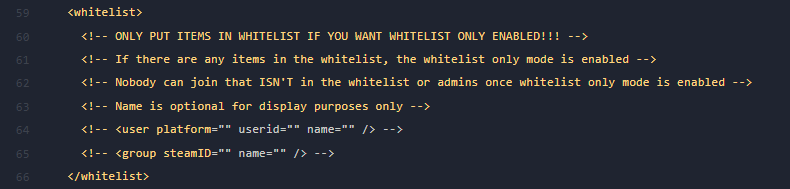
6. For each player you want to allow, add a line like this:
```javascript
```
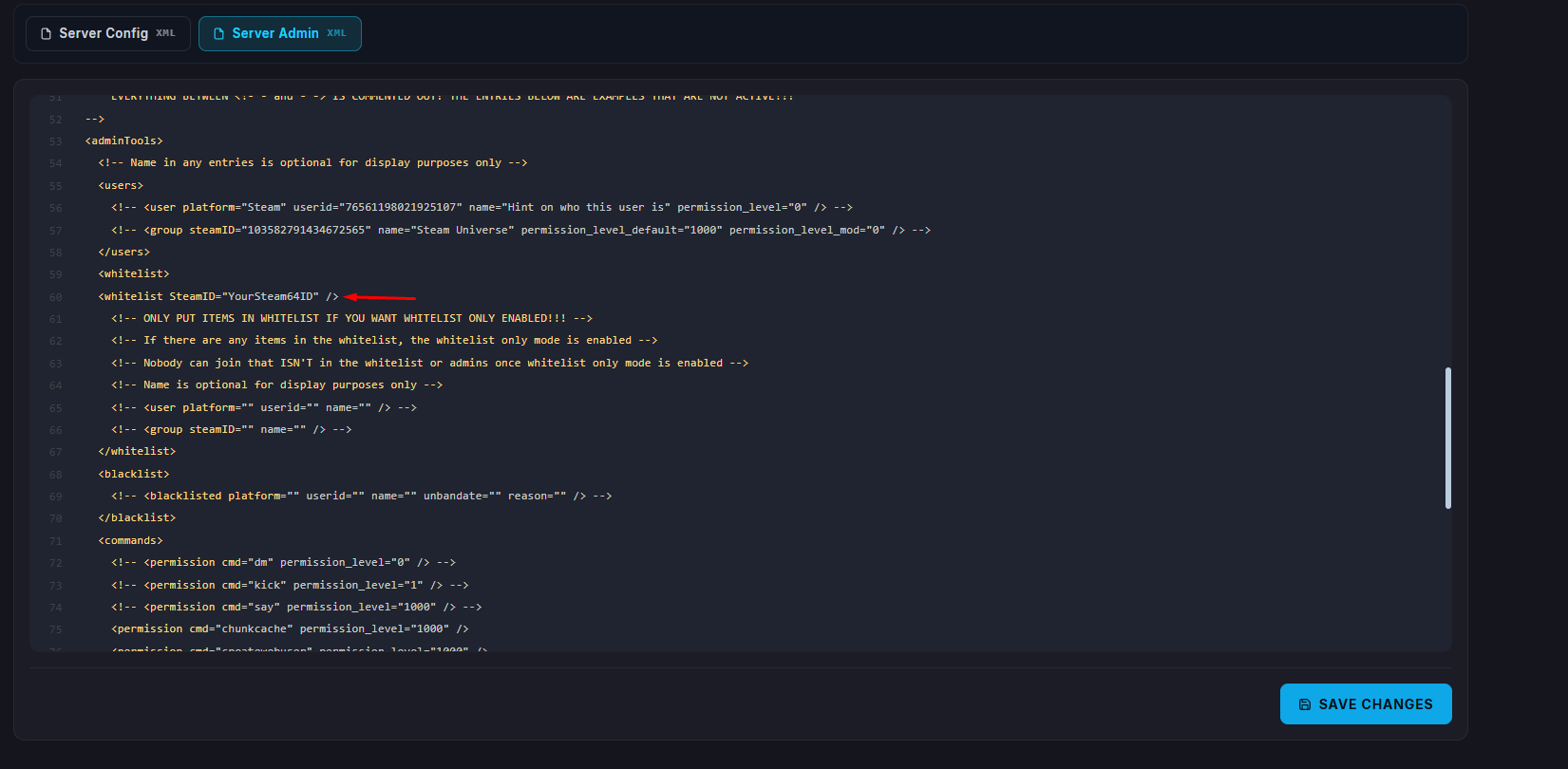
Replace **YourSteam64ID** with the actual ID of each player.
7. Click **Save**.
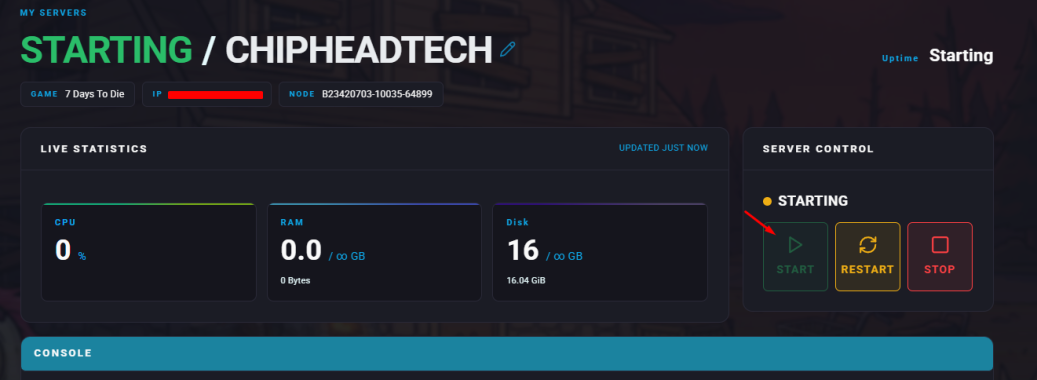
8. **Start/restart** your server for the changes to take effect.
> **Info:** If you want to disable the whitelist later, simply remove all user entries from that section.
* * *
> **Success:** That’s it! Your **7 Days to Die** server is now private, and only players you trust can join. This is a great way to keep your **ChipHead** server safe, secure, and limited to your own community.