In 7 Days to Die, the EOS ID (Epic Online Services ID) acts as a unique identifier for every player. Knowing this ID helps server admins manage permissions, moderate behaviour, and apply commands to specific users.
If the player has recently connected to your server, you can easily locate their EOS ID through the ChipHead Panel console.
Log in to your ChipHead Panel.
Open the Console tab.
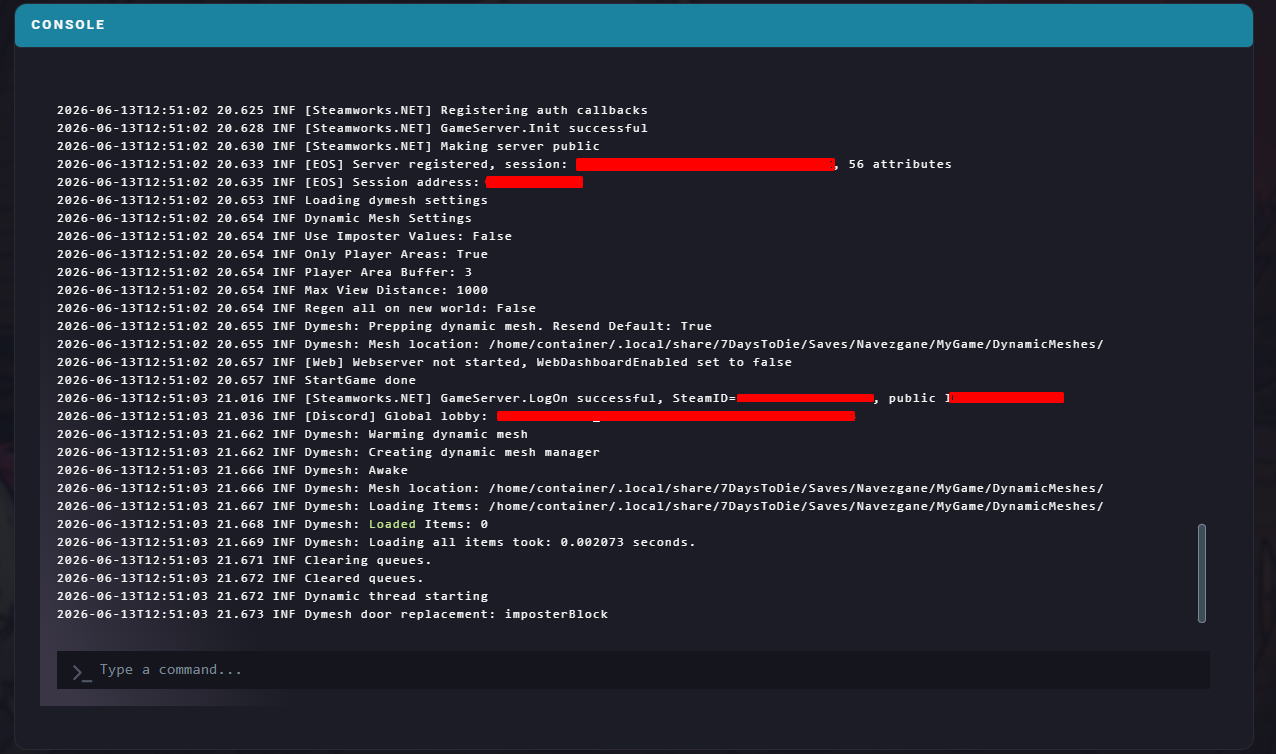
Search for the player’s name in the console logs and look for their CrossId.
When a player connects, you’ll see something like this:
PlayerSpawnedInWorld (reason: EnterMultiplayer, position: 12 123 12):
EntityID=171, PltfmId='Steam_12345678910', CrossId='EOS_0001234567890abcdefg',
OwnerID='Steam_12345678910', PlayerName='Username', ClientNumber='2'
Here’s what each value means:
CrossId – The player’s EOS ID
OwnerID – The player’s Steam ID
PlayerName – The player’s username
If the player isn’t currently online but has joined your server before, you can find their EOS ID in the players.xml file.
Log in to your ChipHead Panel.
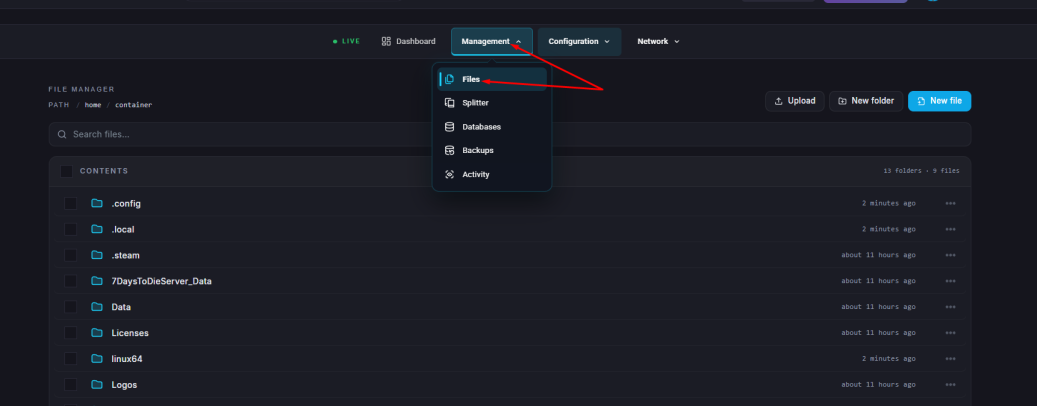
Open the Files tab.
Navigate to your world folder and open players.xml - /.local/share/7DaysToDie/Saves/[MAPNAME]/MyGame/players.xml
Locate the line containing the player’s username and take note of the userid.
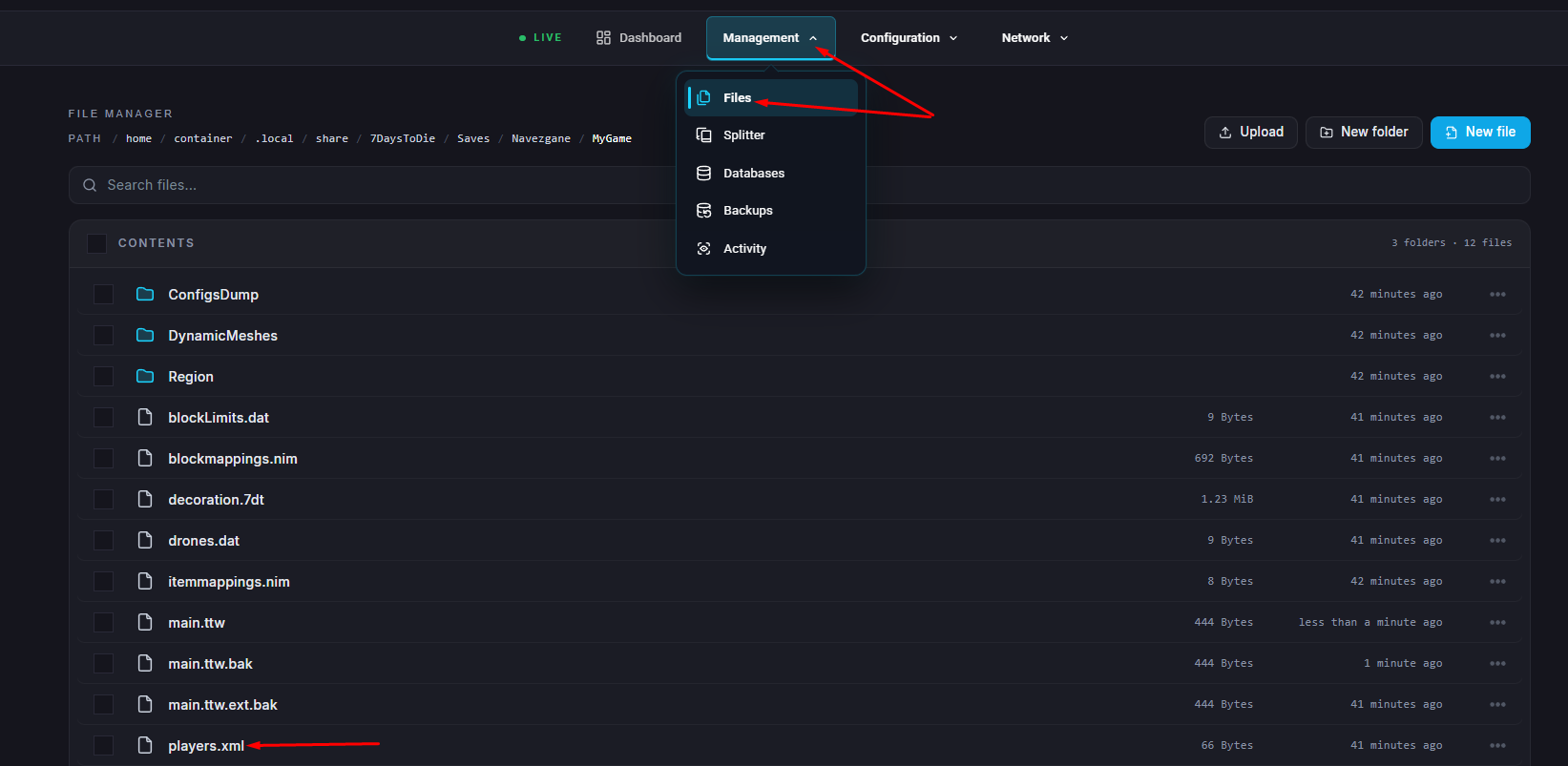
An entry might look like this:
<player platform="EOS" userid="0000001234567890abcdefg"
nativeplatform="Steam" nativeuserid="12345678910"
playername="Username" lastlogin="2024-11-15 17:49:30"
position="-1255,61,239" />
In this example:
The EOS ID is EOS_0000001234567890abcdefg
The Steam ID is found under nativeuserid=

