SourceMod is a popular plugin used in many Steam games like Team Fortress 2. It adds extra features to servers such as voting systems, minigames, and useful admin tools. MetaMod is a required framework for SourceMod to work correctly, so they are typically installed together. One of the main benefits of SourceMod is that it introduces an admin system that is not available in the base game.
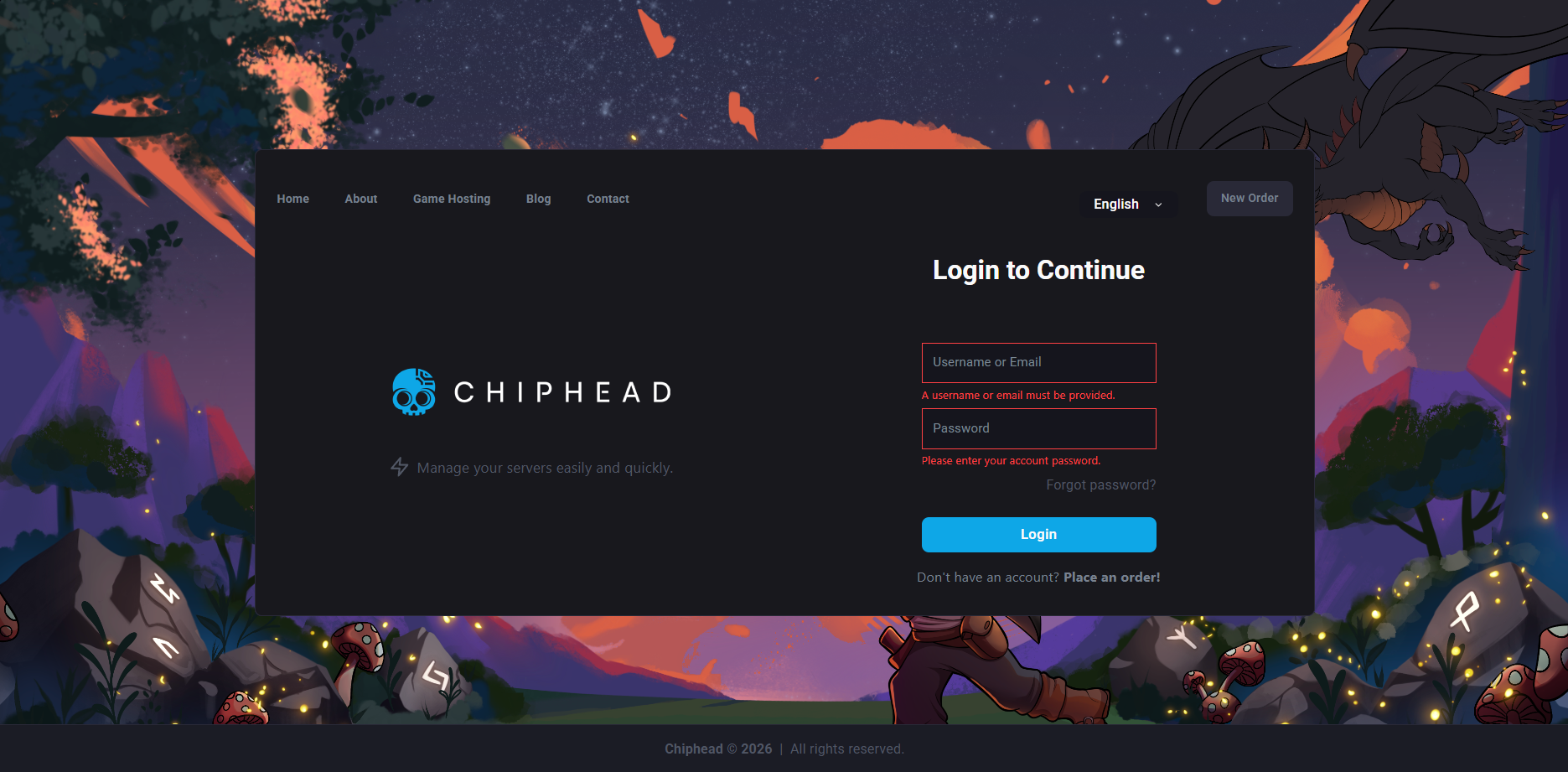
Log in to the ChipHead Games Panel.
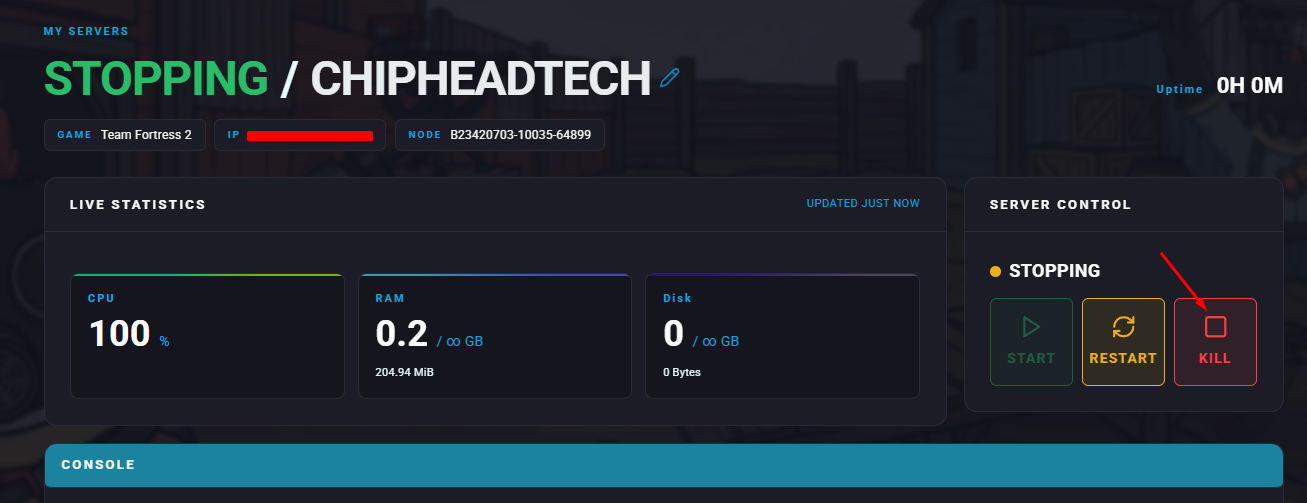
Stop your server.
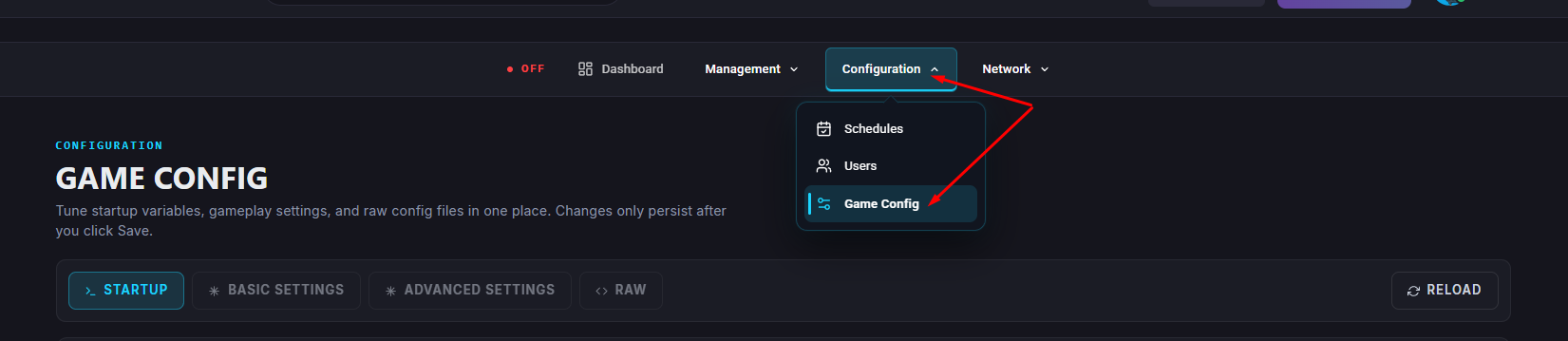
Go to the Startup tab.
In the “Enable Modding Addons” field, select “Enabled”.
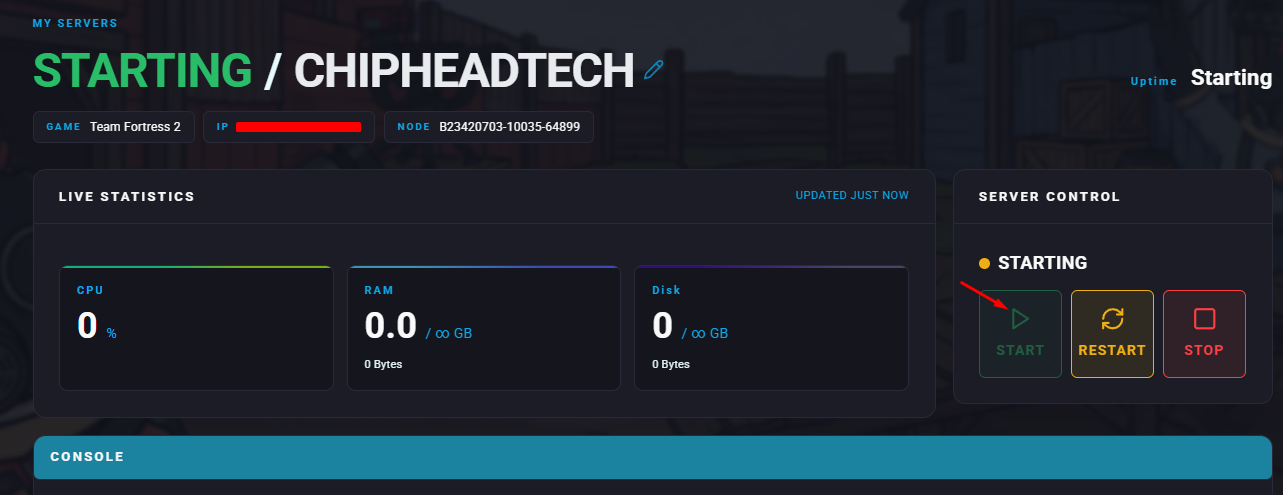
Start your server.
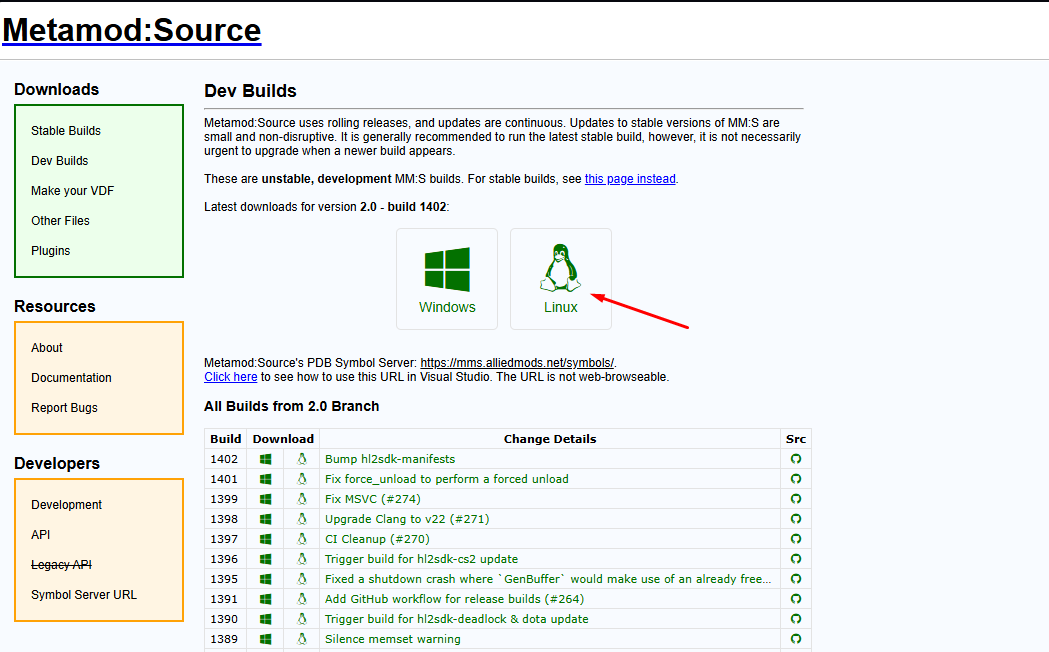
Visit the MetaMod website and download the Linux version (always choose Linux regardless of your server’s operating system).
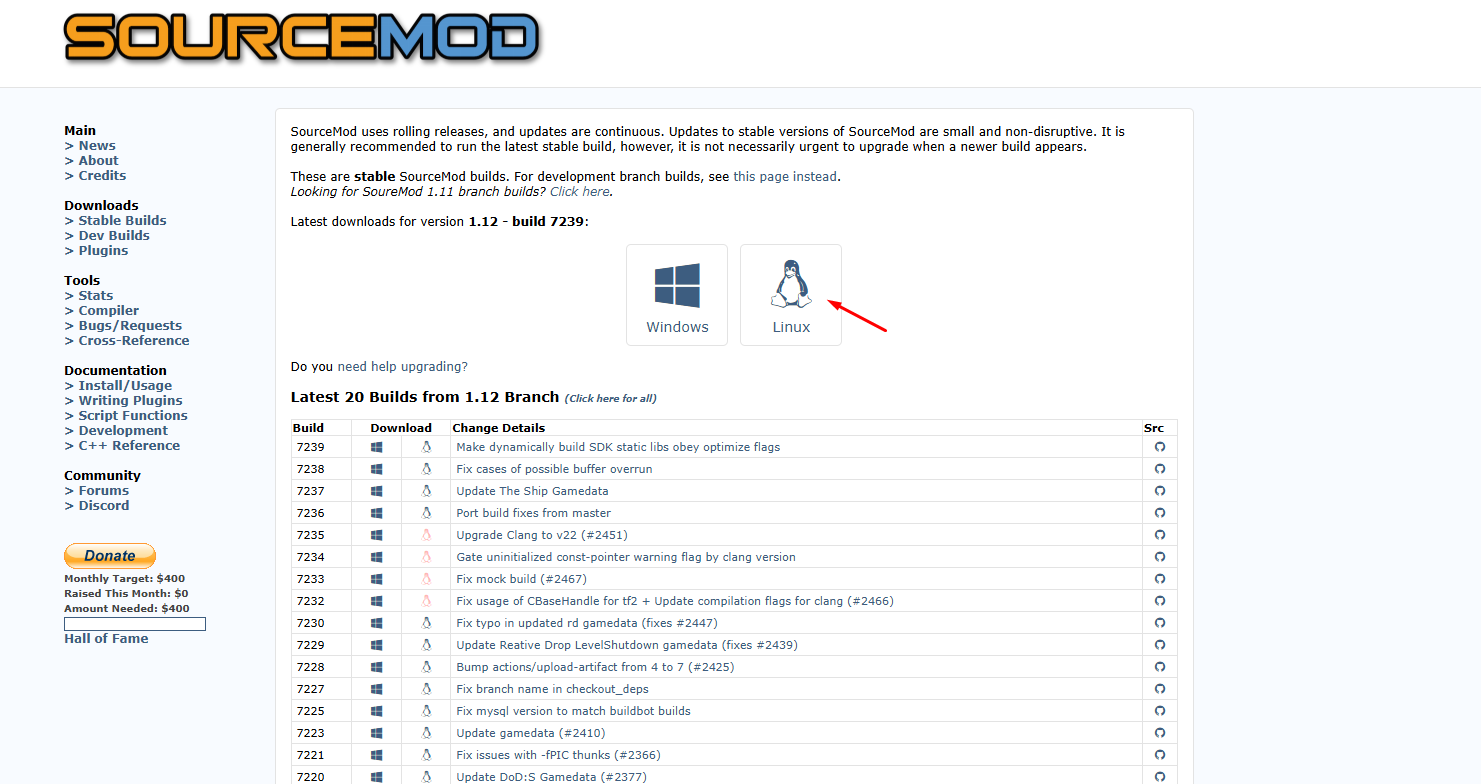
Visit the SourceMod website and also download the Linux version.
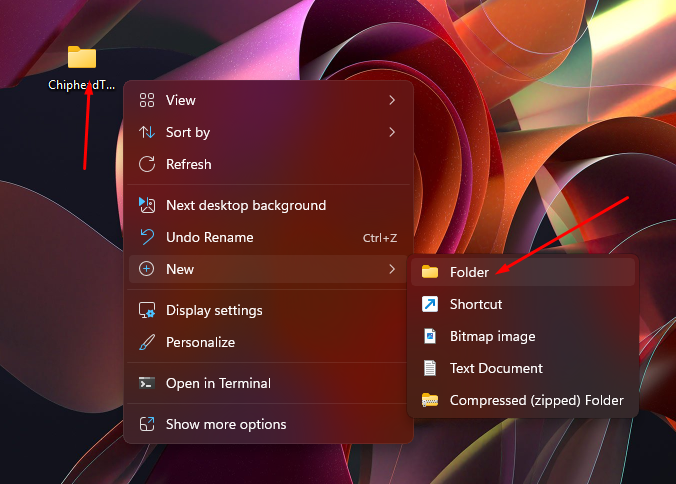
On your desktop, right-click and create a new folder (the folder name does not matter).
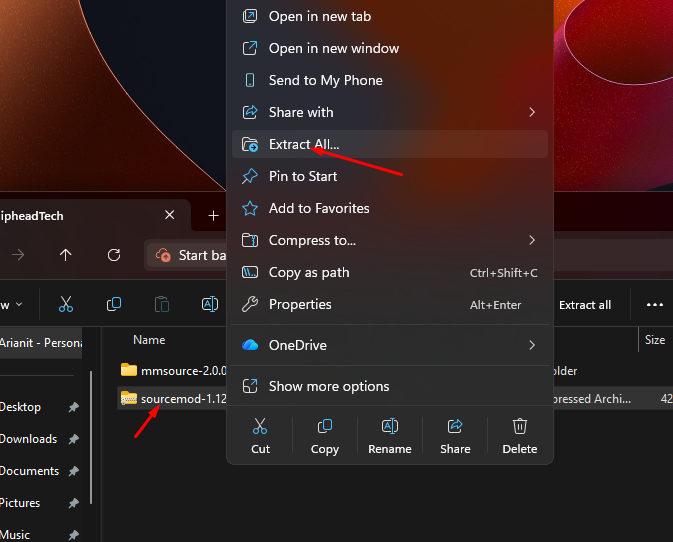
Extract both the MetaMod and SourceMod files into this new folder.
Inside the “addons” folder, delete the existing “metamod.vdf” file. This file needs to be replaced with one made specifically for Team Fortress 2.

Go to the “Make a VDF File” page on the MetaMod website. From the game dropdown menu, select Team Fortress 2.
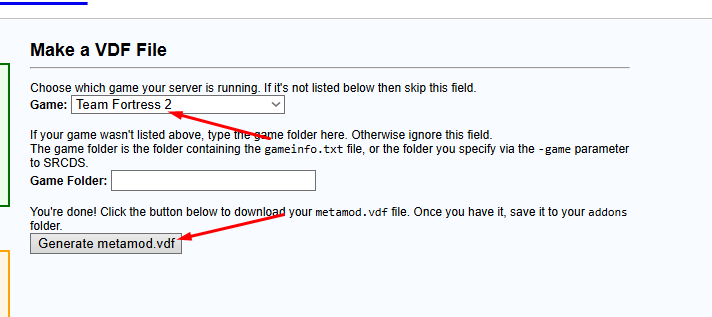
Click the “Generate metamod.vdf” button to download the correct file.
Place the downloaded file into the “addons” folder, replacing the one you deleted earlier.
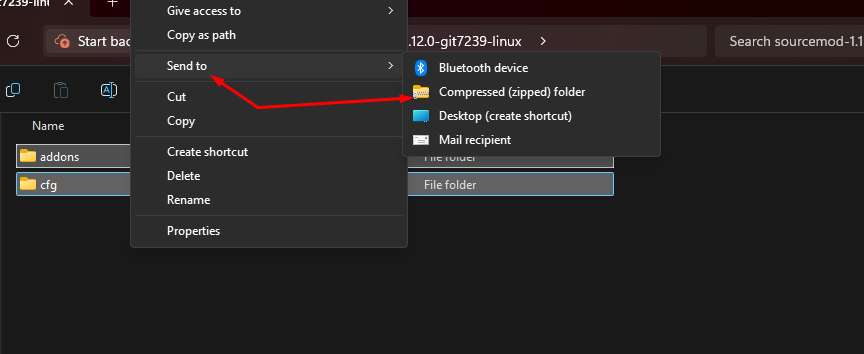
Return to your new folder on the desktop, select the “addons” and “cfg” folders, then right-click and choose “Send to → Compressed (zipped) folder”.
Log in to the ChipHead Games Panel.
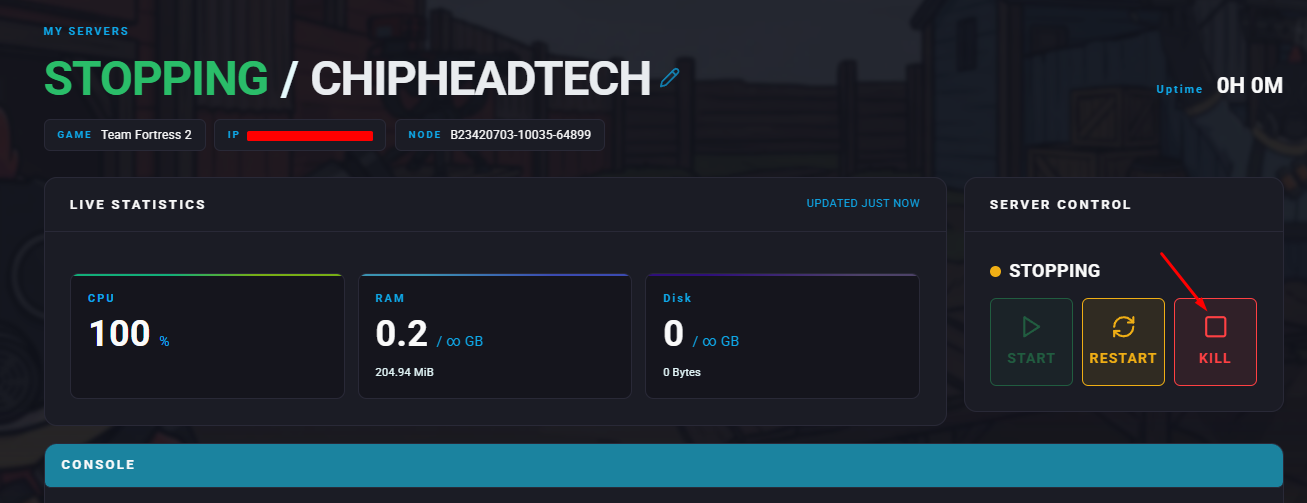
Stop your server.
Go to the Files tab.
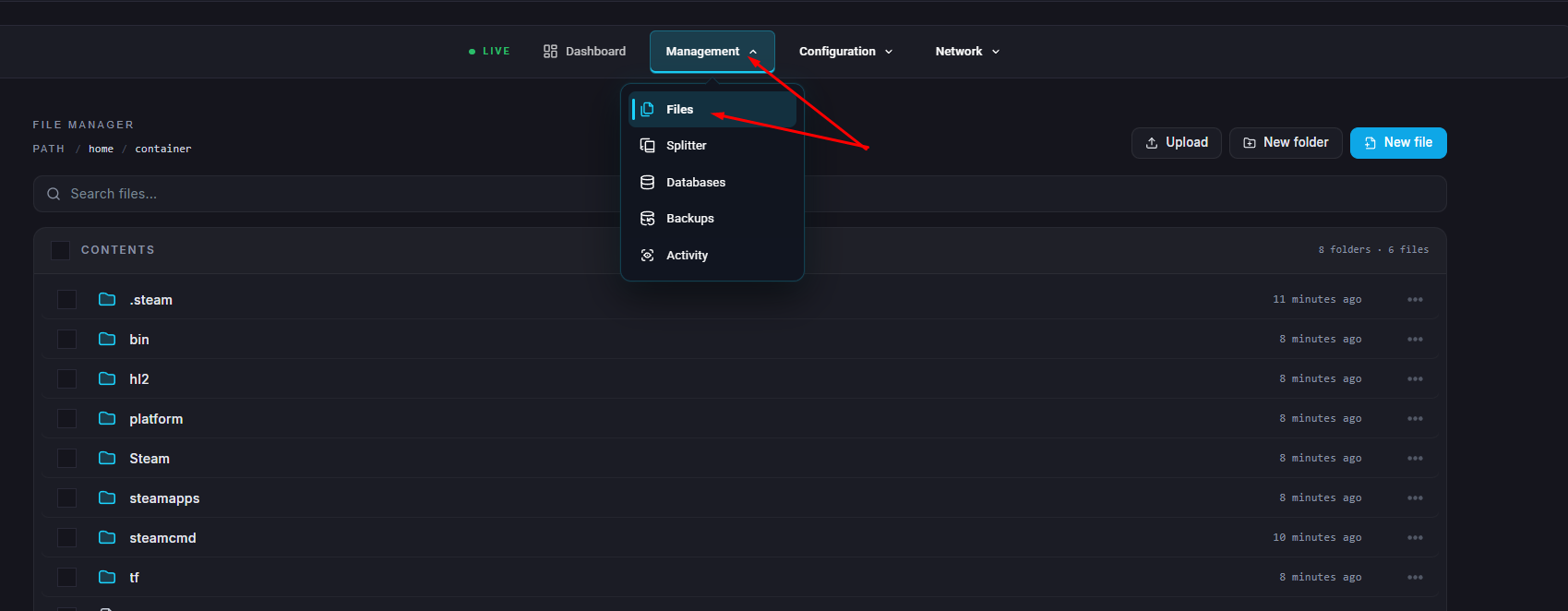
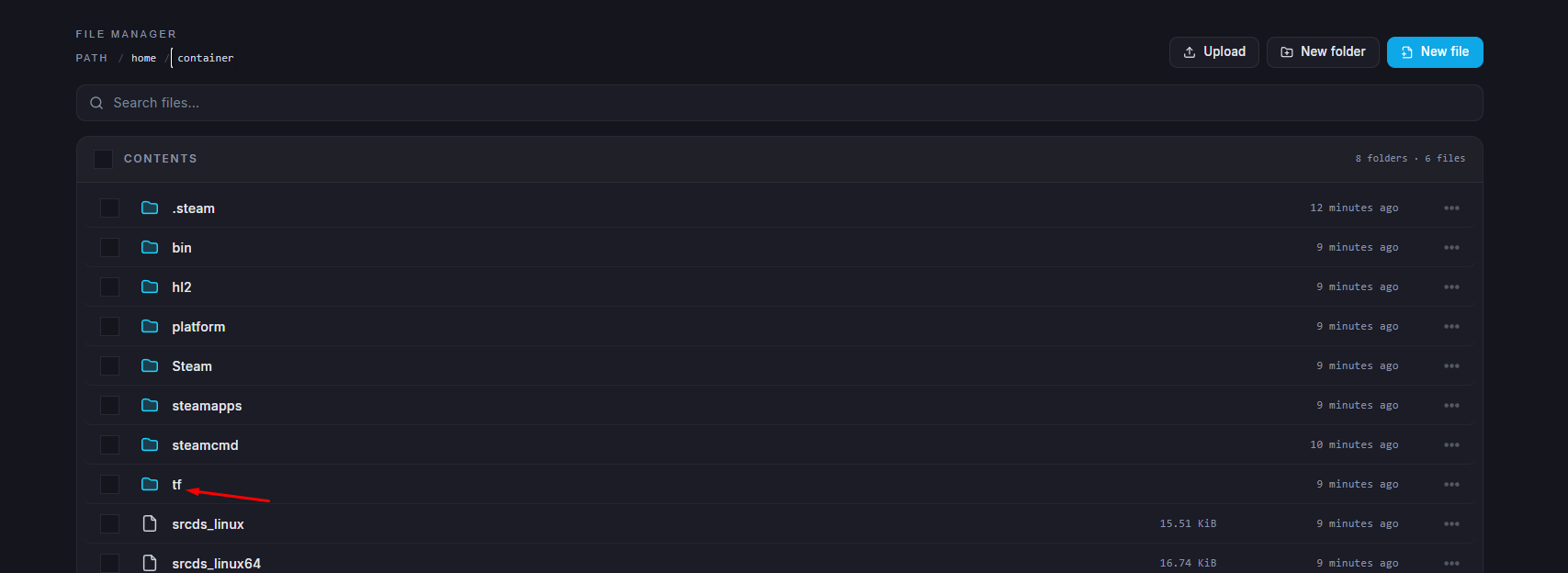
Open the “tf” folder.
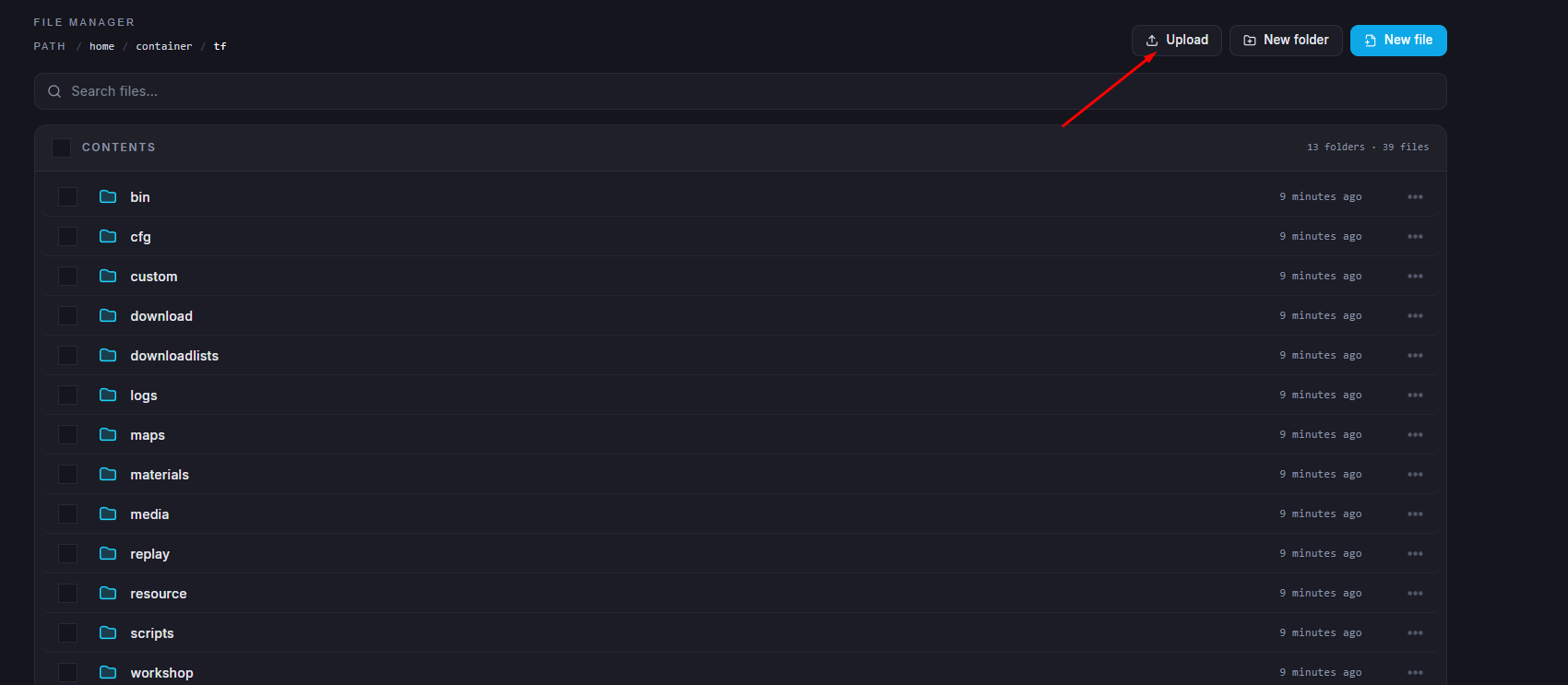
Click the “Upload” button.
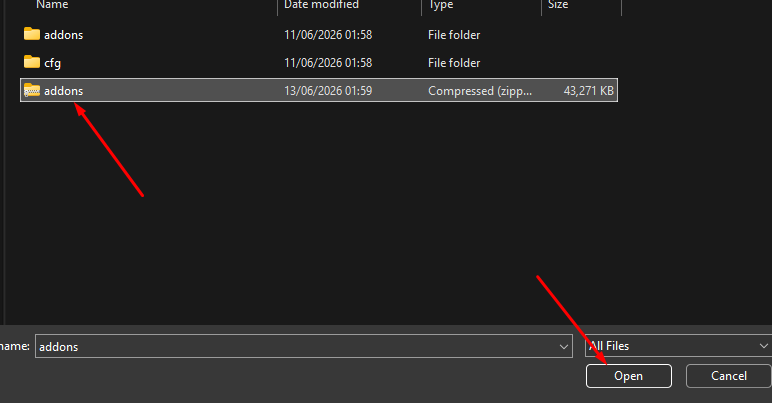
Upload the zipped folder created in step 9.
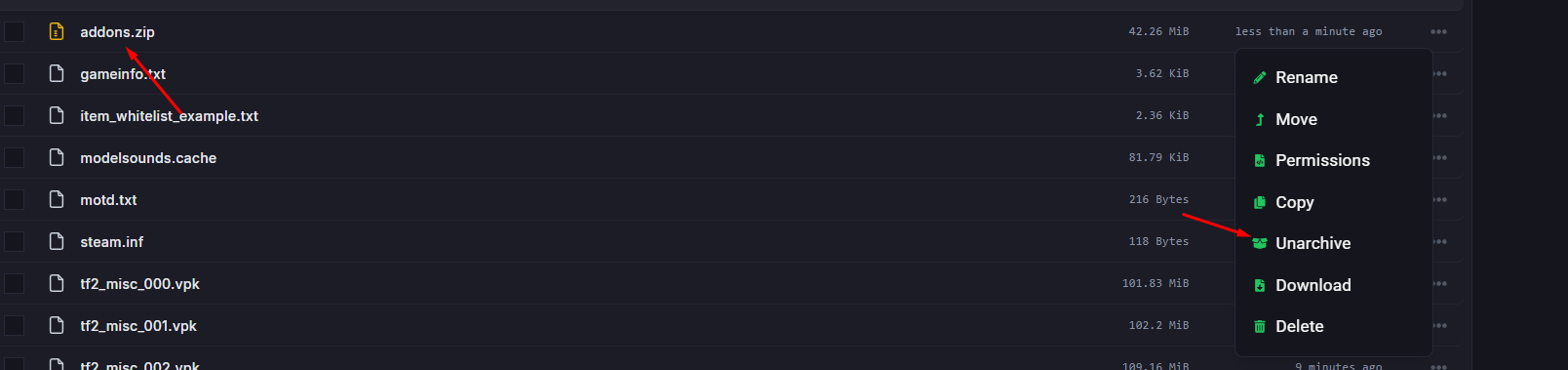
Once uploaded, find the zipped folder in the “tf” directory, right-click it, and select “Unarchive”.
Go to the Startup tab.
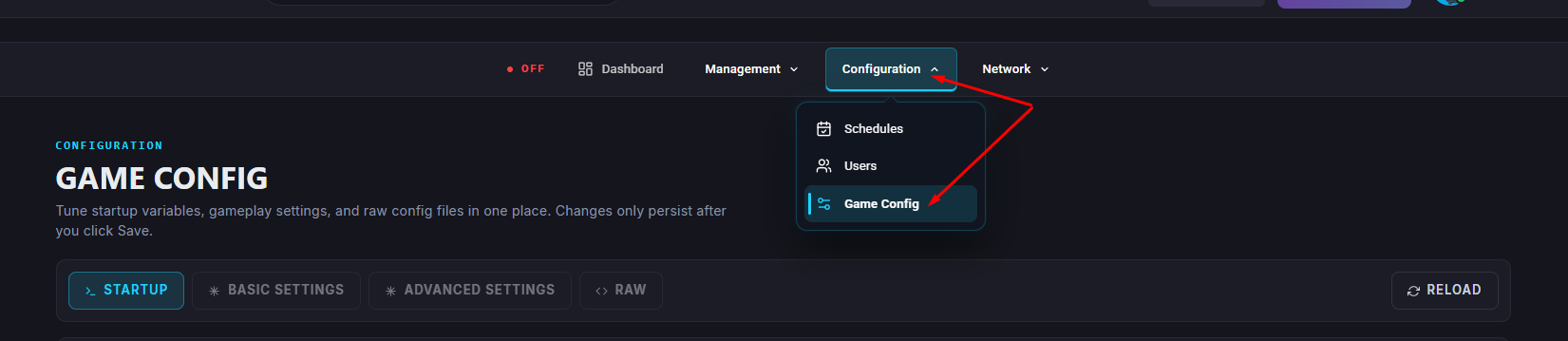
In the “64Bit Support” field, set it to “Disabled”.
Start your server.
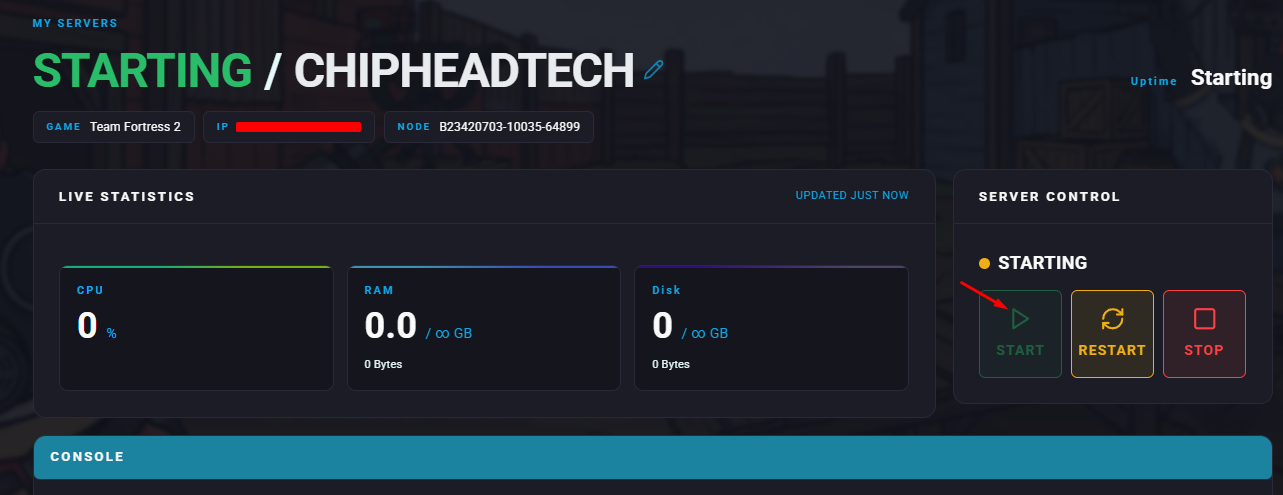
Your Team Fortress 2 server should now have both SourceMod and MetaMod installed and running successfully.
