Adding yourself as an admin on your DayZ server gives you full control over its settings and players. As an admin, you’ll be able to use a range of console commands to manage your server, restart missions, or moderate players by kicking or banning them when needed.
You can make yourself an admin by setting an admin password inside your server configuration file.
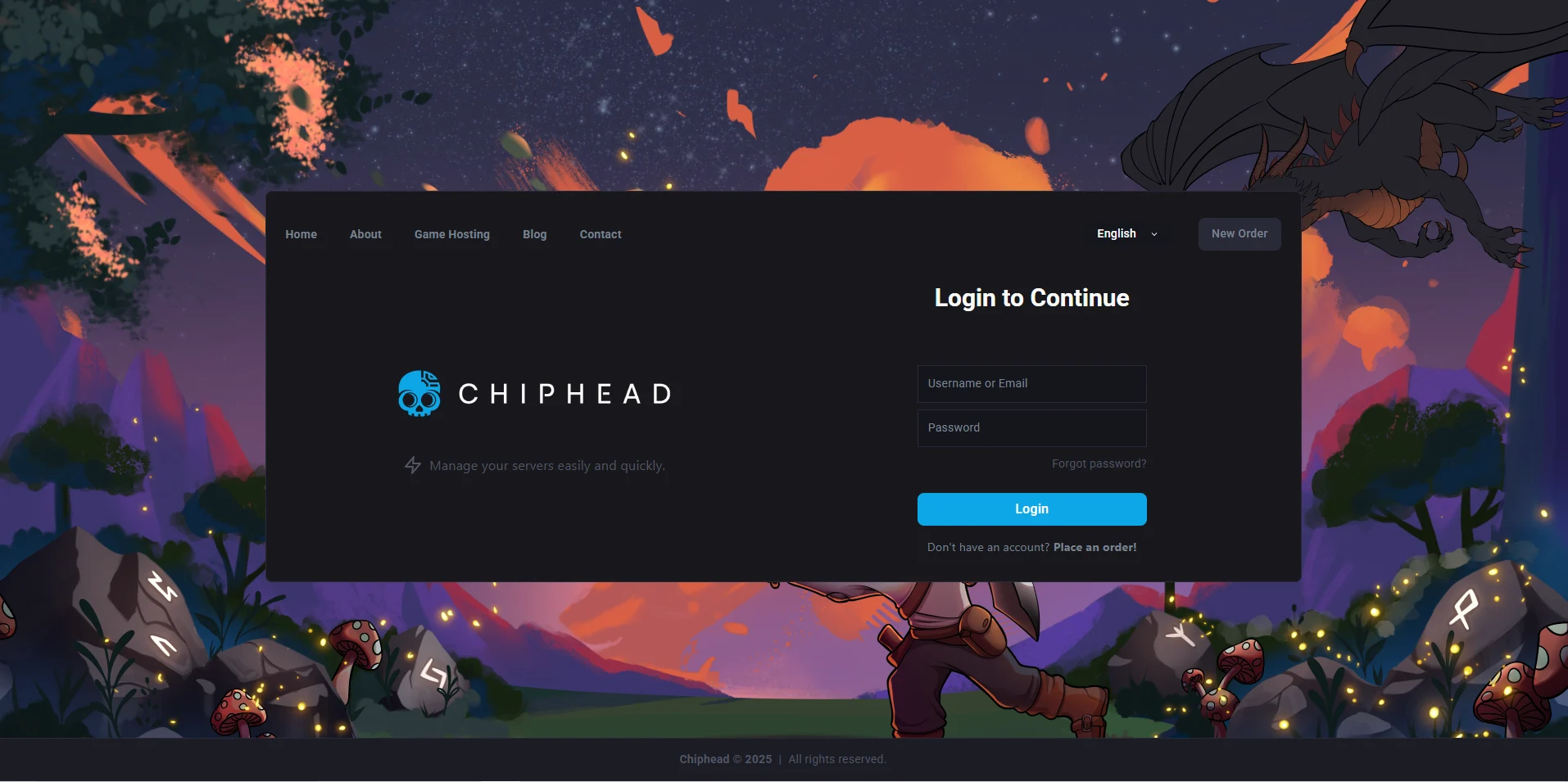
Log in to the ChipHead Control Panel.
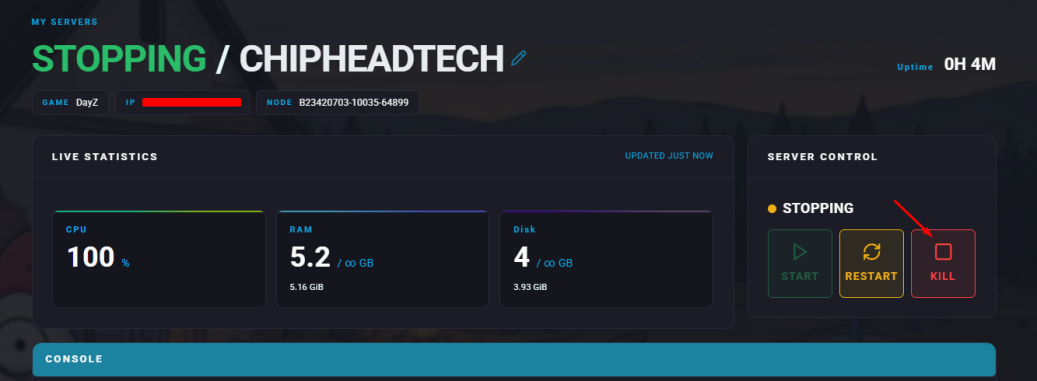
Stop your server.
Go to the Files tab & navigate to “serverDZ.cfg”

Look for the line:
passwordAdmin = "";
Add your chosen password between the quotation marks.
Click on “Save Content”.

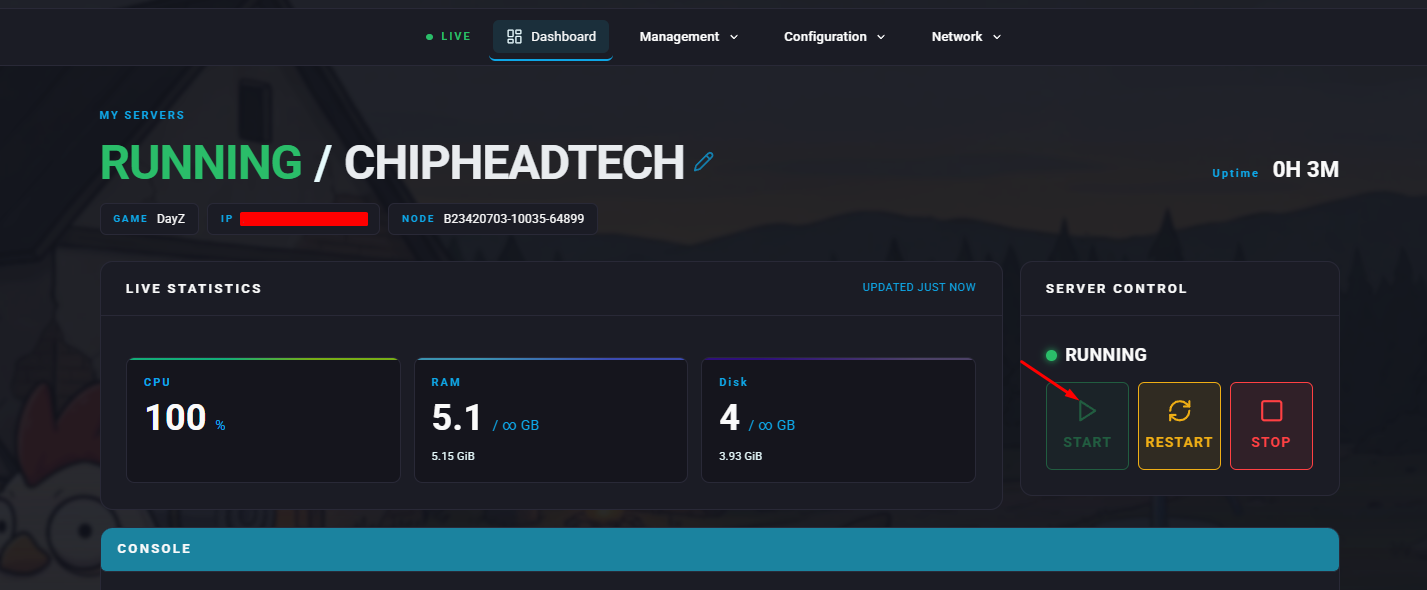
Start your server.
Join your server, open the in-game chat by pressing Enter, and type:
#login yourpassword

#login password | Logs you in as the server admin. |
#logout | Logs you out of admin mode. |
#mission filename Difficulty | Selects a mission and sets its difficulty (optional). |
#missions | Opens the mission selection menu. |
##restart | Restarts the current mission. |
#reassign | Resets all player roles. |
#shutdown | Shuts down the server. |
#restartserver | Restarts the server. |
#shutdownserveraftermission | Shuts down the server after the mission ends. |
#restartserveraftermission | Restarts the server after the mission ends. |
#init | Reloads the server configuration file. |
#exec ban Name / ID / #Player | Bans a player by name, ID, or player number. |
#kick Name / ID / #Player | Kicks a player from the server. |
#monitor (interval) | Displays server performance information. Use 0 to stop. |
#monitords (interval) | Shows performance data in the server console. |
#debug off | Turns off debugging mode. |
#debug (interval) | Sets how often debug data updates, default is 10 seconds. |
#debug (command) (param) | Runs debug commands such as JIPQueue, checkFile, or userInfo. |
#debug (command) | Runs a debug command without parameters. |
console, von (within #debug) | Sends console information to chat or the log file. |

