Summary
Once your Counter-Strike: Source server is set up and configured to your liking, you’re ready to join it. While you can use the in-game server browser to find servers, it doesn’t always display every available one. For a more reliable connection, it’s best to add your server to your favourites list.
Obtaining Server Information
To add your server to your favourites, you’ll need its IP address and port number.
You can find both on the Home page of your ChipHead Panel under your server details.
Adding a Server to Your Favourites
Once you have your server’s IP and port, follow these steps to connect:
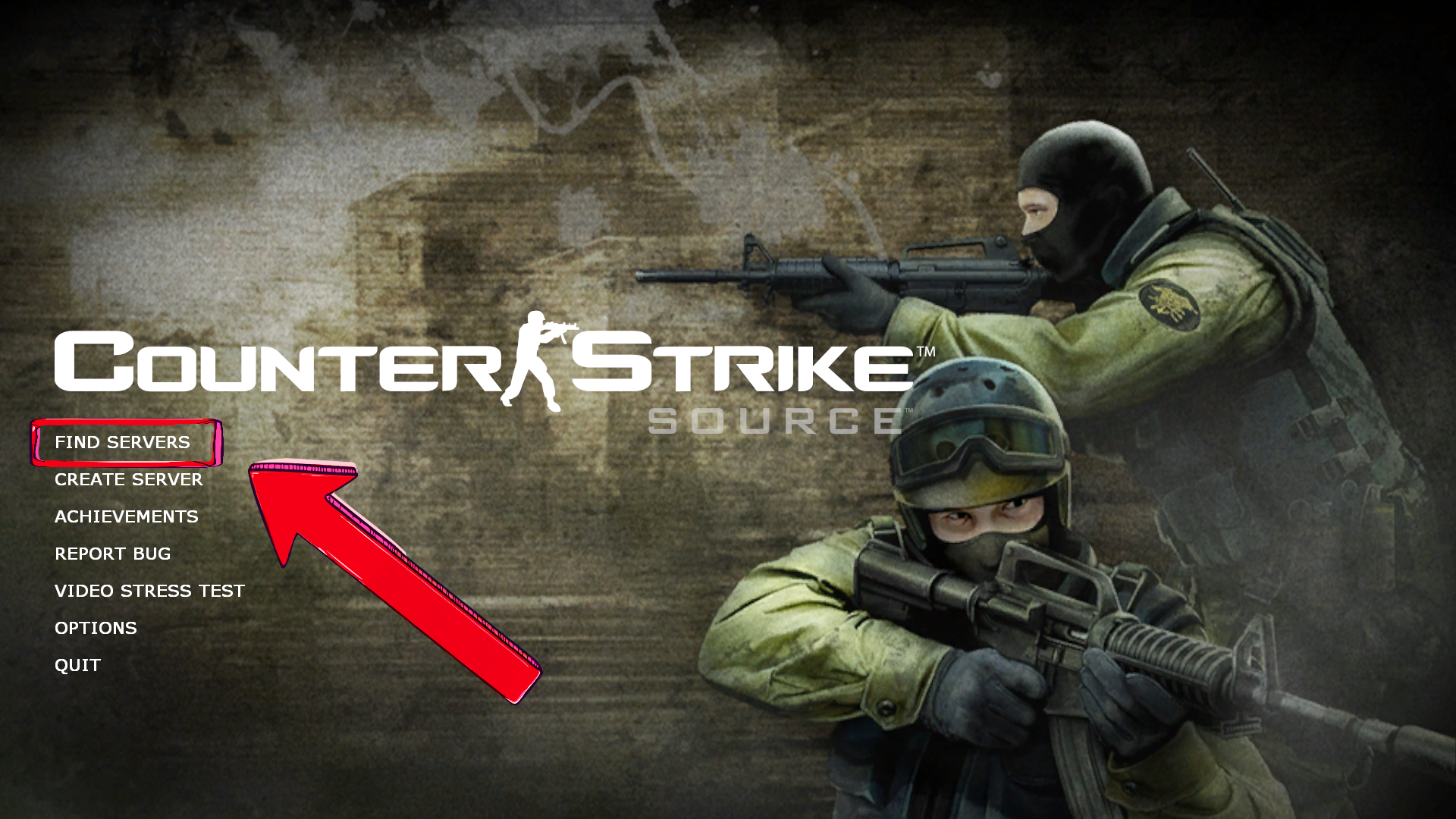
Open Counter-Strike: Source and click Find Servers.
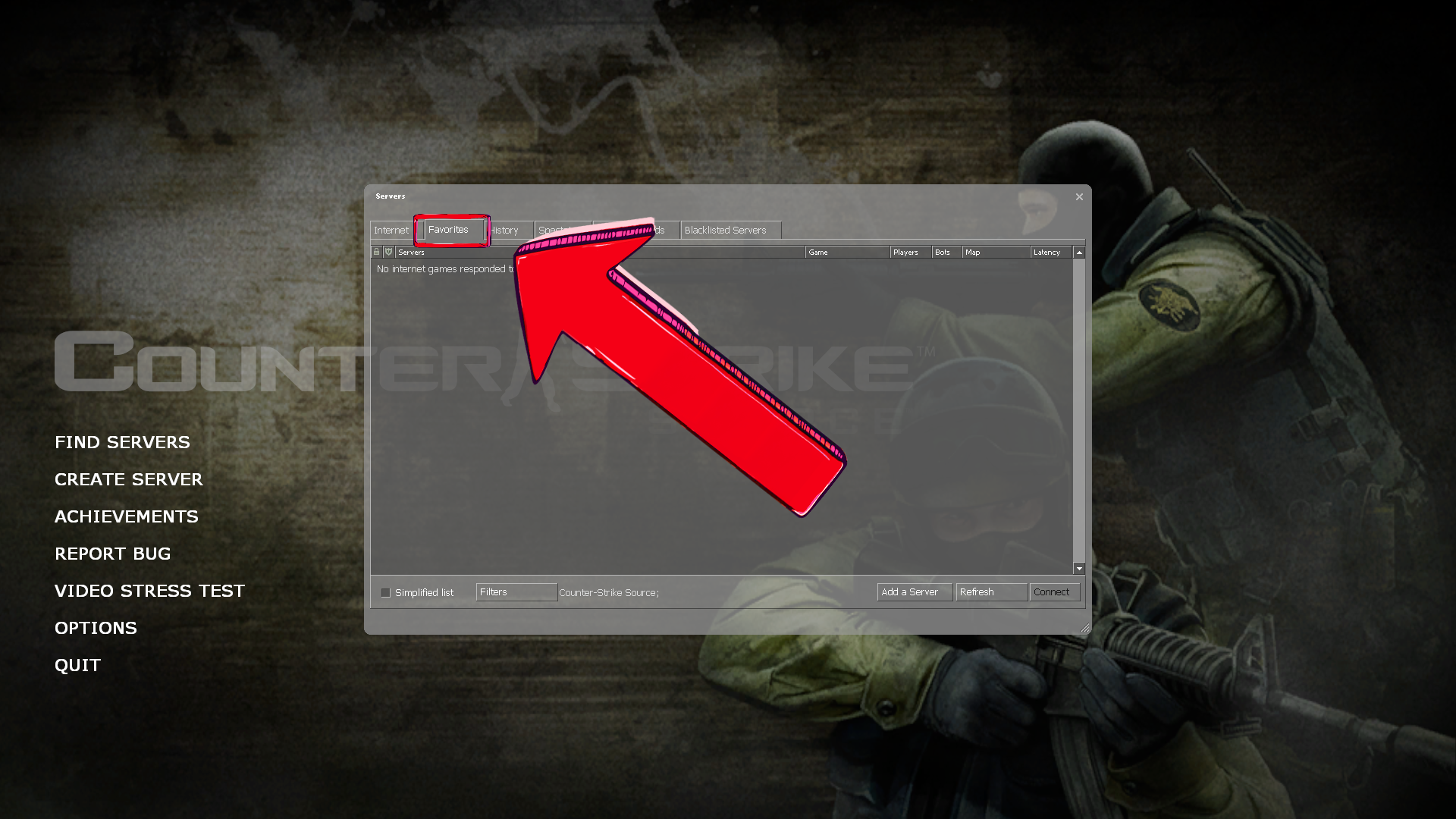
Go to the Favorites tab.
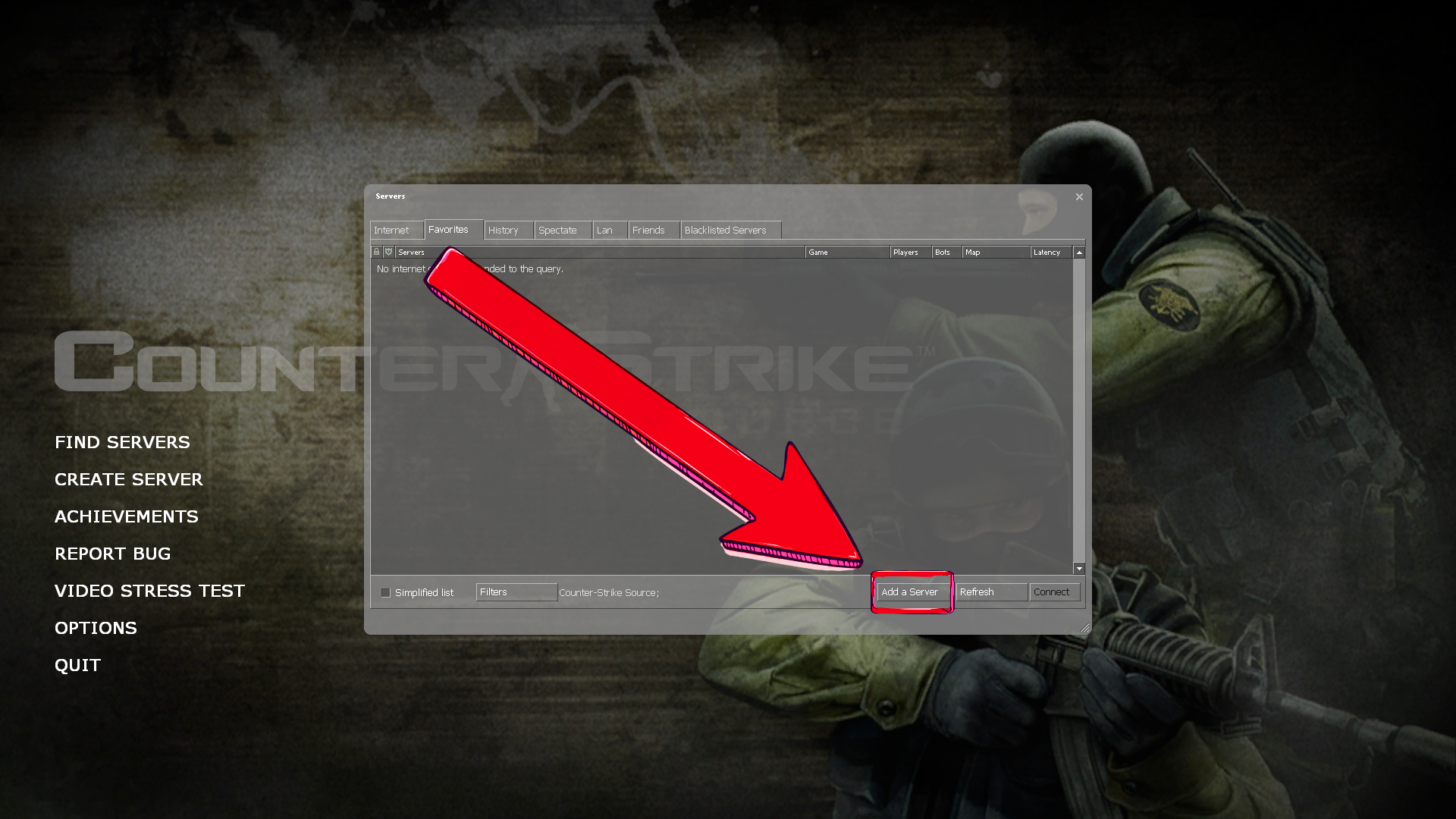
Click Add a Server
Enter your server’s IP address and port, then click Add this address to favourites.
Select your server from the list and click Connect.
That’s it! You’ve successfully added your Counter-Strike: Source server to your favorites. For more guides on managing and hosting your server, visit the ChipHead Knowledgebase.