GOTV allows players to spectate live matches, record replays, and review gameplay on your Counter-Strike 2 community server. This feature is perfect for admins, content creators, and competitive communities who want to capture or analyse gameplay.
To enable GOTV on your CS2 server:
Log in to your ChipHead Panel
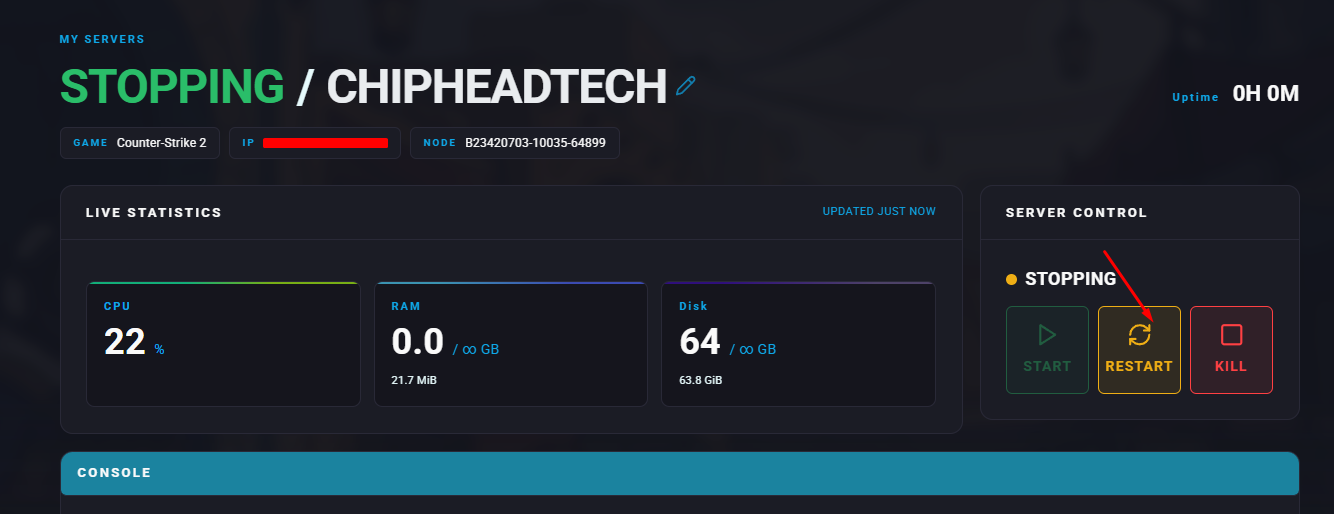
Stop your server.
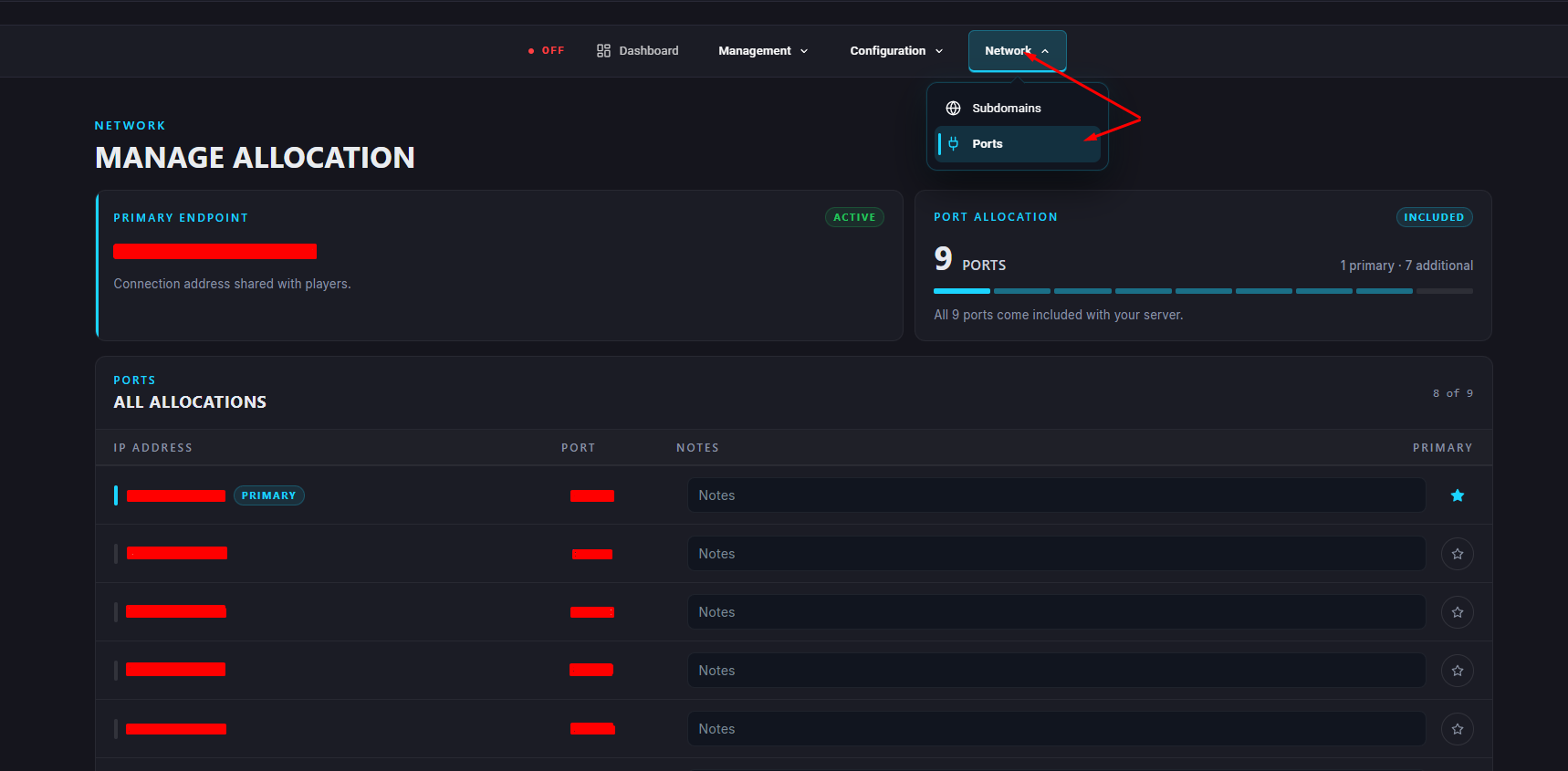
Go to “Network” and copy any of the extra ports we provide - we recommend making a note to remind yourself which one you selected
Go to “Startup”

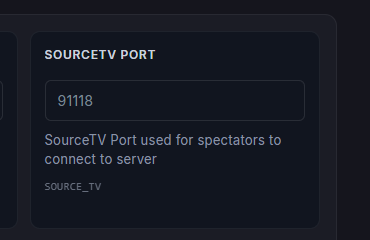
Find the SourceTV Port option and change it to your copied port

Start your server.
Once GOTV is enabled, spectators can connect and watch matches using the GOTV port.
Launch CS2.
Open the developer console by pressing the ~ (tilde) key.
Enter the following command:
connect IP:GOTVPort
You can find your selected GOTV port in the Network tab of your ChipHead Panel.
GOTV lets you manually record demos from your server console or via RCON, allowing you to start and stop recordings at any time with custom filenames.
To start recording:
tv_record <demo_name>
To stop recording:
tv_stoprecord
The demo file (<demo_name>.dem) will be saved to the /game/csgo directory on your server.
To view a recorded demo:
In your ChipHead Panel, go to the Files tab.
Download the .dem file from the /game/csgo folder.
On your computer, move the file to:
/Counter-Strike Global Offensive/game/csgo
Launch CS2 and open the developer console.
Enter the command:
playdemo <filename>
Replace <filename> with the name of your demo file.

