Control who can join your FiveM server by setting up a whitelist for trusted players only
If you want to restrict access to your FiveM server, enabling a whitelist gives you complete control over who can join. This feature is perfect for private servers, roleplay communities, or managed groups where you want to ensure only approved players can connect.
The steps below show how to enable and manage your whitelist through your ChipHead Panel using txAdmin.
Log in to your ChipHead Panel.
Launch txAdmin.
Navigate to Settings and open the Whitelist tab.
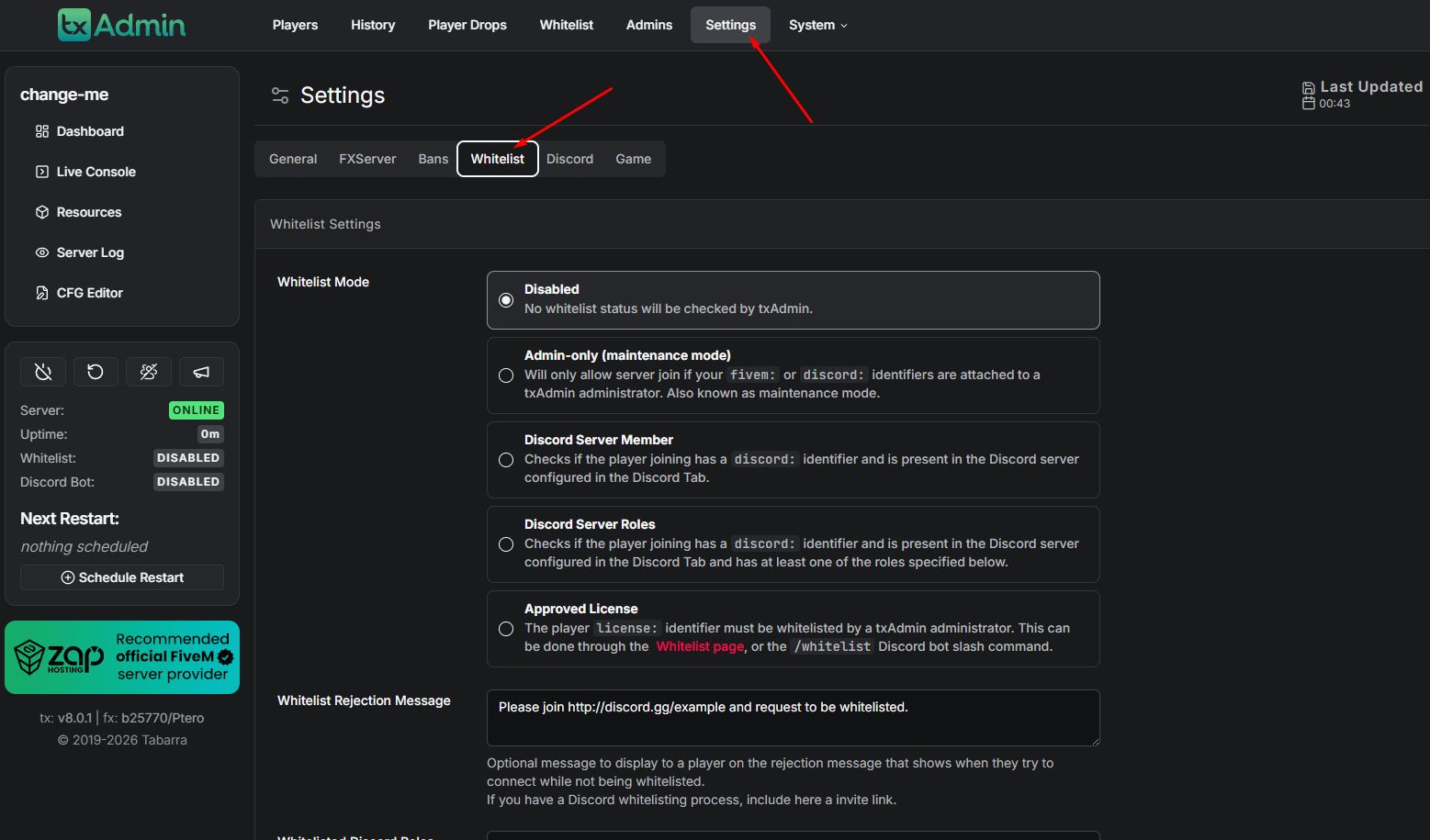
Choose your Whitelist Mode, set a Rejection Message for unapproved players, and click Save.
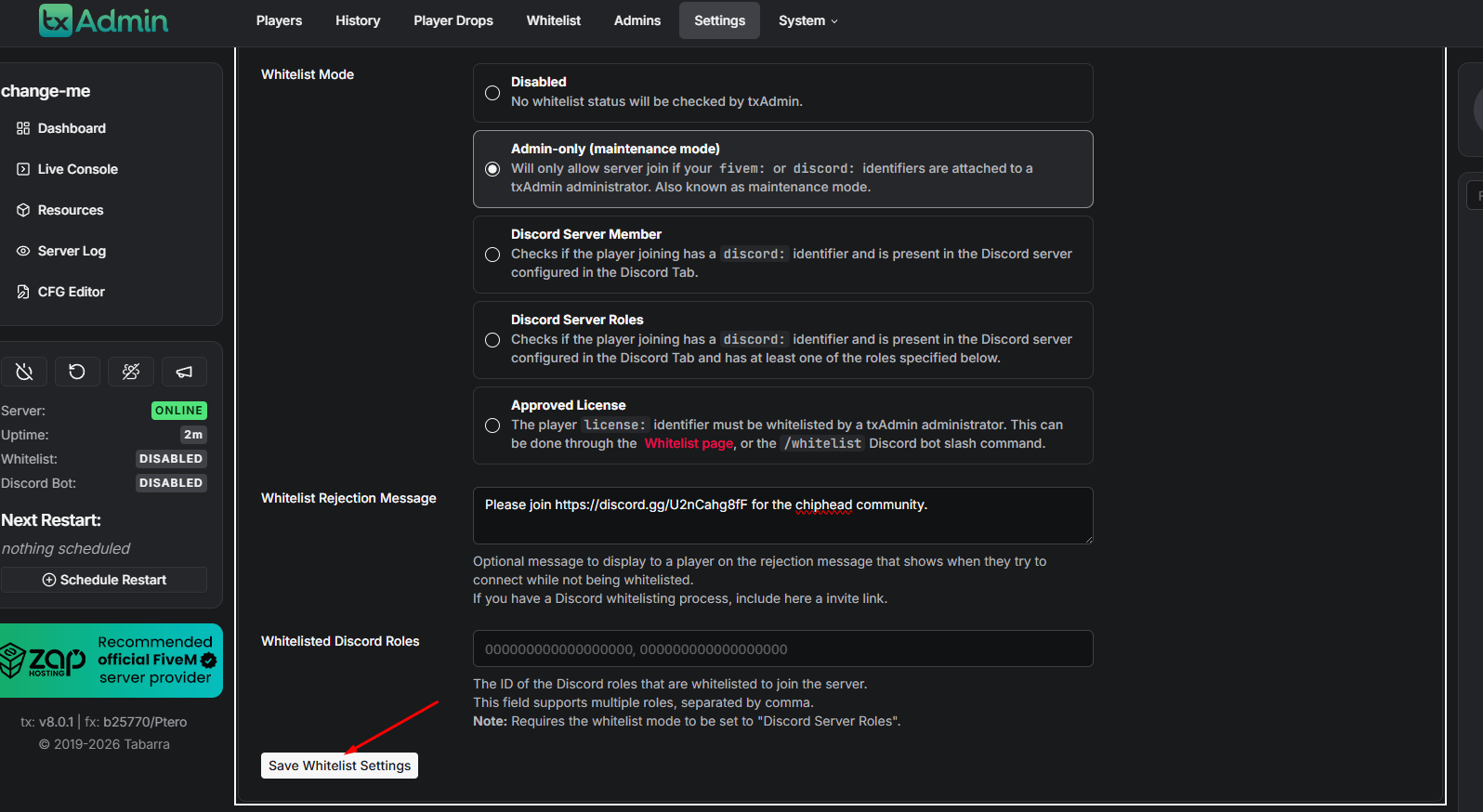
Restart your server to apply the whitelist settings.
Your whitelist is now active, restricting access to only approved players.
When whitelist mode is enabled, players attempting to join will automatically submit whitelist requests. Here’s how to review them:
Log in to your ChipHead Panel.
Launch txAdmin.
Go to the Whitelist tab.
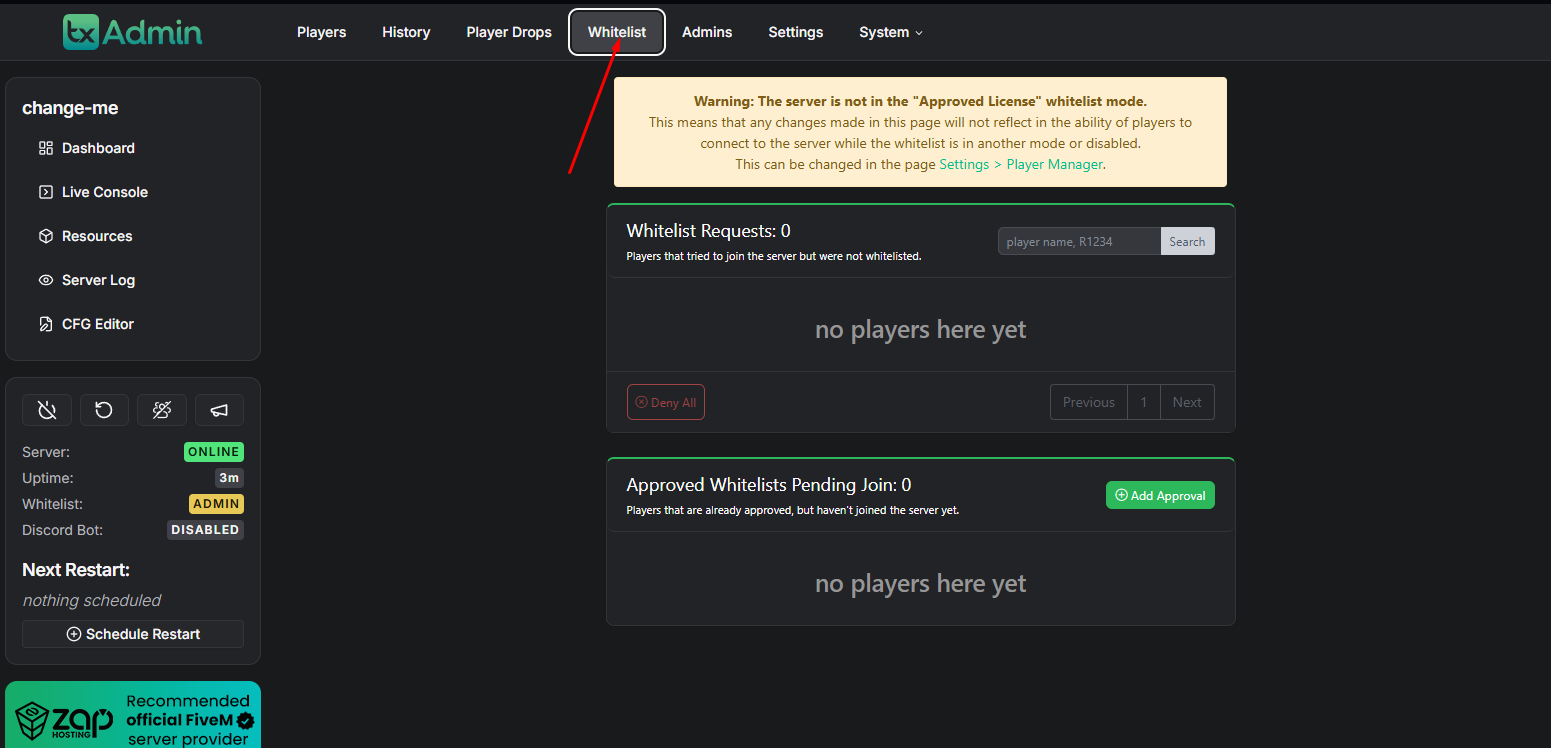
Under Whitelist Requests, review the pending applications.
Approve or deny requests as needed.
You can also manually add trusted players to your whitelist:
Log in to your ChipHead Panel.
Launch txAdmin.
Open the Whitelist tab.
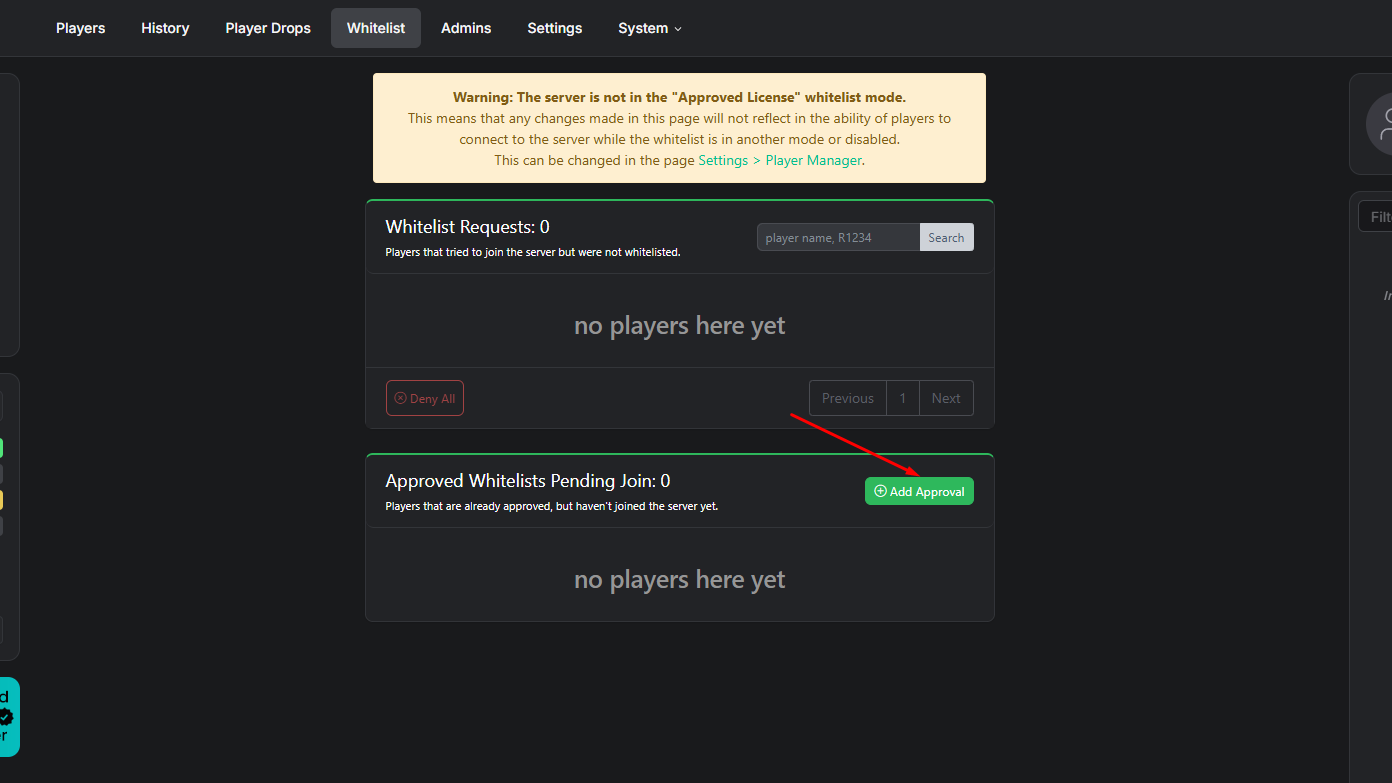
Under Approved Whitelist Pending Join, click Add Approval.
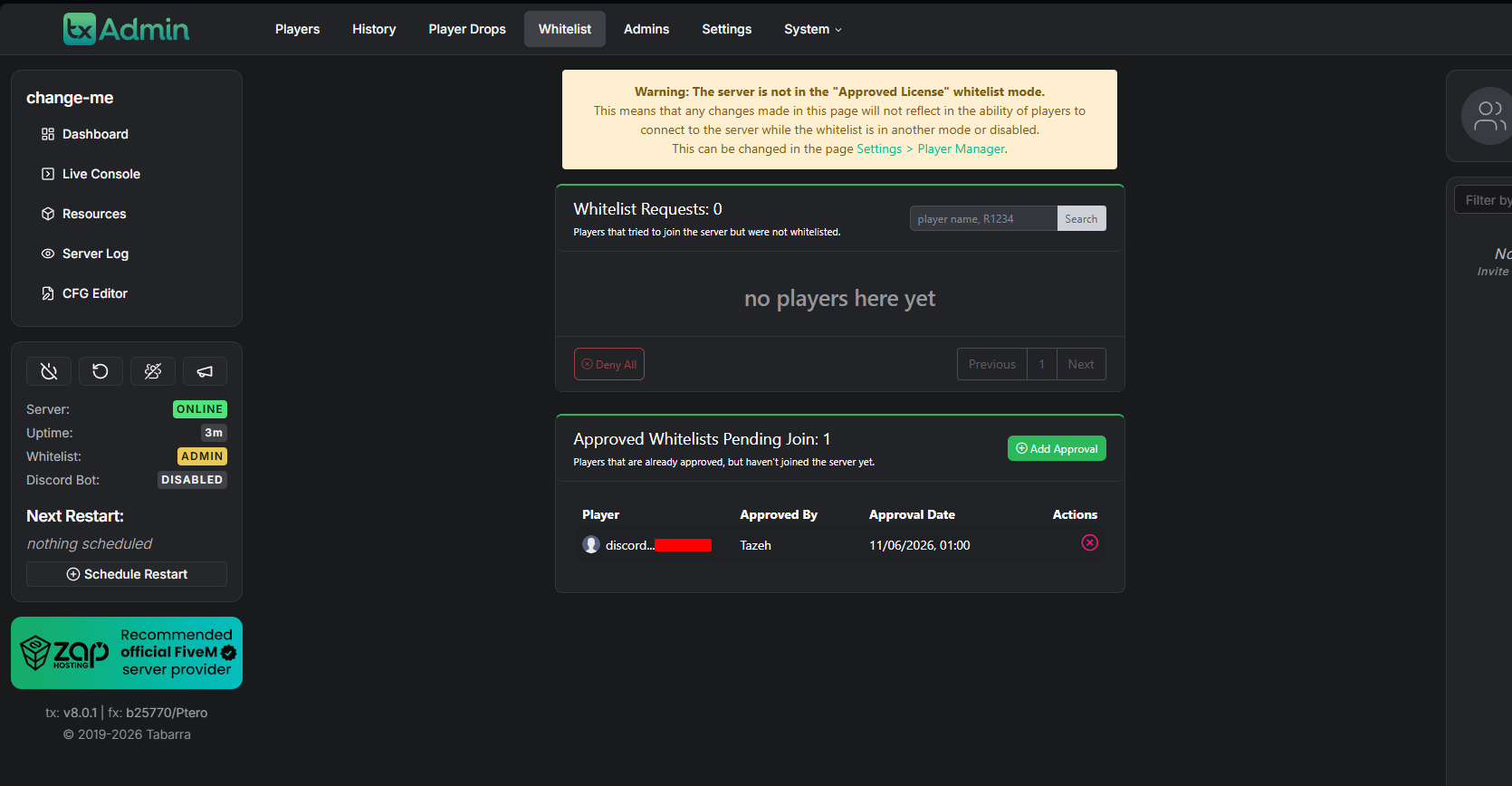
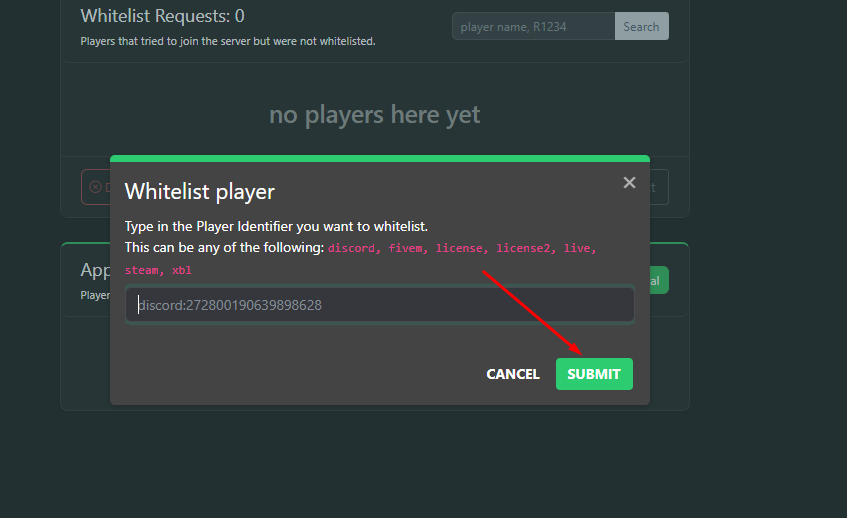
Enter the player’s identifier in the following format:
identifierType:identifierClick Submit.
If you need to revoke someone’s access, follow these steps:
Log in to your ChipHead Panel.
Launch txAdmin.
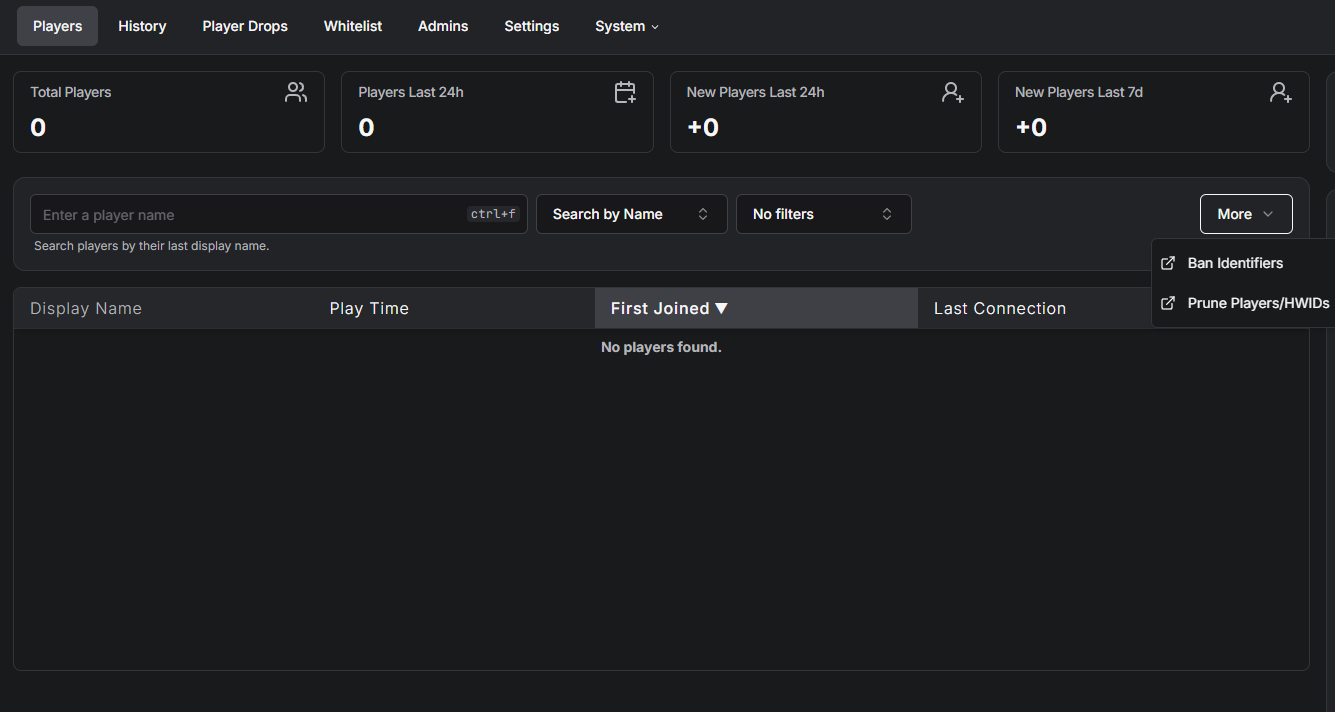
Navigate to the Players tab.
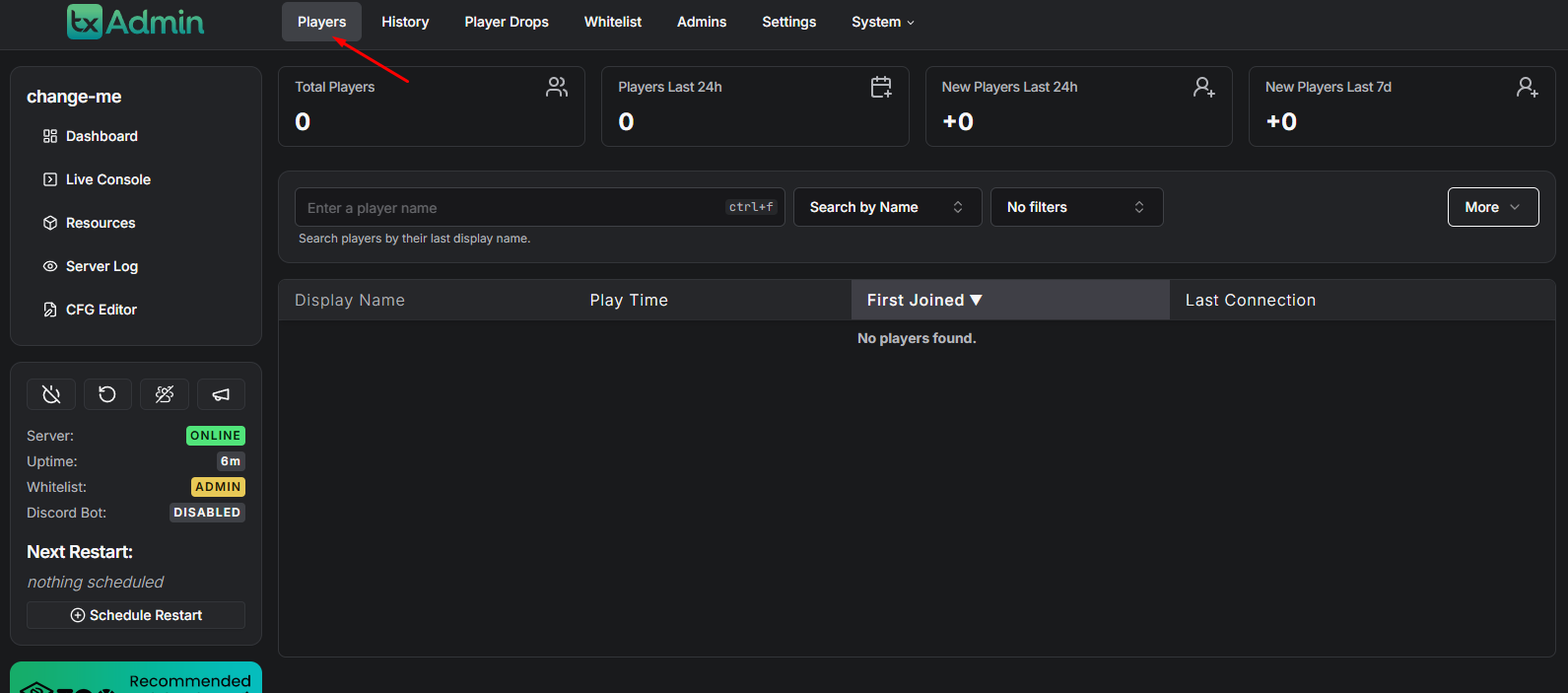
Select the player you wish to remove.
Click Remove to revoke whitelist access or revoke via Whitelist tab.