Summary
If you already have a Core Keeper world from singleplayer, you can easily upload it to your server to continue playing with friends in multiplayer.
Uploading a World to Your Server
You can upload your Core Keeper world directly into your server’s Worlds folder.
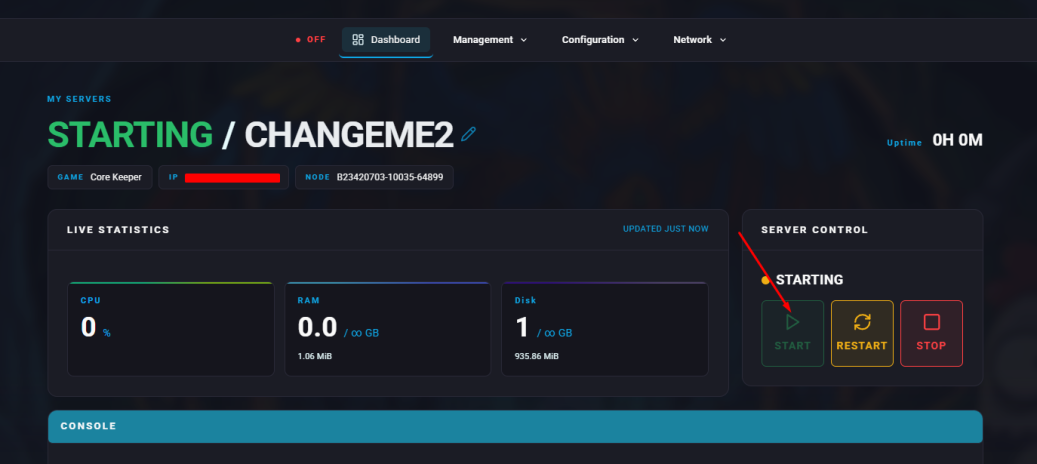
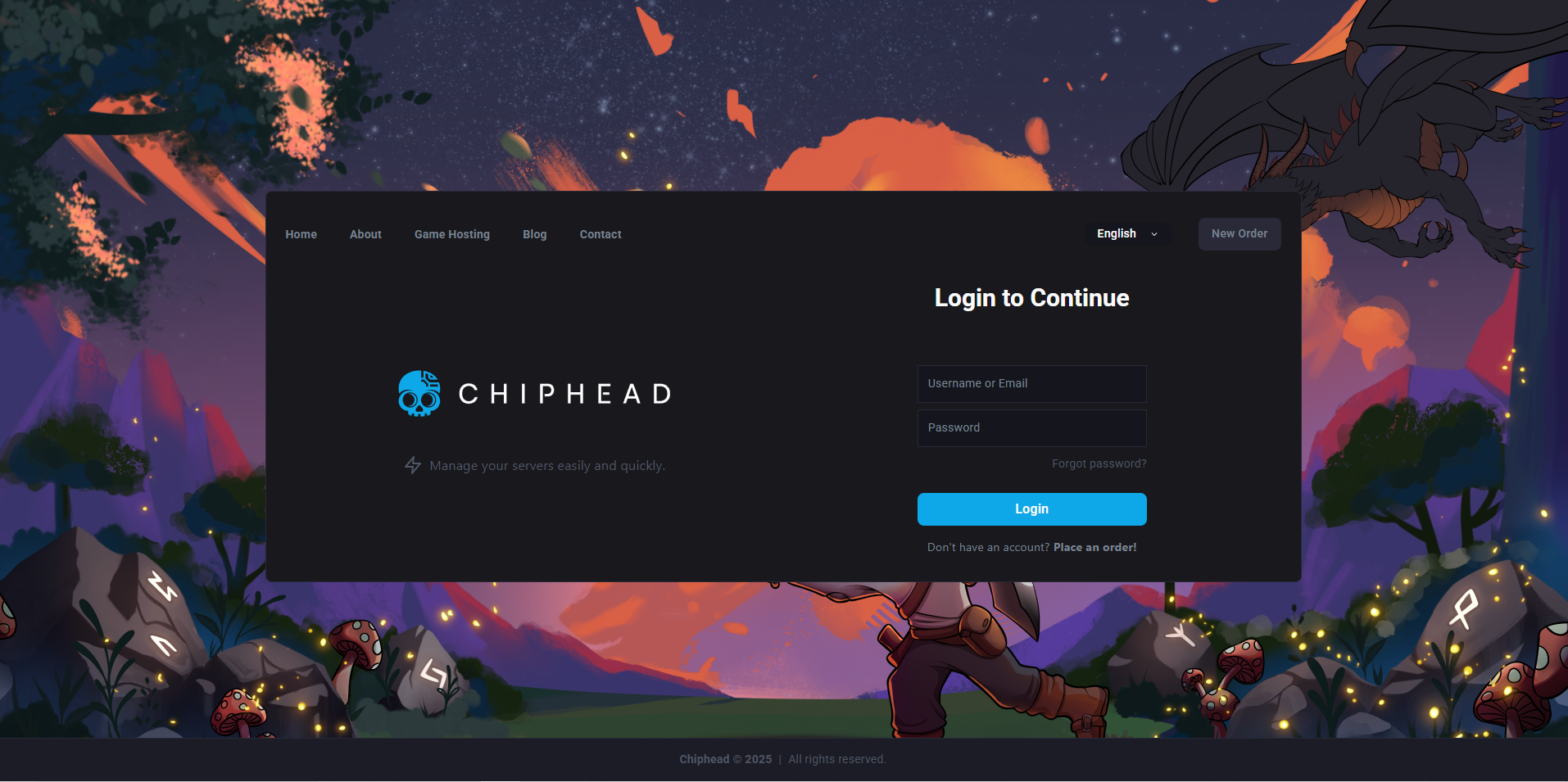
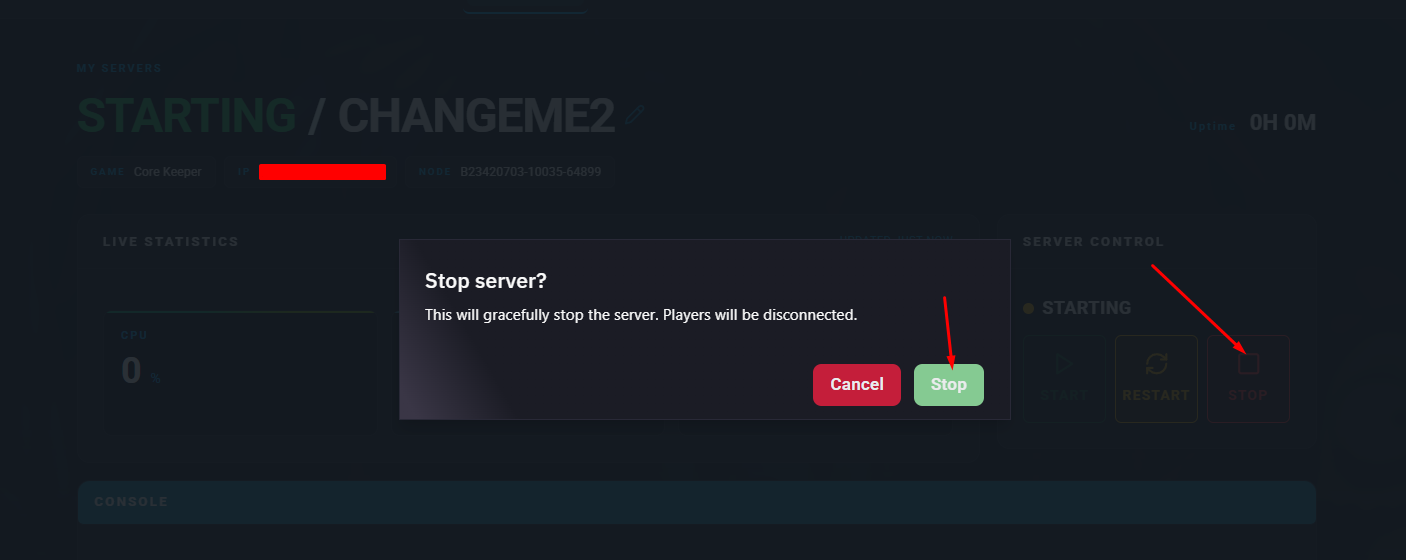
Log in to the ChipHead Panel and stop your server.
Go to Files.
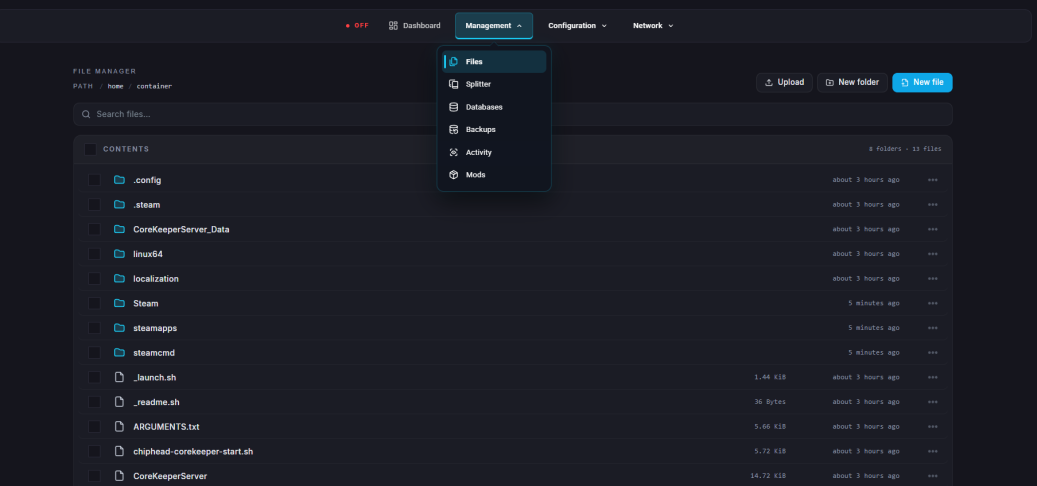
Open the Worlds folder via
/home/container/.config/unity3d/Pugstorm/Core Keeper/DedicatedServer/worldsOn your computer, navigate to the following path to find your local Core Keeper worlds:
C:\Users\{USERNAME}\AppData\LocalLow\Pugstorm\Core Keeper\Steam\{STEAM_ID}\worldsChoose the world you want to upload. You can identify each world by the number that appears before its name (for example, 2.world.gzip).
Upload your chosen world file into your server’s Worlds folder by dragging and dropping it.
Once uploaded, return to your main server files and open the corekeeper.properties file via Game Config > Server Properties and open the </>Raw file.
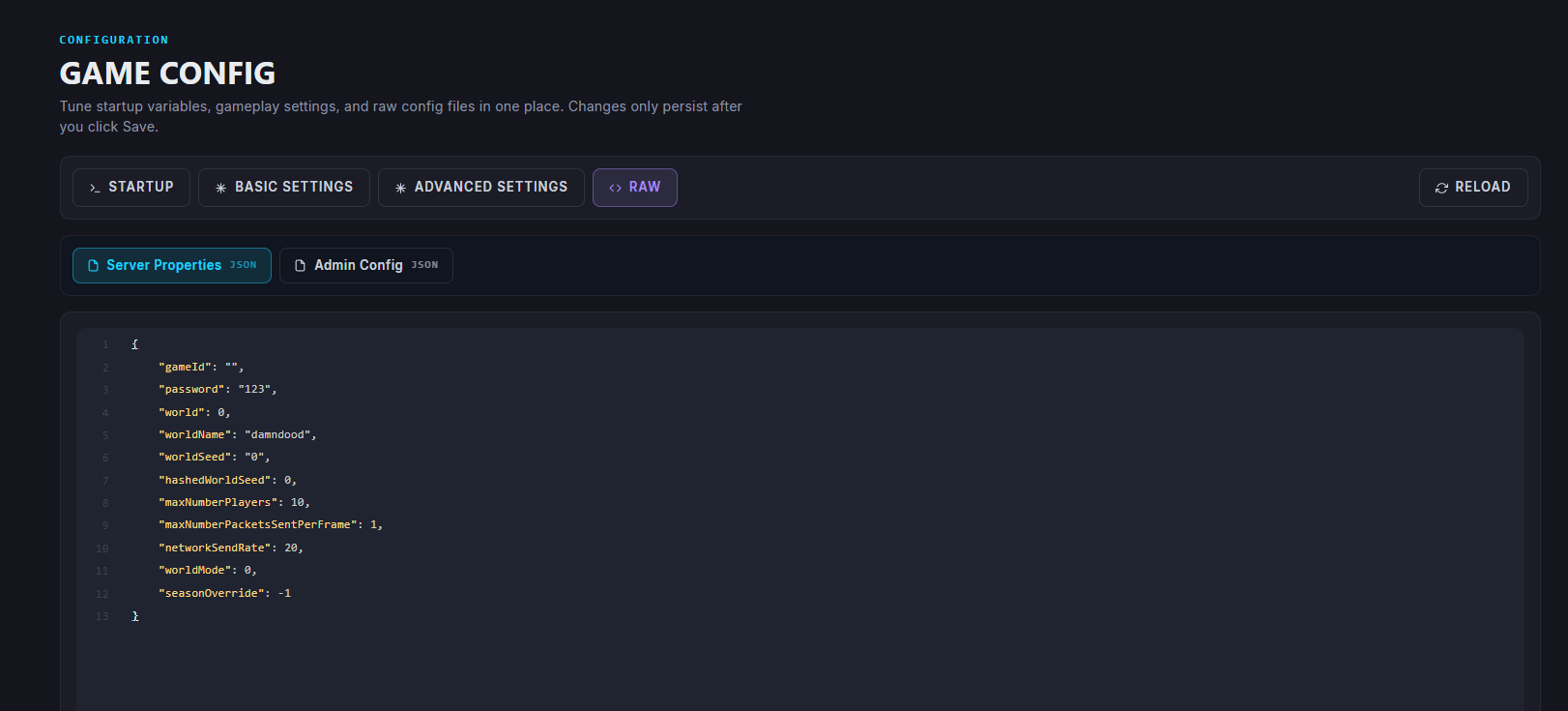
Find the world= field and set it to match the number of your uploaded world.
Example:world=2if you uploaded 2.world.gzip.
Save the file.

Start/restart your server.