Starting an AI traffic map on an Assetto Corsa server adds a realistic traffic system, making driving simulations more immersive. This feature allows players to experience city streets or highways with moving vehicles, perfect for role-playing, practicing overtakes, or simulating real-world driving. Running AI traffic enhances the depth and realism of Assetto Corsa, creating engaging scenarios for casual and professional drivers alike.
Assetto Corsa Modded is required. Learn how to set it up here.
Download the desired AI traffic map (these maps contain an ai folder).
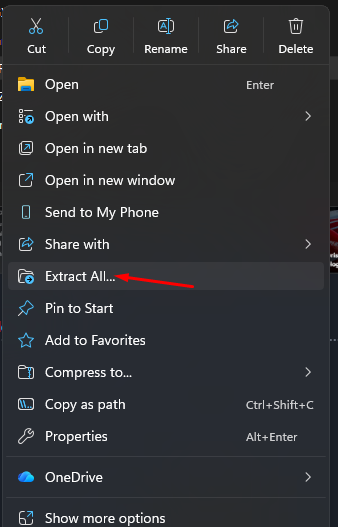
Extract the downloaded file.
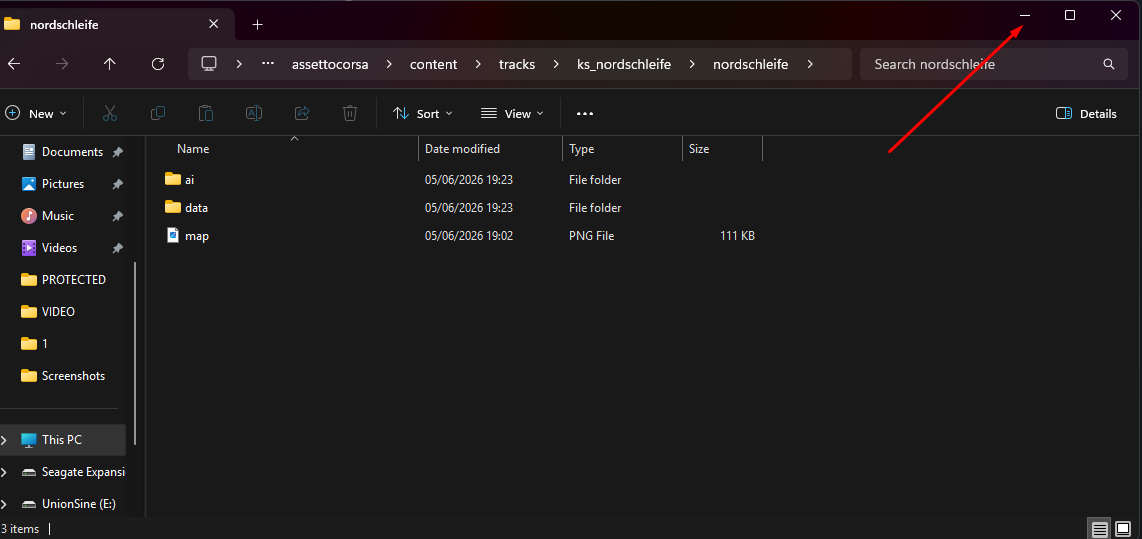
Minimize the folder for later use.
Log in to the ChipHead Panel.
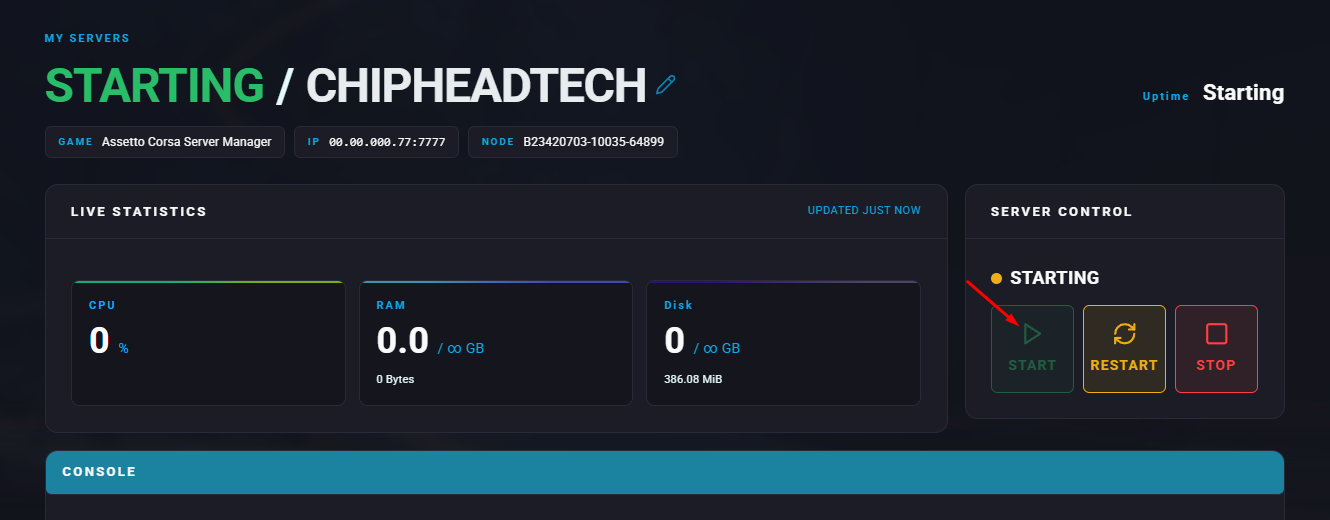
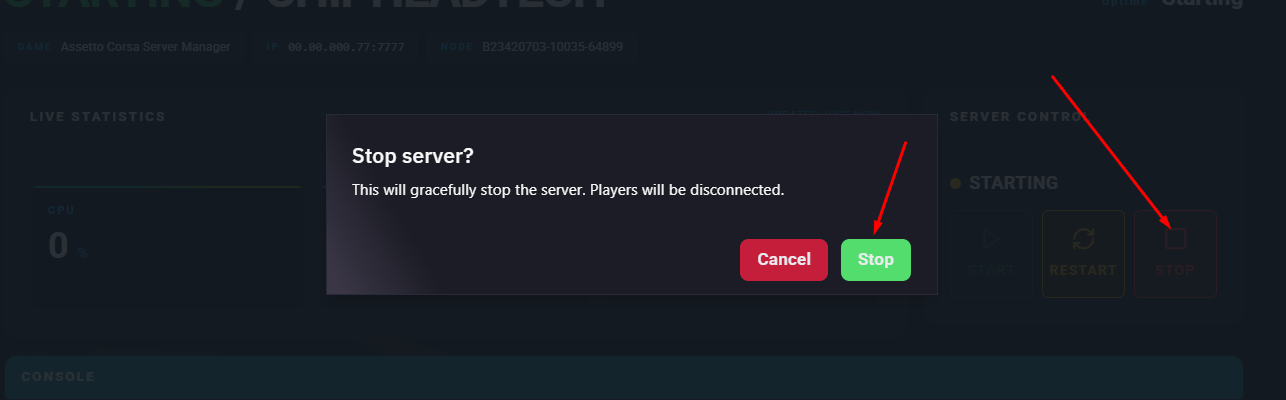
Stop the server.
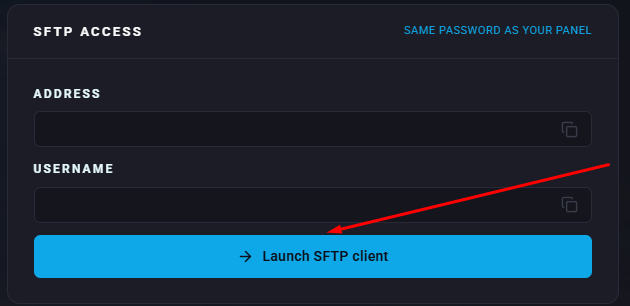
Scroll down to SFTP Access.
Launch SFTP
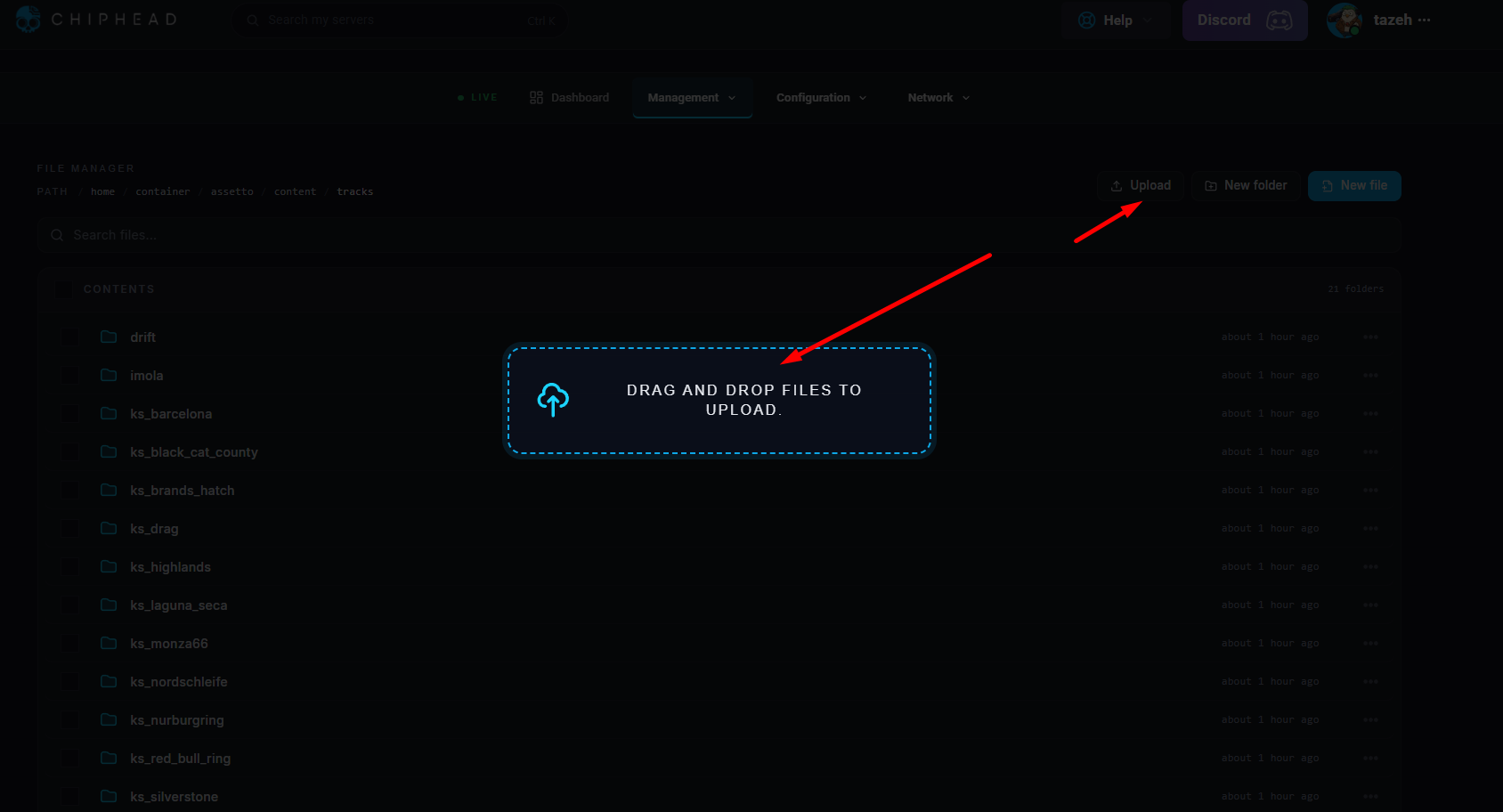
Navigate to the following directory:/content/tracks

Drag and drop the map folder from Step 3.
Open the local race map folder inside the map folder from Step 3.
Note: Some maps do not have a separate race map folder. In these cases, the map and race map folders are the same.
Minimize the folder for later use.
Return to the ChipHead Panel.
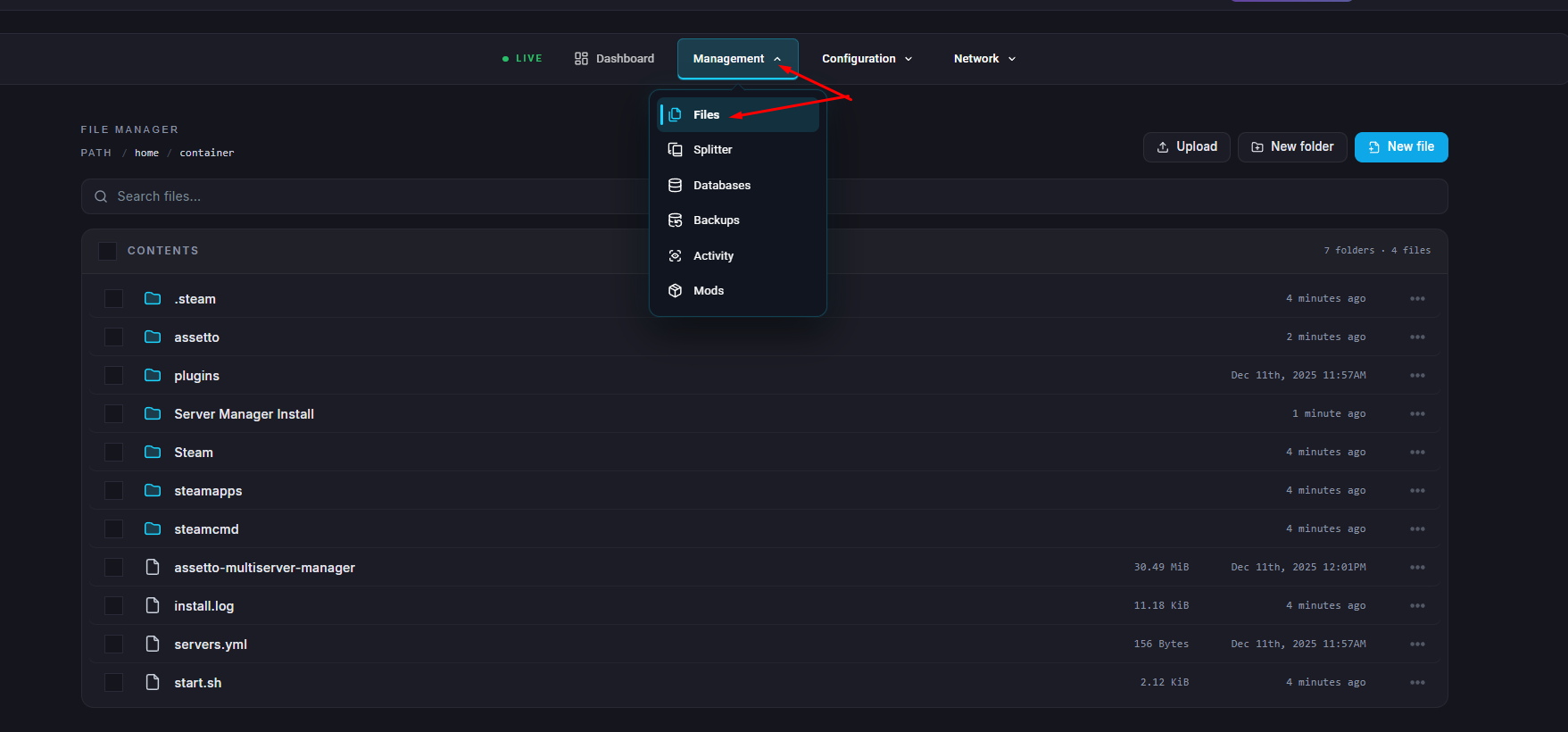
Go to the Files tab.
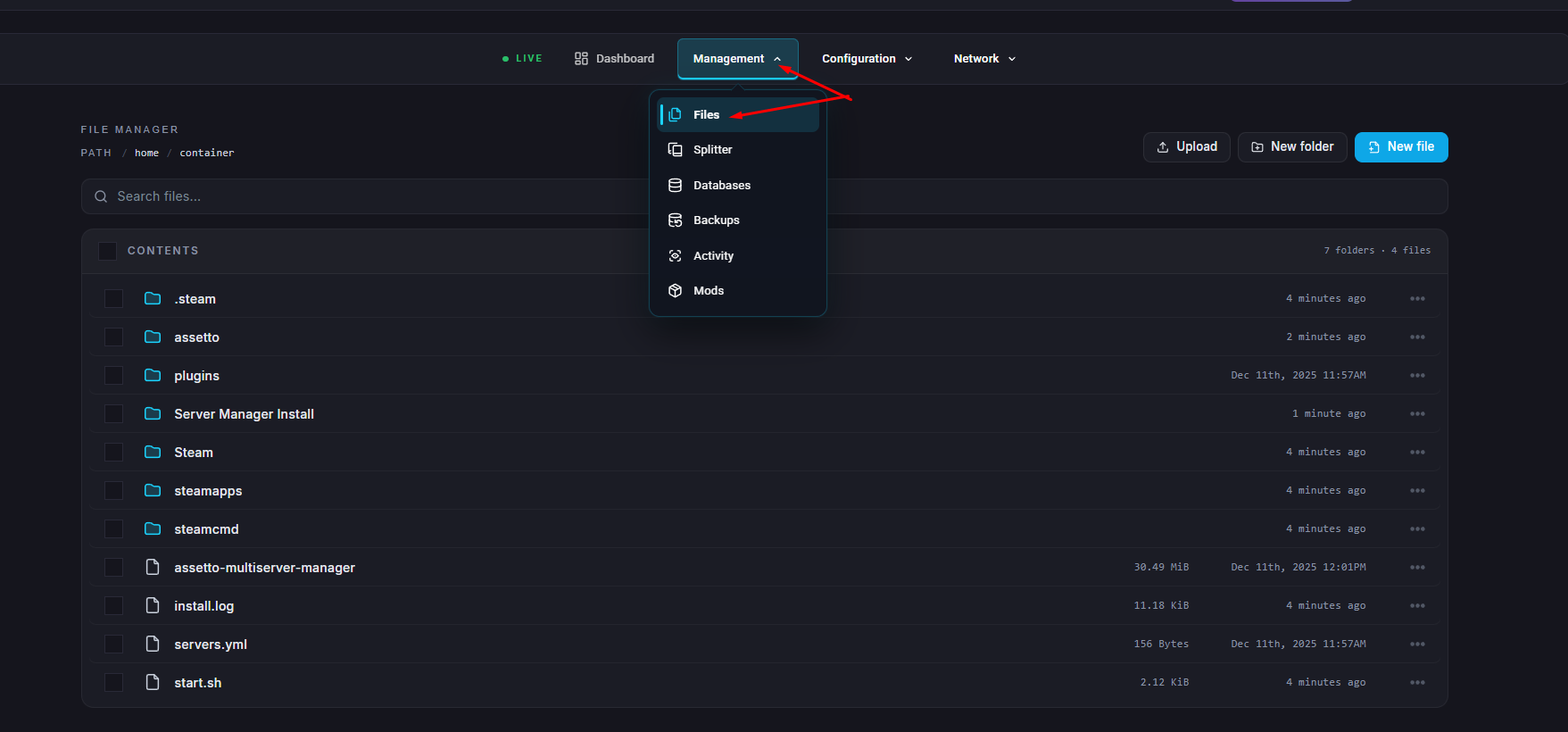
Navigate to the following path, matching the folder from Step 9:/home/container/content/tracks/MapFolder
Upload the ai folder from Step 11.
Note: Each race map has a specific AI folder. Replace it if ou switch race maps.
Return to the Files tab.
Navigate to /home/container/content/cars.
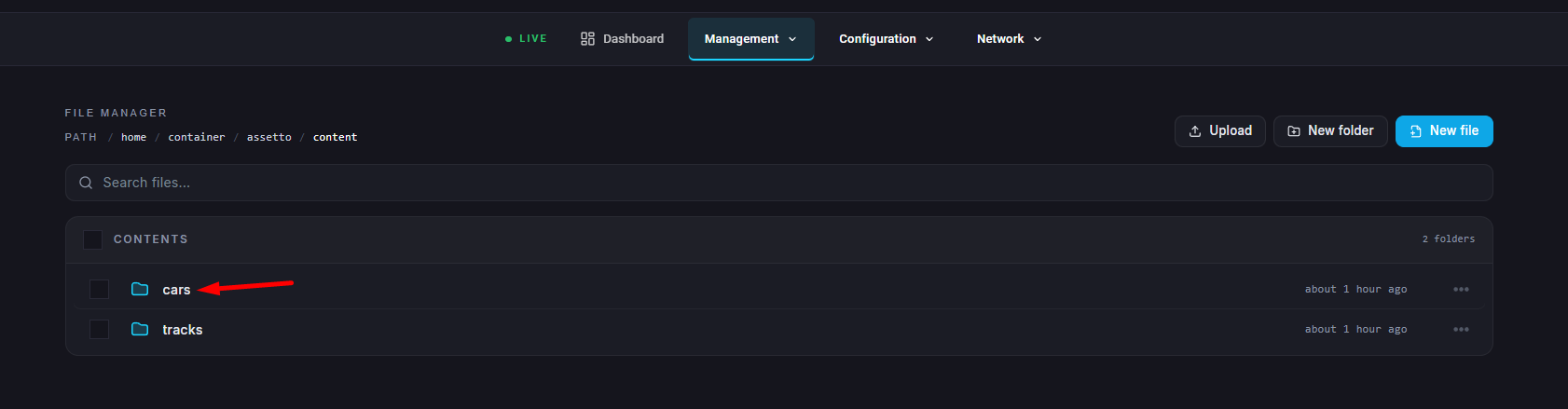
Take note of the car model names.
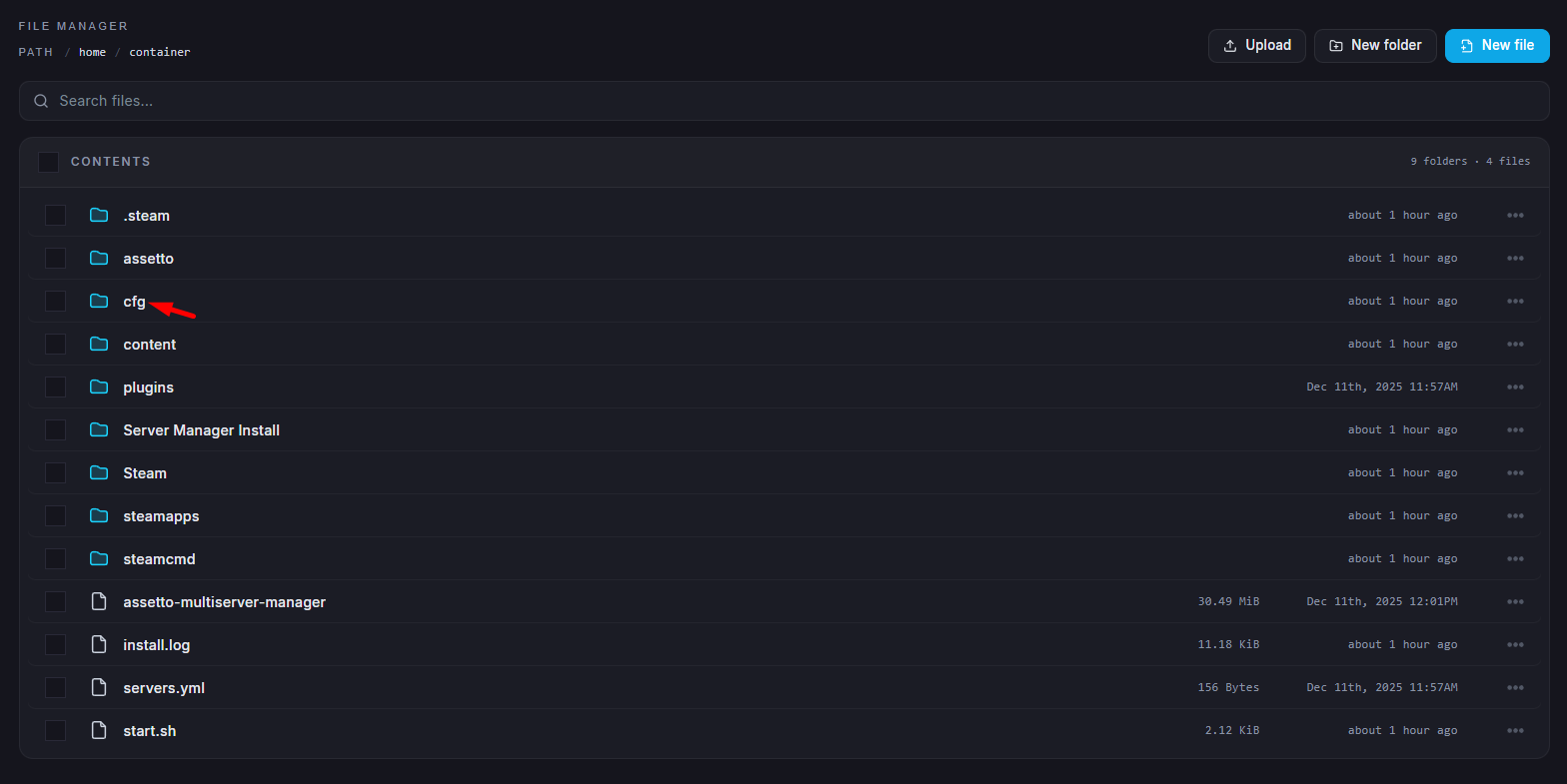
Open the cfg folder.
Open extra_cfg.yml.
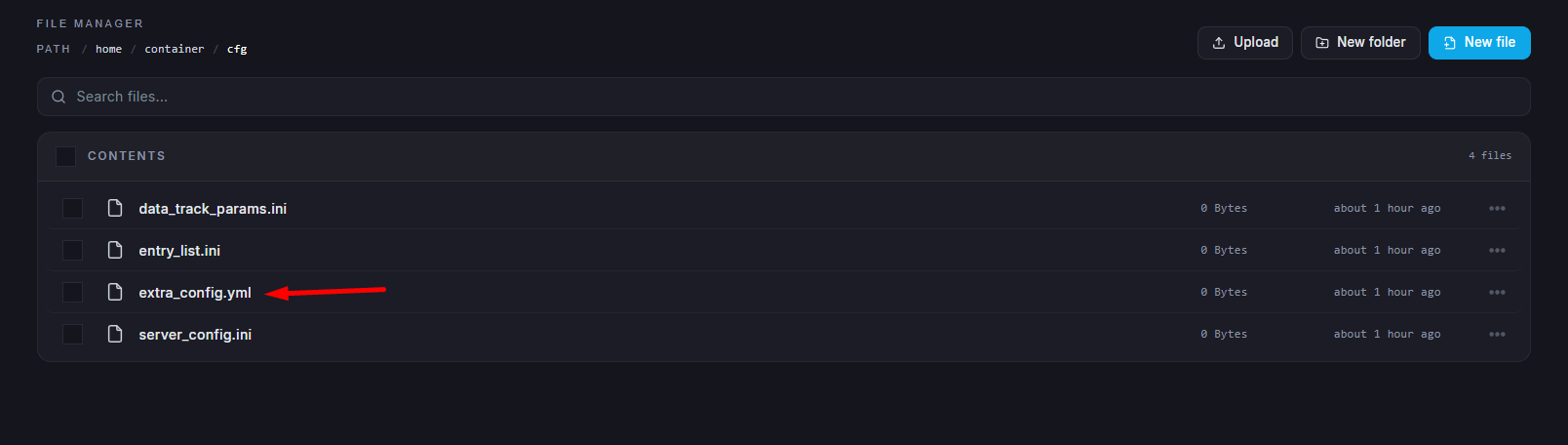
Set EnableAI: to true.

Under the AIParams: line, adjust the desired AI settings.
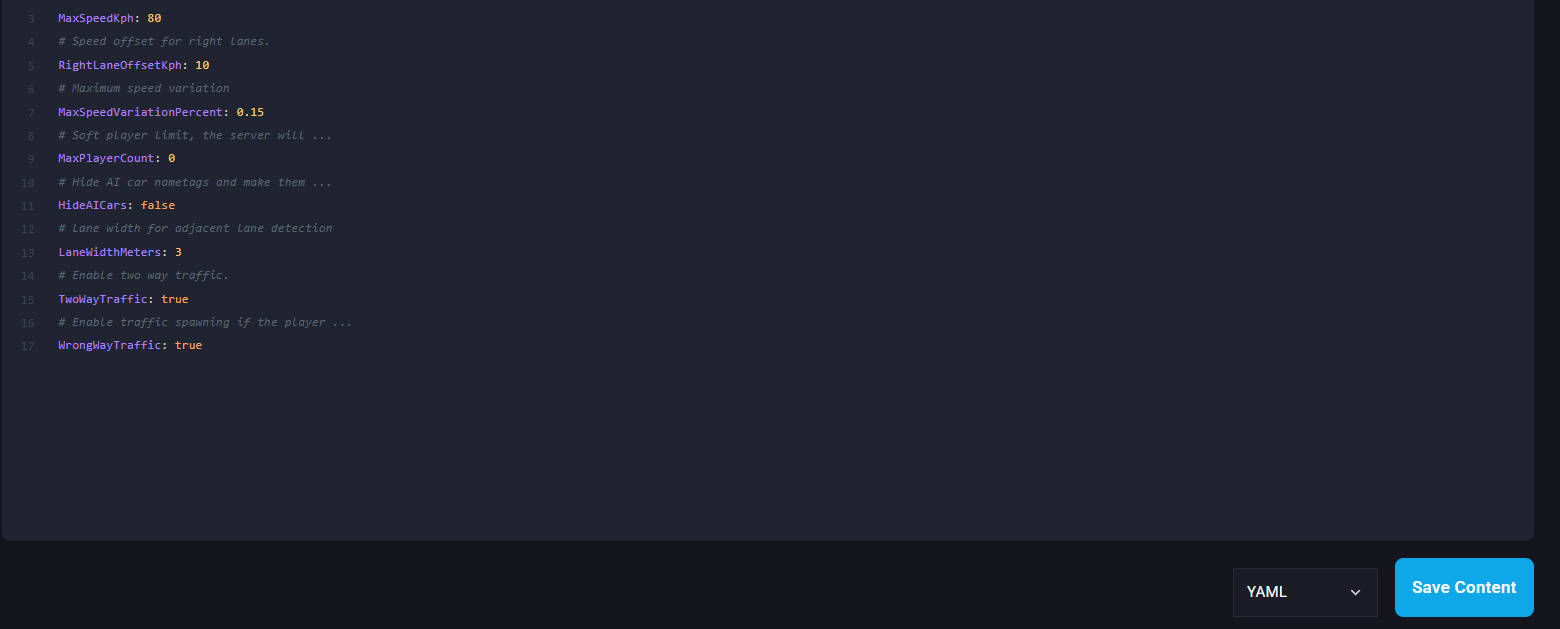
Click Save.

Still in the cfg folder, open entry_list.yml.
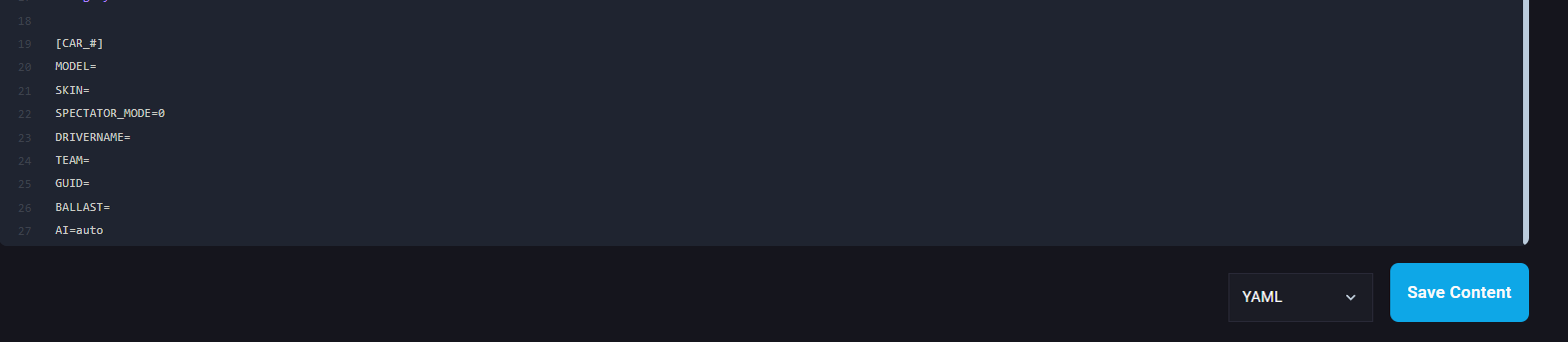
Enter the desired cars from Step 18, each separated by a new line:
[CAR_#]
MODEL=
SKIN=
SPECTATOR_MODE=0
DRIVERNAME=
TEAM=
GUID=
BALLAST=
AI=auto
Edit the AI= line for each car:
AI=fixed | The car will only be used by AI. |
AI=auto | AI will use this car model when players aren’t driving it. |
Click Save.
On the Config Files tab, select Server Settings.
Next to CARS=, list the car models from Step 26, separated by commas.

Next to TRACK=, enter the map folder name from Step 3.

Next to CONFIG_TRACK=, enter the race map folder name from Step 11. (Leave blank if none exists.)
Adjust any other desired settings. Note: some AI traffic maps only function in Practice sessions.
Click Save.
Start the server.