
Once your ChipHead game server is activated, you may want to customize it by adding or managing files. To do this, you’ll need to access your Server Directory.

Note: If you’d rather use an FTP client like FileZilla to manage your server files, check out our guide: Using FileZilla for SFTP File Management.
How to Access Your Server Directory
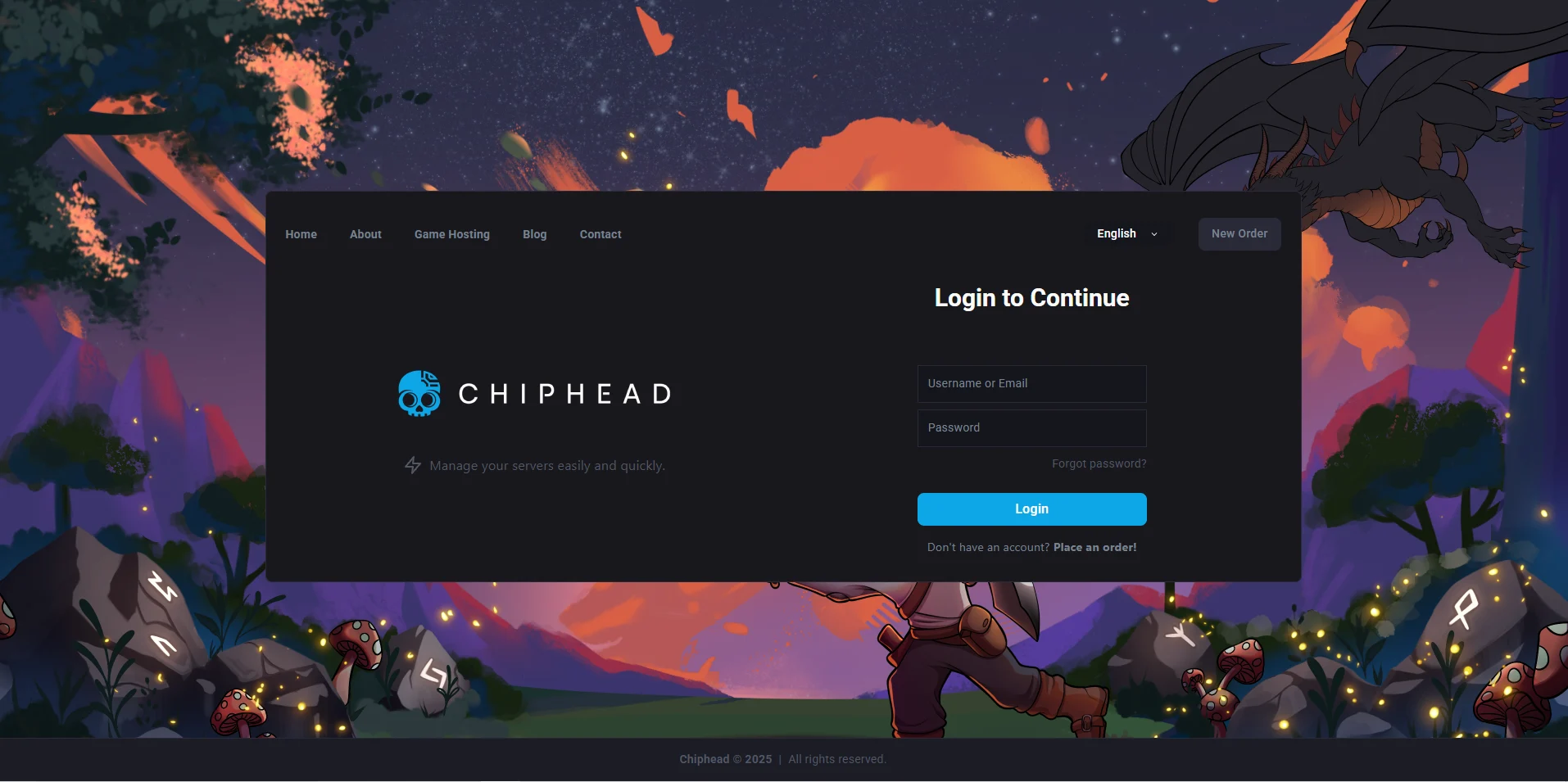
Log in to the ChipHead Panel.
Underneath “Management” in the main menu select “Files”

You’ll now be inside your server directory and able to view, upload, or edit files.
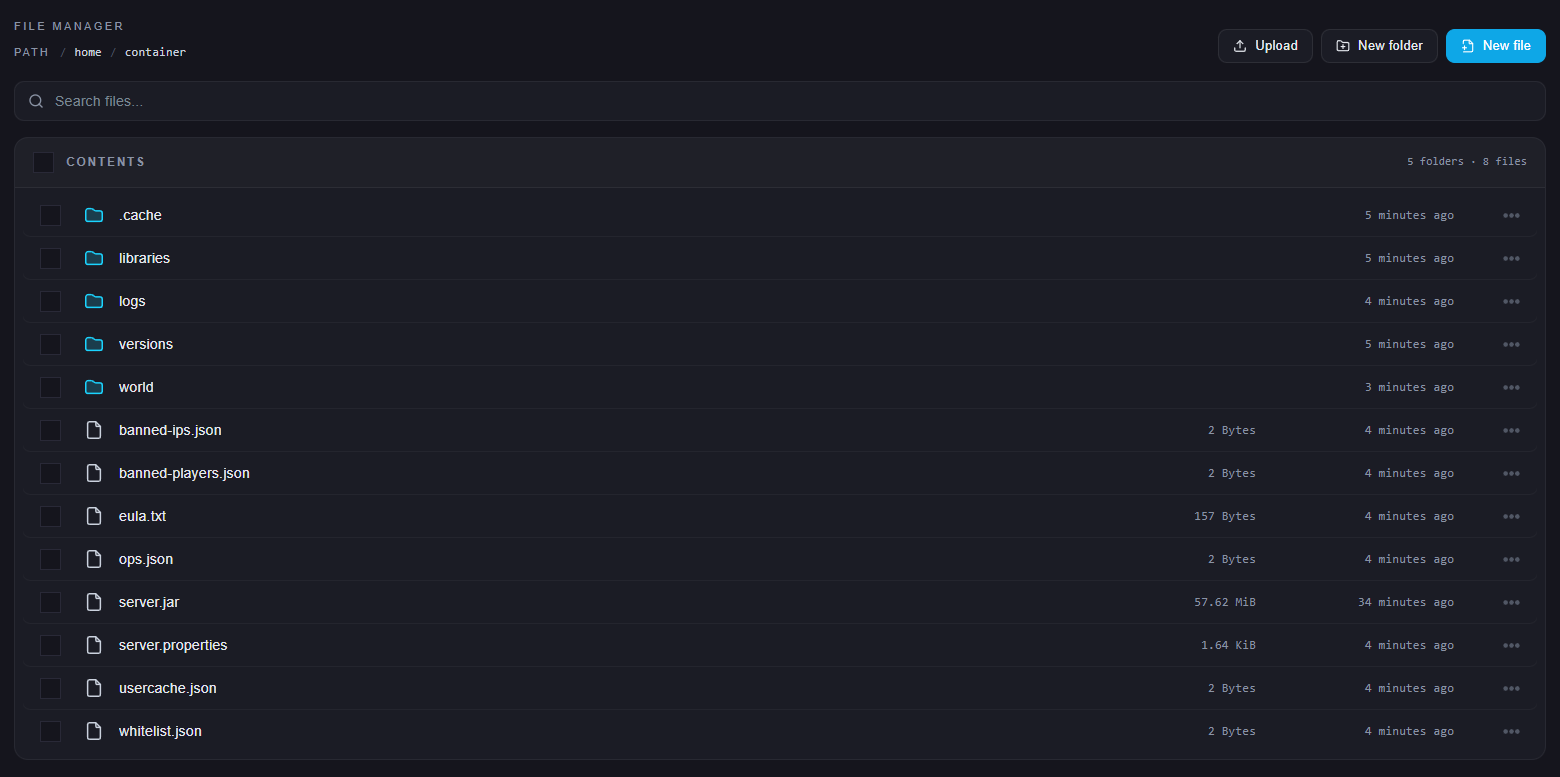

That’s it - you can now fully manage the contents of your server directory.